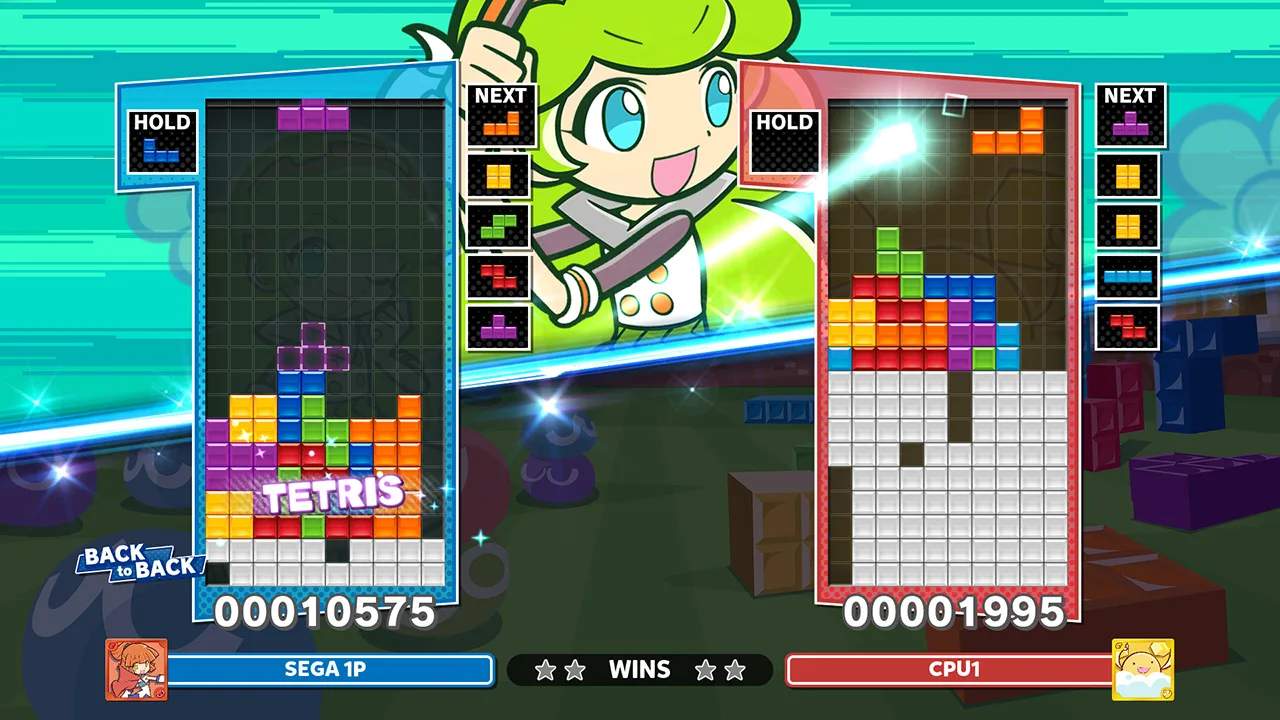
Game Settings & Options
Welcome, aspiring Puyo Puyo Tetris 2 master! Before you dive into the frantic block-dropping and Puyo-popping action, taking a moment to customize your game settings can significantly enhance your experience. This detailed guide will walk you through every option, helping you tailor the game to your playstyle and preferences.
Accessing the Settings Menu
From the game's Main Menu, navigate to the Options icon. This is typically represented by a gear or cogwheel symbol. Select it to enter the comprehensive settings menu.
General Settings
broad game preferences that affect your overall experience.
- Language: Adjust the game's display language. Options usually include English, Japanese, French, German, Spanish, Italian, and Korean.
- Voice Language: Separately from the display language, you can choose the language for character voiceovers during gameplay and story segments.
- Subtitle Display: Toggle subtitles on or off for spoken dialogue. Highly recommended for following the engaging story mode!
- Screen Brightness: Adjust the overall brightness of the game's visuals. Useful for different lighting conditions.
- Screen Shake: Decide whether you want visual screen shake effects during powerful attacks or combos. Some players find this distracting, while others enjoy the added impact.
- Controller Vibration: Enable or disable controller rumble feedback. This can add to the immersion but may be preferred off by some players.
Audio Settings
Fine-tune your sound experience with these options.
- Master Volume: Controls the overall volume of all in-game audio.
- BGM Volume: Adjusts the volume of the background music. If you have a favorite track you want to hear more clearly, or prefer less distraction, this is your setting.
- SE Volume: Controls the volume of sound effects (like Puyo pops, Tetrimino rotations, and character voices).
- Voice Volume: Specifically adjusts the volume of character dialogue and exclamations.
- Music Player: This fantastic feature allows you to customize the in-game soundtrack!
- Accessing the Music Player: Select "Music Player" from the Audio Settings.
- Customizing Playlists: You can choose which tracks play during specific game modes or even create custom playlists. Experiment with different Puyo Puyo and Tetris themes to find your perfect battle anthems.
- Unlocking Music: Many tracks are unlocked by progressing through the Story Mode or by purchasing them in the in-game Shop using Credits earned from playing.
Gameplay Settings (Puyo Puyo)
These settings are specific to the Puyo Puyo side of the game.
- Puyo Type: Choose your preferred Puyo design. Options often include "Classic," "Modern," and other unlockable styles. This is purely cosmetic.
- Hard Drop: Toggle whether Puyo can be "hard dropped" (instantly fall to the bottom) by pressing the Up directional input. Most experienced players keep this enabled for speed.
- Next Puyo Display: Decide how many "Next Puyo" pieces are shown. Options usually include 1, 2, or 3. Seeing more upcoming Puyo can help with planning longer chains.
- Rotation Style:
- Normal: Standard Puyo rotation.
- Reverse: Rotates Puyo in the opposite direction.
Gameplay Settings (Tetris)
These settings are specific to the Tetris side of the game.
- Tetrimino Type: Choose your preferred Tetrimino design. Similar to Puyo Type, this is cosmetic.
- Hard Drop: Toggle whether Tetriminos can be "hard dropped" (instantly fall to the bottom) by pressing the Up directional input. Essential for competitive Tetris play.
- Soft Drop Speed: Adjust how quickly Tetriminos fall when "soft dropped" (holding down the Down directional input). Find a speed that feels comfortable for precise placement.
- Ghost Piece: Enable or disable the transparent "ghost" outline showing where your current Tetrimino will land. Highly recommended for accurate placement.
- Next Tetrimino Display: Decide how many "Next Tetrimino" pieces are shown. Options usually include 1, 2, 3, or even 5. Seeing more upcoming pieces is crucial for advanced strategies like T-Spins and complex builds.
- Initial Rotation:
- SRS (Super Rotation System): The standard modern Tetris rotation system, allowing for wall kicks and floor kicks. This is the competitive standard.
- Classic: A simpler rotation system without advanced kick mechanics.
- Hold Queue: Enable or disable the "Hold" function, which allows you to store one Tetrimino for later use. This is a fundamental Tetris mechanic and should almost always be enabled.
Controller Settings
Customize your button mapping for both Puyo Puyo and Tetris.
- Puyo Puyo Controls:
- Rotate Left/Right: Assign buttons for rotating Puyo.
- Move Left/Right: Assign buttons for moving Puyo horizontally.
- Soft Drop: Assign a button for a slow, controlled drop.
- Hard Drop: Assign a button for an instant drop.
- Tetris Controls:
- Rotate Left/Right: Assign buttons for rotating Tetriminos.
- Move Left/Right: Assign buttons for moving Tetriminos horizontally.
- Soft Drop: Assign a button for a slow, controlled drop.
- Hard Drop: Assign a button for an instant drop.
- Hold: Assign a button to swap the current Tetrimino with the one in the Hold queue.
- Reset to Default: If you've made a mess of your controls, this option will revert them to the game's original settings.
By carefully adjusting these settings, you can create a personalized Puyo Puyo Tetris 2 experience that perfectly suits your playstyle, whether you're a casual player or aiming for competitive dominance!