
The UI in Resident Evil: Revelations provides crucial information at a glance. Familiarizing yourself with its elements will help you make informed decisions during intense encounters:
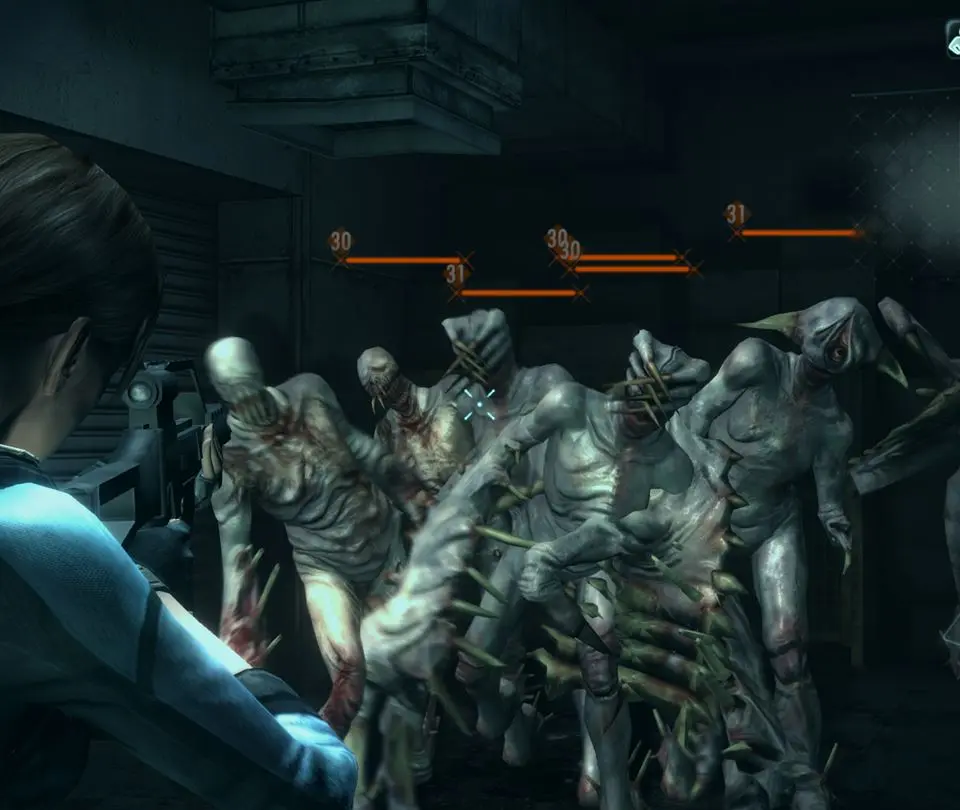
- Health Bar: Located in the bottom left corner, this bar indicates your current health. It changes color from green (healthy) to yellow (caution) to red (danger). If it depletes, you're dead.
- Ammo Count: Next to your weapon icon, this shows the remaining ammunition in your current clip and your total reserve ammo for that weapon.
- Weapon Icon: Displays the currently equipped weapon.
- Genesis Scanner Gauge: In the bottom right, this gauge fills as you scan enemies and the environment with the Genesis. Once full, you can receive a healing item.
- Map: Accessible via the menu, the map shows your current location, objectives, and previously visited areas. Pay attention to red areas, which indicate locked doors or inaccessible paths.
- Inventory Screen: This is where you manage your weapons, items, and custom parts. You can combine herbs, equip custom parts, and switch weapons here.
Keep an eye on your health and ammo, as running out of either can quickly lead to a game over. The Genesis scanner is a vital tool for resource management, so use it frequently.