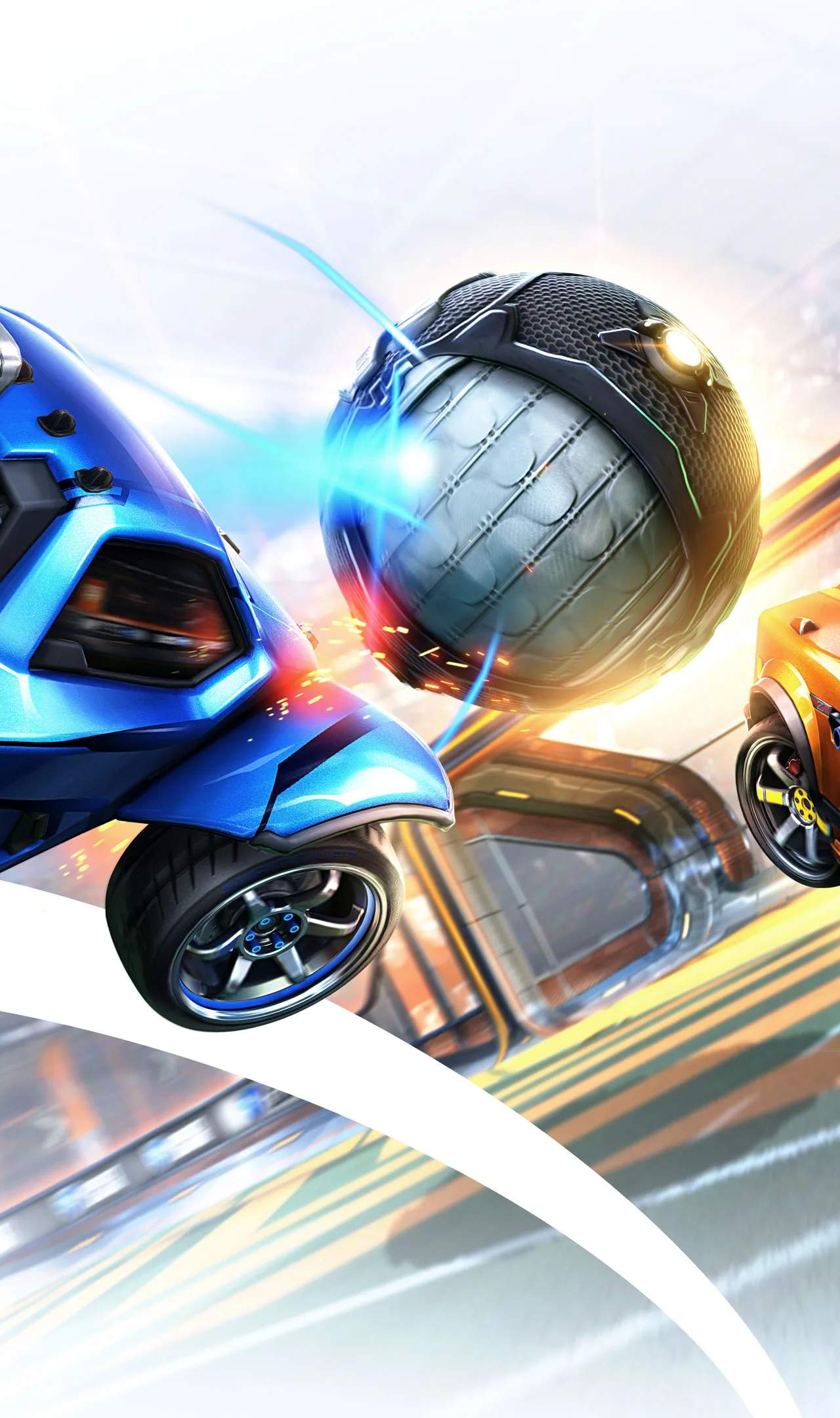
Getting started in Rocket League requires understanding the fundamental controls that govern your car's movement and interaction with the ball. the basic controls for both controller and keyboard/mouse setups, along with keybindings that are essential for navigating the arena and executing core gameplay mechanics.
Controller Controls (Default Layout - Xbox Controller Example)
Most players use a controller for Rocket League due to the analog input for steering and boosting. The default layout is generally well-balanced, but customization is highly recommended.
| Action | Button | Description |
|---|---|---|
| Accelerate/Boost | RT / R2 | Used for forward movement and boosting. |
| Brake/Reverse | LT / L2 | Used for braking and moving backward. |
| Jump | A / X | Press once for a jump, twice for a flip/dodge. |
| Powerslide | B / Circle | Hold while turning to drift and maintain momentum. |
| Ball Cam Toggle | Y / Triangle | Switches between Ball Cam and Car Cam. |
| Rear View | Left Stick Click | Toggles a rear view of your car. |
| Look Around (Right Stick) | Right Stick | Allows you to look around the arena while driving. |
| Scoreboard | View Button / Select Button | Displays the current score and time. |
| Quick Chat | D-Pad Up/Down/Left/Right | Opens quick chat menus for communication. |
Keyboard and Mouse Controls (Default Layout)
While less common for competitive play, keyboard and mouse is a viable option. The default bindings are:
| Action | Key | Description |
|---|---|---|
| Accelerate | W | Forward movement. |
| Brake/Reverse | S | Braking and backward movement. |
| Left Turn | A | Steering left. |
| Right Turn | D | Steering right. |
| Jump | Spacebar | Single press for jump, double press for flip. |
| Boost | Shift | Used for speed and aerials. |
| Powerslide | Ctrl | Hold while turning to drift. |
| Ball Cam Toggle | Q | Switches between Ball Cam and Car Cam. |
| Rear View | C | Toggles rear view. |
| Scoreboard | Tab | Displays score and time. |
| Quick Chat | T | Opens quick chat menu. |
Keybindings for Optimization
Many players find it beneficial to rebind certain keys/buttons for more efficient gameplay. Common rebindings include:
- Binding Air Roll and Powerslide to the same button: This allows for easier aerial control and recovery. Many players use L1/LB or a similar bumper.
- Binding Boost to a bumper: Moving boost to a bumper (e.g., R1/RB) allows you to boost and jump simultaneously without taking your thumb off the analog stick.
- Binding Jump to a bumper: Similar to boost, this can aid in aerial maneuvers.
You can customize these bindings in the 'Options' menu under 'Controls.' Experiment to find a layout that feels most comfortable and allows you to perform actions fluidly.
Understanding Camera Controls
While not strictly movement controls, camera controls are vital. The ability to quickly switch between Ball Cam and Car Cam (usually 'Y'/'Triangle' or 'Q') is fundamental. The right analog stick (or mouse movement) allows you to look around the arena, which is crucial for situational awareness.
Mastering these basic controls is the first step towards becoming a proficient Rocket League player. Don't hesitate to experiment with different keybindings and settings to find what works best for you.