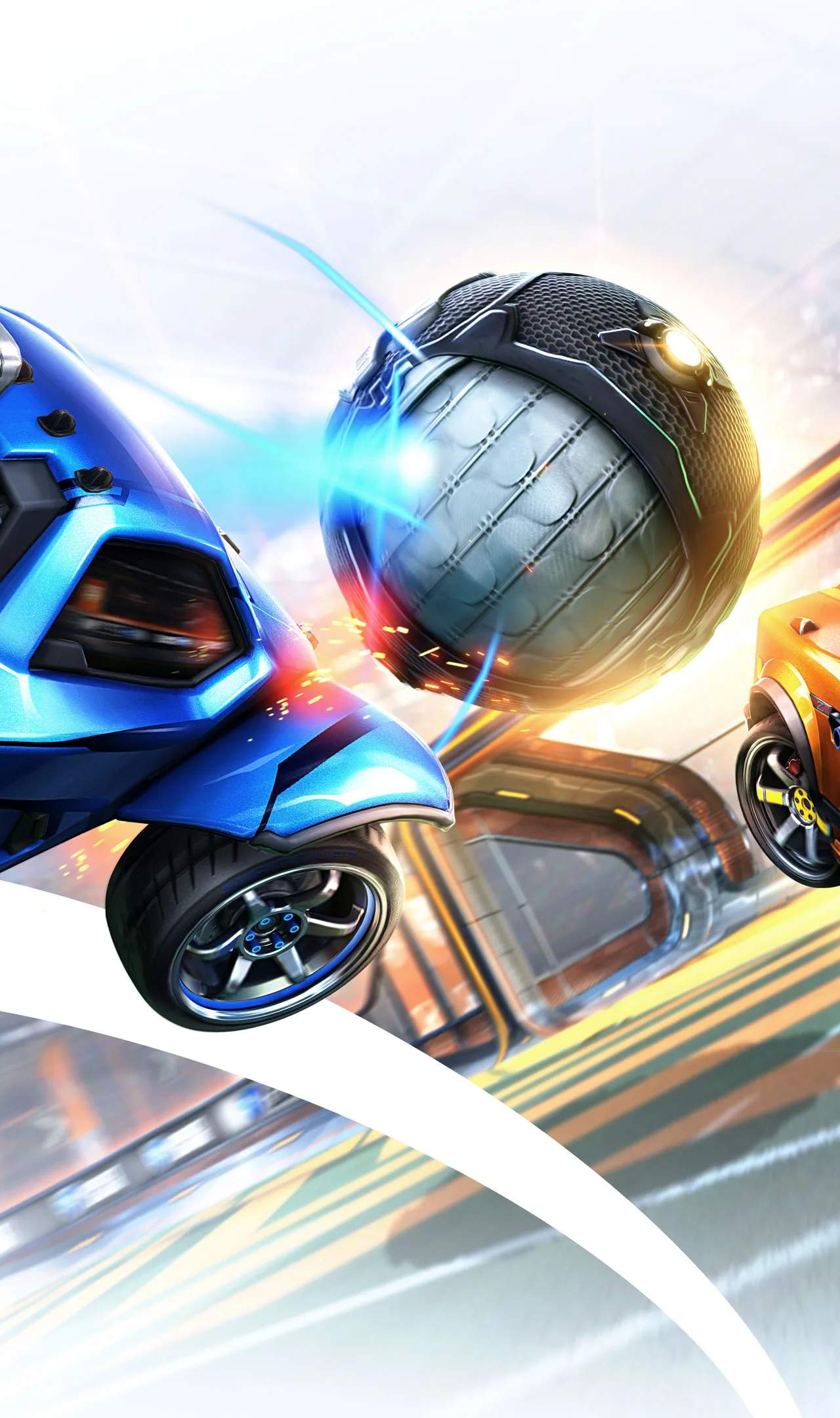
Optimizing Your Visual Experience: Video Settings and Performance
In the fast-paced world of Rocket League, smooth gameplay and high frame rates are crucial for competitive success. Your video settings play a sificant role in achieving this. By tweaking various graphical options, you can not only enhance your visual clarity but also sificantly improve your game's performance, leading to a more responsive and enjoyable experience. This guide will walk you through optimizing your video settings.
The goal of video settings optimization is to find a balance between visual fidelity and performance. While some players might prefer the most visually stunning experience, competitive players often prioritize frame rates and reduced input lag. Understanding how each setting affects your game will allow you to make informed decisions tailored to your PC's capabilities and your personal preferences.
Key Video Settings and Their Impact
Here's a breakdown of the most impactful video settings and how they affect your game:
- Resolution: This determines the number of pixels displayed on your screen. Lowering the resolution can sificantly boost frame rates, but it will also make the game appear less sharp. Many competitive players opt for a resolution that matches their monitor's native aspect ratio but might lower it if performance is a major issue.
- Display Mode:
- Fullscreen: Generally offers the best performance as it dedicates your system's resources solely to the game.
- Windowed/Borderless Windowed: More convenient for alt-tabbing but can sometimes introduce slight performance overhead or input lag.
- Vertical Sync (V-Sync): This synchronizes your game's frame rate with your monitor's refresh rate to prevent screen tearing. However, it can introduce input lag. For competitive play, it's often recommended to turn V-Sync OFF. If you experience severe screen tearing, consider using Adaptive V-Sync or Fast Sync if your graphics card supports it.
- Frame Rate Limit: Setting a frame rate limit can help maintain consistent performance and prevent your GPU from overheating. Many players set this to match or slightly exceed their monitor's refresh rate (e.g., 120 FPS for a 120Hz monitor).
- Anti-Aliasing: This smooths out jagged edges on objects. While it improves visual quality, it can be a performance hog. For maximum performance, consider turning this OFF or setting it to the lowest possible setting.
- Texture Detail: Affects the quality of textures on cars, balls, and the arena. Lowering this can improve performance, especially on systems with less VRAM.
- World Detail: Controls the complexity of the environment. Lowering this can improve frame rates, particularly in arenas with a lot of background elements.
- Particle Detail: Affects the quality and quantity of visual effects like boost trails, explosions, and ball trails. Lowering this can sificantly boost performance, especially during intense moments.
- Shadows: Shadows can be very demanding on your GPU. Turning shadows OFF or setting them to low can provide a substantial performance boost.
- Ambient Occlusion: Adds subtle shading to corners and crevices, enhancing depth. This is often a performance-intensive setting and can be turned OFF for better frame rates.
- Light Shafts/Bloom: These effects add atmospheric lighting. Turning them OFF can improve performance and reduce visual clutter.
Recommended Settings for Performance
For most competitive players, the priority is high and stable frame rates. A good starting point is to:
- Set Resolution to your monitor's native resolution (or slightly lower if needed).
- Turn V-Sync OFF.
- Set Frame Rate Limit to match or slightly exceed your monitor's refresh rate.
- Turn Anti-Aliasing OFF.
- Set Texture Detail, World Detail, Particle Detail, Shadows, and Ambient Occlusion to LOW or OFF.
- Turn Light Shafts and Bloom OFF.
Testing and Fine-Tuning
After applying these settings, it's crucial to test your game's performance. Play a few matches in free play and casual games. Use an in-game FPS counter (often available through your graphics card's software or Steam) to monitor your frame rates. If your frame rate is consistently high and stable, you can try gradually increasing some settings to find a balance you're happy with. If performance is still an issue, consider further lowering settings or looking into hardware upgrades.
| Setting | Impact on Performance | Recommendation for Competitive Play |
|---|---|---|
| Resolution | High impact | Native or slightly lower |
| V-Sync | Can increase input lag | OFF |
| Anti-Aliasing | High impact | OFF |
| Shadows | Very high impact | LOW or OFF |
| Particle Detail | High impact | LOW |