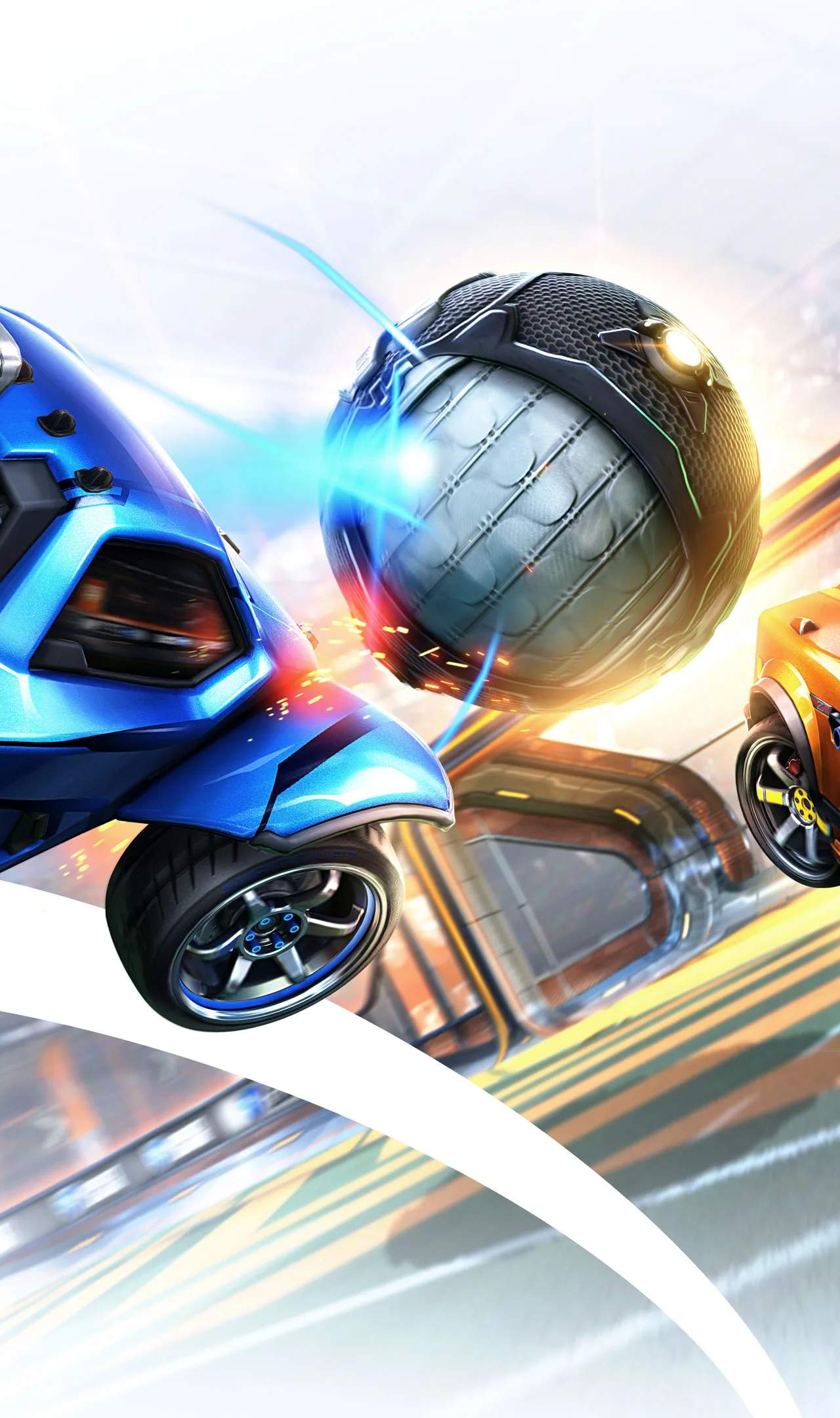
Mastering camera usage in Rocket League is fundamental to situational awareness and effective play. Ball Cam provides a global view of the action, while Car Cam offers a precise perspective on your vehicle. Knowing when and how to switch between these two essential camera modes is a hallmark of experienced players.
Understanding Ball Cam
Ball Cam is the default camera setting and should be used for the vast majority of your playtime. Its primary function is to keep the ball in view at all times, allowing you to track its trajectory, anticipate its movement, and position yourself accordingly. When Ball Cam is active, the camera will automatically follow the ball, even if it's behind your car.
When to Use Ball Cam:
- Chasing the Ball: Essential for tracking the ball's path and making timely challenges.
- Defending Your Goal: Allows you to see the ball's approach and react to shots.
- Midfield Play: Provides a broad view of the field, enabling you to see teammates and opponents.
- Aerials: While you might briefly switch to Car Cam for precise adjustments, Ball Cam is crucial for initiating and tracking aerial plays.
Understanding Car Cam
Car Cam, as the name suggests, focuses the camera directly on your car. This view is invaluable for situations where precise control of your vehicle is paramount, and the ball's exact position relative to your car is more important than its position on the field.
When to Use Car Cam:
- Ground Dribbling: Essential for keeping the ball balanced on top of your car and making subtle adjustments.
- Flicks: Allows for precise execution of various flick mechanics.
- Close-Range Ball Control: When you need to trap the ball against your car or make very fine touches.
- Navigating Obstacles: Useful for precise maneuvering in tight spaces or around teammates.
- Recoveries: Sometimes switching to Car Cam briefly after being bumped or landing awkwardly can help you regain control faster.
The Art of Switching
The key to effective camera usage is the seamless transition between Ball Cam and Car Cam. This is typically done with a single button press (usually 'Y' on Xbox, 'Triangle' on PlayStation, or 'Q'/'E' on PC by default).
Practice this:
- Start in Free Play: Drive around, hit the ball, and practice switching cameras rapidly.
- Dribbling Practice: While dribbling, switch to Car Cam for control, then briefly to Ball Cam to check opponent positions, and back to Car Cam for the next touch.
- Recovery Practice: After an aerial or a bump, practice switching to Car Cam to orient yourself and land smoothly, then back to Ball Cam to re-engage.
Camera Settings Considerations
While not directly about Ball Cam vs. Car Cam, your overall camera settings (distance, height, angle, stiffness) sificantly impact how you perceive the game in both modes. Many professional players use similar settings, which can be found online. Experimenting with these settings can help you find a comfortable view that optimizes your awareness in both Ball Cam and Car Cam.
Common Mistakes to Avoid
- Staying in Car Cam too long: This leads to a severe lack of awareness of teammates and opponents, resulting in missed opportunities and defensive breakdowns.
- Not switching to Car Cam for dribbling: Trying to dribble effectively in Ball Cam is extremely difficult and inefficient.
- Forgetting to switch back to Ball Cam: After a brief moment in Car Cam, always remember to return to Ball Cam to maintain field awareness.
By consciously practicing and integrating the appropriate camera mode for each situation, you'll dramatically improve your ability to read the game, make better decisions, and execute more precise plays.