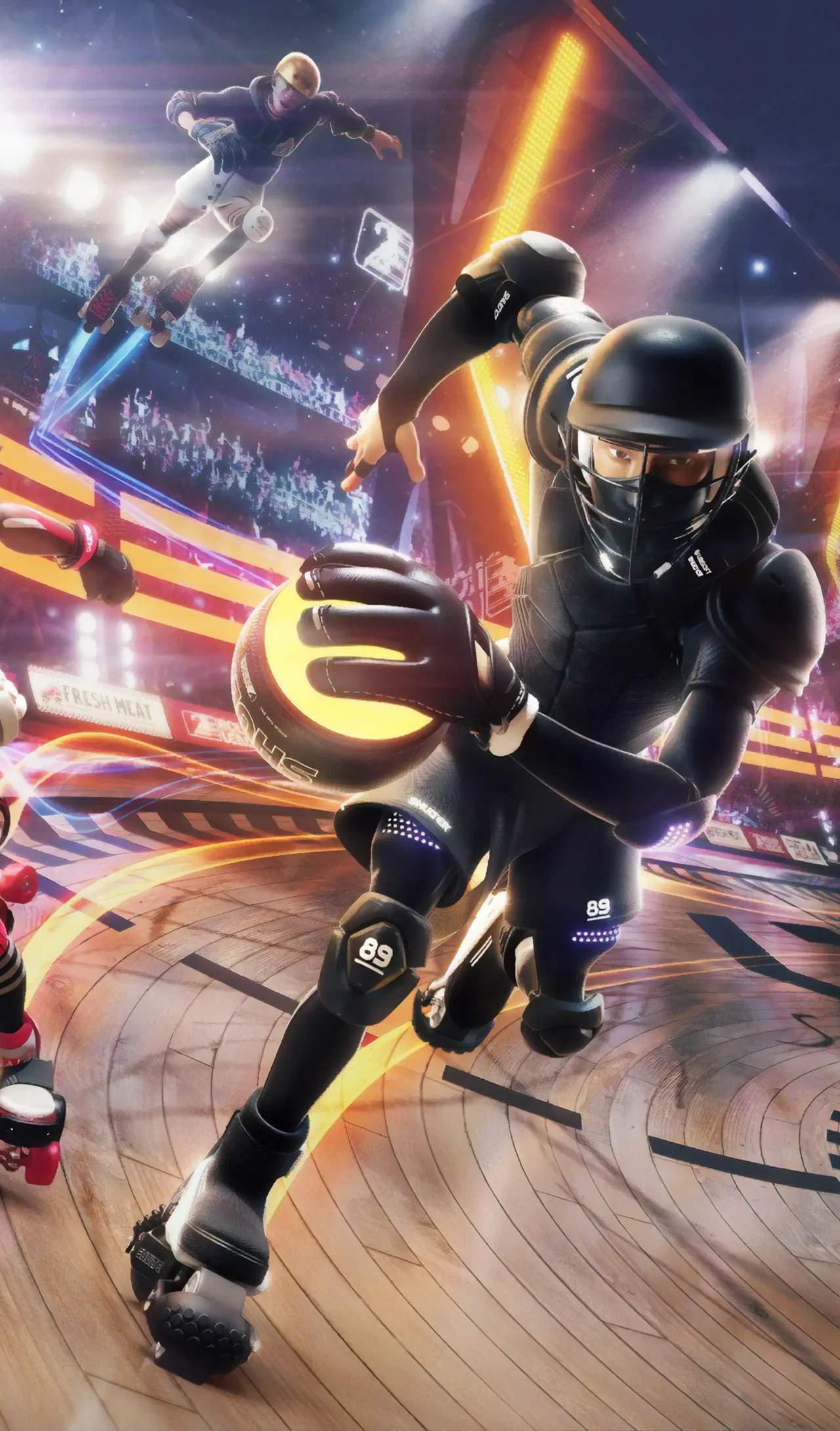
Troubleshooting & Known Issues
Even the most polished Roller Champions can hit a snag. This section is dedicated to helping you diagnose and resolve common issues, as well as providing workarounds for known bugs. Before diving into specific solutions, always ensure your game client and system drivers are up to date. Many problems are resolved with the latest patches.
Connection & Latency Issues
Roller Champions relies heavily on a stable internet connection for smooth gameplay. If you're experiencing lag, disconnections, or difficulty finding matches, these steps can help.
- Check Your Internet Connection:
- Run a Speed Test: Use an online tool (e.g., Speedtest.net) to verify your download and upload speeds, and ping. High ping (latency) is a common cause of in-game lag.
- Wired Connection: Whenever possible, connect your gaming device (PC, PlayStation 4/5, Xbox One/Series, Switch) directly to your router via an Ethernet cable. Wi-Fi can be susceptible to interference and dropped packets.
- Router Reboot: Power cycle your router and modem. Unplug them for 30 seconds, then plug them back in and wait for them to fully restart.
- Close Background Applications: Streaming services, large downloads, or other online games can consume bandwidth. Close any unnecessary applications running in the background on your PC or console.
- Game Server Status:
- Official Channels: Check the official Roller Champions social media accounts (e.g., Twitter, Facebook) or the Ubisoft Support website for announcements regarding server maintenance or outages. If the servers are down, you'll need to wait for them to come back online.
- Firewall/Antivirus Interference (PC Only):
- Whitelist Roller Champions: Ensure your firewall or antivirus software isn't blocking the game's connection. Add
RollerChampions.exeto your firewall's exception list. Consult your specific software's documentation for instructions.
- Whitelist Roller Champions: Ensure your firewall or antivirus software isn't blocking the game's connection. Add
Performance & Graphical Glitches
Frame rate drops, visual artifacts, or crashes can significantly impact your Roller Champions experience. Here's how to address them.
- Update Graphics Drivers:
- PC Users: Ensure your graphics card drivers (NVIDIA, AMD, Intel) are updated to the latest version. Visit the manufacturer's website directly for the most current drivers.
- Console Users: System software updates often include graphics driver improvements. Make sure your PlayStation, Xbox, or Switch system software is fully updated.
- Adjust In-Game Graphics Settings (PC Only):
- Lower Settings: If you're experiencing low frame rates, navigate to the Settings Menu > Video. Try reducing settings like "Texture Quality," "Shadow Quality," "Anti-Aliasing," and "Post-Processing." Experiment with different combinations to find a balance between performance and visual fidelity.
- Resolution Scaling: Consider lowering your "Resolution Scale" if your GPU is struggling. This renders the game at a lower resolution internally and scales it up, which can significantly boost FPS.
- Verify Game Files (PC Only):
- Ubisoft Connect: In the Ubisoft Connect launcher, go to your Games Library, right-click on Roller Champions, and select Verify Files. This will check for and repair any corrupted game files.
- Epic Games Store: In the Epic Games Launcher, go to your Library, click the three dots next to Roller Champions, and select Verify.
- Clear Cache (Console Specific):
- PlayStation/Xbox: Fully power down your console (not rest mode). Unplug the power cord for 30 seconds, then plug it back in and restart. This can clear temporary system caches that might be causing issues.
- Nintendo Switch: Go to System Settings > Data Management > Delete Save Data (be careful not to delete your actual game save!) or Manage Software > Archive Software for Roller Champions, then redownload it.
Known Issues & Workarounds
The development team is constantly working to resolve bugs, but some issues may persist. Here are a few commonly reported problems and potential workarounds.
- Matchmaking Delays/Stuck in Queue:
- Issue: Players occasionally report long matchmaking times or getting stuck indefinitely in the "Searching for Opponents" screen.
- Workaround: If you've been in queue for more than 5 minutes, try canceling the matchmaking and restarting it. Sometimes, completely restarting the game client can also resolve this. Ensure your region settings in the Settings Menu > Gameplay are set to "Auto" or your local region for optimal connection.
- Cosmetic Item Display Glitches:
- Issue: Certain cosmetic items (e.g., specific outfits, skates, or goal effects) may not display correctly in-game or in the Locker Room.
- Workaround: This is often a visual bug that resolves itself after a game restart or a patch update. If it persists, try unequipping and re-equipping the item in your Locker Room. If the issue is widespread, it's likely a known bug that the developers are aware of and working on.
- Input Lag/Controller Responsiveness:
- Issue: A noticeable delay between controller input and in-game action, particularly on consoles or with wireless controllers.
- Workaround:
- Wired Controller: If using a wireless controller, try connecting it directly to your console/PC with a USB cable.
- Disable V-Sync (PC Only): In the Settings Menu > Video, try disabling "V-Sync." While this can introduce screen tearing, it often reduces input lag.
- Monitor/TV Settings: Check your monitor or TV for a "Game Mode" setting and enable it. This often reduces input lag by bypassing image processing.
- Friends List/Invites Not Working:
- Issue: Difficulty seeing online friends, sending invites, or joining parties.
- Workaround:
- Platform-Specific Friends List: Ensure both you and your friends are properly logged into your respective platform's online services (Ubisoft Connect, PlayStation Network, Xbox Live, Nintendo Online).
- Restart Game/Platform: A full restart of Roller Champions and your gaming platform can often refresh the friends list.
- Ubisoft Connect Overlay (PC Only): Make sure the Ubisoft Connect overlay is enabled in the Ubisoft Connect settings. Sometimes issues arise if it's disabled.
Reporting Bugs
If you encounter an issue not listed here or a persistent problem, reporting it to the developers is crucial for improving the game.
- Ubisoft Support: Visit the official Ubisoft Support website. You can submit a support ticket detailing your issue. Provide as much information as possible, including:
- Your platform (PC, PS4, PS5, Xbox One, Xbox Series, Switch)
- A detailed description of the problem
- Steps to reproduce the bug (if known)
- Any error messages received
- Screenshots or video clips (if applicable)
- Official Forums/Community: Engage with the Roller Champions community on official forums or Discord servers. Other players may have experienced similar issues and found solutions, or developers may be actively monitoring these channels for bug reports.