
The User Interface (UI) in Shovel Knight Dig provides crucial information about your current run, health, magic, and collected items. Keeping an eye on these elements is vital for survival and strategic decision-making. Here's a breakdown of what you'll see on screen:
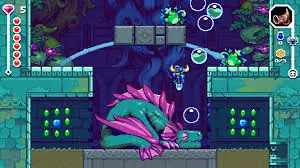
- Health Bar (Top Left): Represented by a series of hearts. Each heart signifies two points of health. Taking damage will deplete these hearts. Collect Apple items to restore health.
- Magic Meter (Below Health Bar): A blue bar that depletes when you use Relics. It automatically regenerates slowly over time, or can be instantly refilled by collecting Magic Vials.
- Gold Counter (Top Right): Displays the total amount of Gold you've collected during your current run. Gold is used to purchase upgrades and items from merchants.
- Key Counter (Below Gold Counter): Shows how many keys you currently possess. Keys are used to unlock treasure chests and certain pathways.
- Relic Slot (Bottom Left): Displays the icon of your currently equipped Relic.
- Gear Slot (Bottom Right): Shows the icon of your currently equipped Gear.
- Dirt Counter (Center Top): In specific areas, this counter will show how much dirt you need to collect to progress or complete an objective.
Familiarize yourself with these UI elements to make informed decisions during your descent. Knowing your current resources is paramount to success.