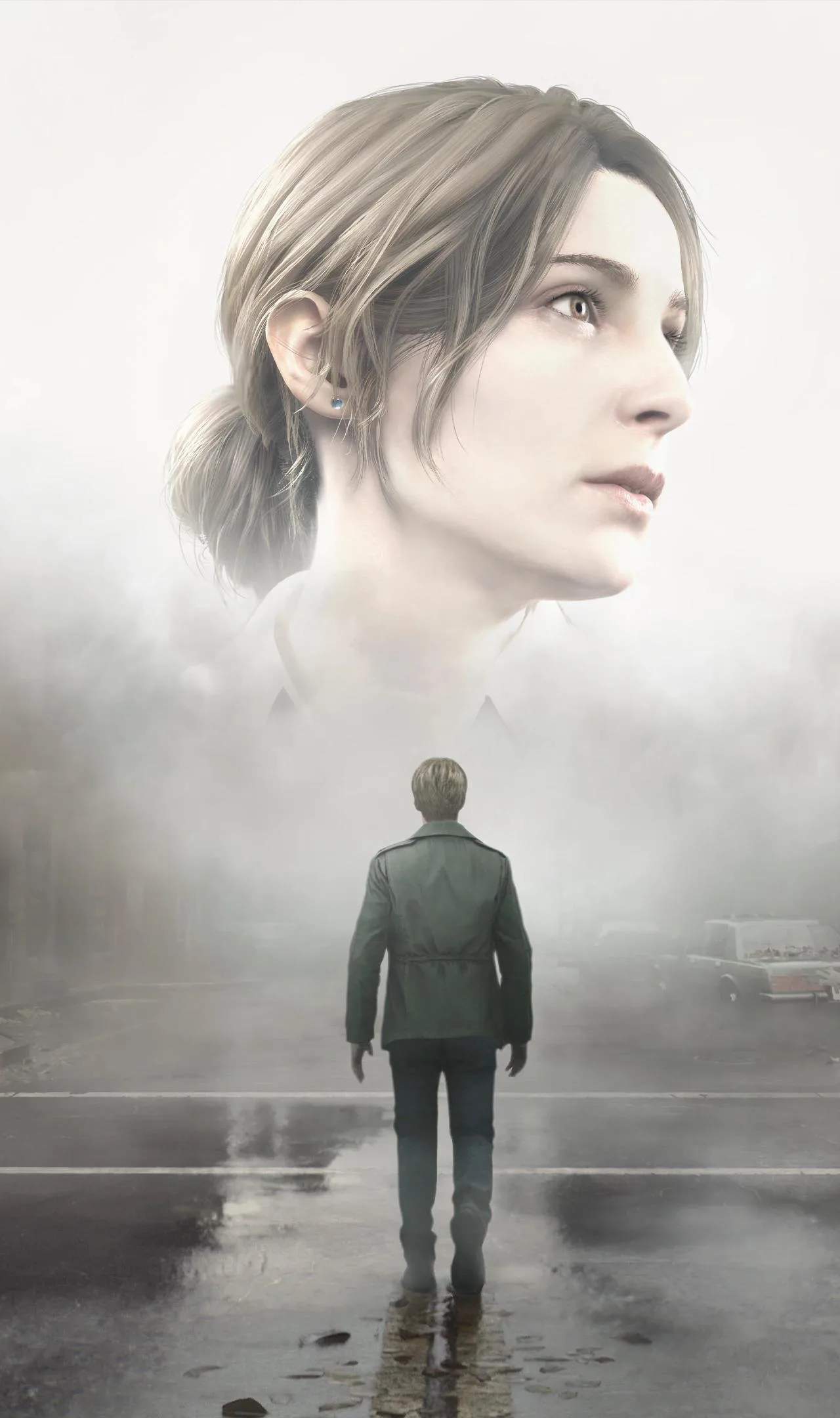
Experiencing technical issues can mar the immersive horror of Silent Hill 2 Remake. This section provides guidance on common troubleshooting steps to ensure a smooth and uninterrupted gameplay experience. From performance hiccups to crashes, we'll cover potential solutions to get you back into the fog-laden streets of Silent Hill.
System Requirements and Performance
Before diving into troubleshooting, ensure your system meets the recommended specifications for Silent Hill 2 Remake. Outdated hardware or drivers are common culprits for performance issues like stuttering, low frame rates, and graphical glitches. Check the game's official system requirements and compare them to your PC's specifications.
Driver Updates
Outdated graphics drivers are a frequent cause of game instability. Regularly update your graphics card drivers from NVIDIA, AMD, or Intel's official websites. It's also advisable to update your audio drivers and motherboard chipset drivers for optimal system performance.
In-Game Graphics Settings
If you're experiencing performance issues, try adjusting the in-game graphics settings. Lowering settings such as resolution, texture quality, anti-aliasing, and shadow detail can sificantly improve frame rates. Experiment with different combinations to find a balance between visual fidelity and smooth gameplay.
Verifying Game Files
Most PC game launchers (like Steam or Epic Games Store) offer a feature to verify the integrity of game files. This process checks for corrupted or missing files and redownloads them if necessary, which can resolve many launch or in-game errors. Right-click the game in your library, select 'Properties,' and then find the 'Verify Integrity of Game Files' option.
Background Applications
Close unnecessary background applications that might be consuming system resources. Antivirus software, web browsers with many tabs open, and other resource-intensive programs can impact game performance. A clean boot can help isolate if a background application is causing conflicts.
Common Error Messages and Solutions
| Error Message | Potential Solution |
|---|---|
| Game crashes on startup | Verify game files, update drivers, run as administrator, check for conflicting software. |
| Low FPS / Stuttering | Lower graphics settings, update drivers, close background apps, check for overheating. |
| Graphical glitches (textures missing, flickering) | Update drivers, verify game files, adjust graphics settings (especially texture quality). |
| Audio issues (crackling, no sound) | Update audio drivers, check in-game audio settings, ensure correct playback device is selected. |
Overheating
Overheating can cause performance drops and system instability. Ensure your PC's cooling system is functioning correctly. Clean dust from fans and vents, and monitor your CPU and GPU temperatures using monitoring software. If temperatures are consistently high, consider improving airflow or reapplying thermal paste.
Reporting Bugs
If you encounter a persistent bug or issue that you cannot resolve, consider reporting it to the game developers. Many games have dedicated forums or bug reporting tools where You can submit feedback, which helps developers identify and fix problems in future patches.