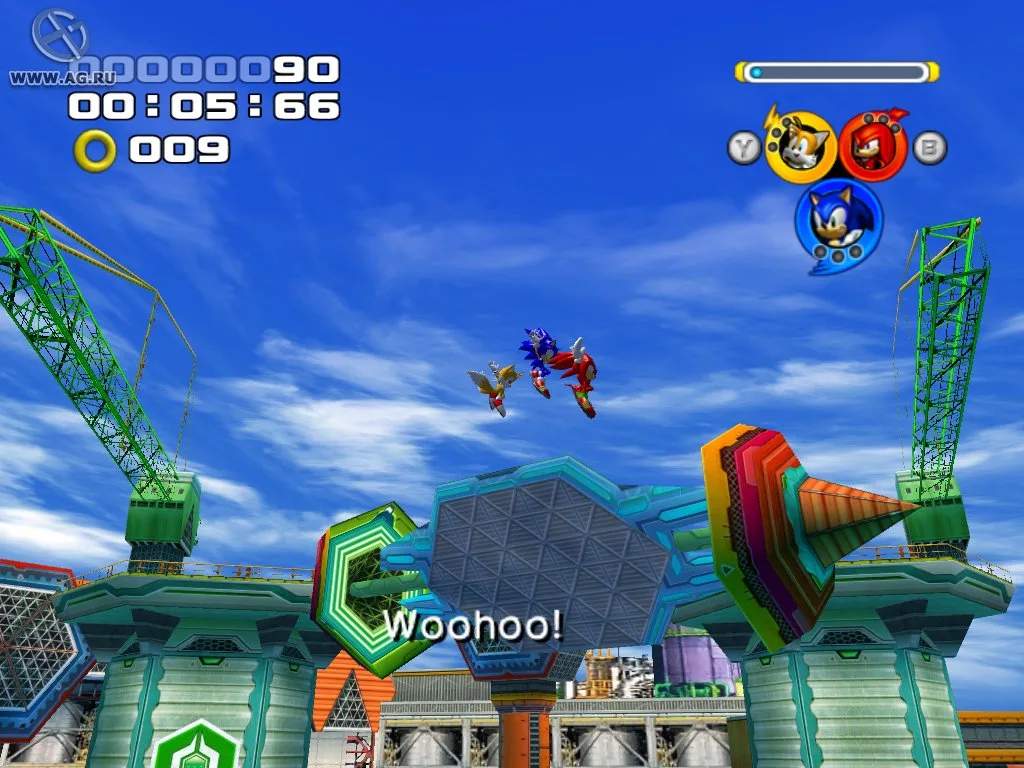
The User Interface (UI) in Sonic Heroes provides vital information during gameplay. Keeping an eye on these elements will help you manage your team, track your progress, and prepare for upcoming challenges.
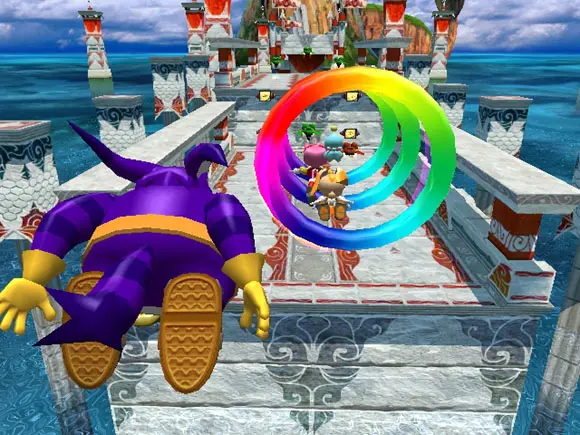
- Team Leader Icon: Displays the icon of the character currently leading your team (Speed, Fly, or Power). This is a quick visual reminder of your current formation.
- Ring Counter: Shows the number of rings you've collected. Rings act as your health; if you take damage, you lose all your rings. If you take damage with no rings, you lose a life.
- Life Counter: Indicates how many lives you have remaining. Collect 100 rings to earn an extra life.
- Team Blast Gauge: This circular gauge fills up as you collect rings, defeat enemies, and perform successful attacks. Once full, you can unleash a powerful Team Blast.
- Score Display: Tracks your current score for the stage. Higher scores contribute to better stage rankings.
- Time Counter: Shows how long you've been playing the current stage. Speed is a factor in achieving high ranks.
- Formation Icons: Small icons at the bottom of the screen represent your team members. When a character is knocked out, their icon will be grayed out.
Pay close attention to the Team Blast Gauge, as a well-timed Team Blast can turn the tide of a difficult encounter or clear a path quickly. Also, always prioritize collecting rings to maintain your survivability.