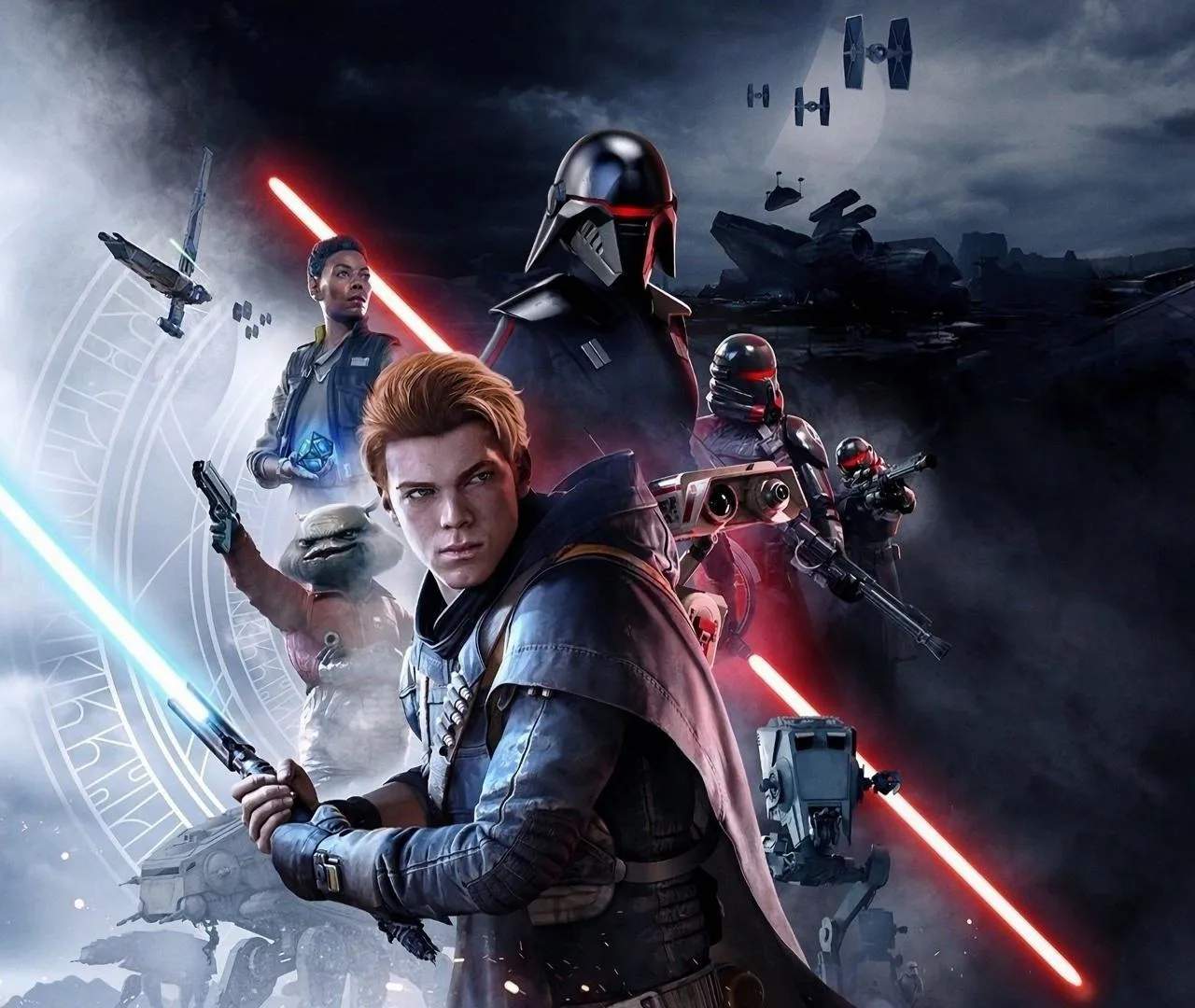
Audio & Visual Glitches
While Star Wars Jedi: Fallen Order is a visually stunning and sonically rich experience, occasional audio and visual glitches can occur. This guide offers insights into common issues and potential workarounds to help maintain a smooth gameplay experience.
Technical hiccups, such as graphical anomalies, sound distortions, or animation bugs, can sometimes detract from the immersion of a game. While Fallen Order is generally stable, players may encounter minor glitches that can be frustrating. Understanding these issues and how to address them is key.
Common Visual Glitches:
- Texture Pop-in: Textures may appear blurry or low-resolution for a moment before snapping into focus, especially during fast-paced movement or when entering new areas.
- Character Model Issues: Occasional clipping of character models through geometry or minor animation errors might be observed.
- Lighting Artifacts: In rare instances, lighting effects might flicker or display incorrectly, particularly in complex environments with dynamic lighting.
- Frame Rate Drops: On some systems, particularly older hardware or during graphically intensive scenes, the game's frame rate might dip, causing a momentary stutter.
Audio glitches can be equally disruptive, ranging from missing sound effects to distorted dialogue. These can break immersion and make it harder to react to in-game cues.
Common Audio Glitches:
- Missing Sound Effects: Certain sound effects, like lightsaber clashes or enemy vocalizations, might not play as expected.
- Dialogue Distortion: Character dialogue could occasionally sound muffled, distorted, or cut off abruptly.
- Ambient Sound Issues: Ambient environmental sounds might loop incorrectly or be absent in certain areas.
- Music Stuttering: The game's dynamic soundtrack could sometimes stutter or fail to transition smoothly between combat and exploration themes.
Troubleshooting and Workarounds:
- Restart the Game: Often, simply closing and relaunching the game can resolve temporary glitches.
- Update Graphics Drivers: For PC players, ensuring your graphics card drivers are up-to-date is crucial for optimal performance and stability.
- Verify Game Files: On platforms like Steam, verifying the integrity of game files can fix corrupted data that might be causing issues.
- Lower Graphics Settings: If experiencing frame rate drops or visual artifacts, reducing certain graphical settings (like shadows, anti-aliasing, or texture quality) can improve performance.
- Check for Game Updates: Developers frequently release patches to address bugs and improve stability. Ensure your game is updated to the latest version.
- Report the Glitch: If a persistent or game-breaking glitch is encountered, report it through official channels or community forums, providing as much detail as possible.
While minor glitches are often unavoidable in complex games, these steps can help mitigate their impact and ensure a more enjoyable journey through the galaxy.