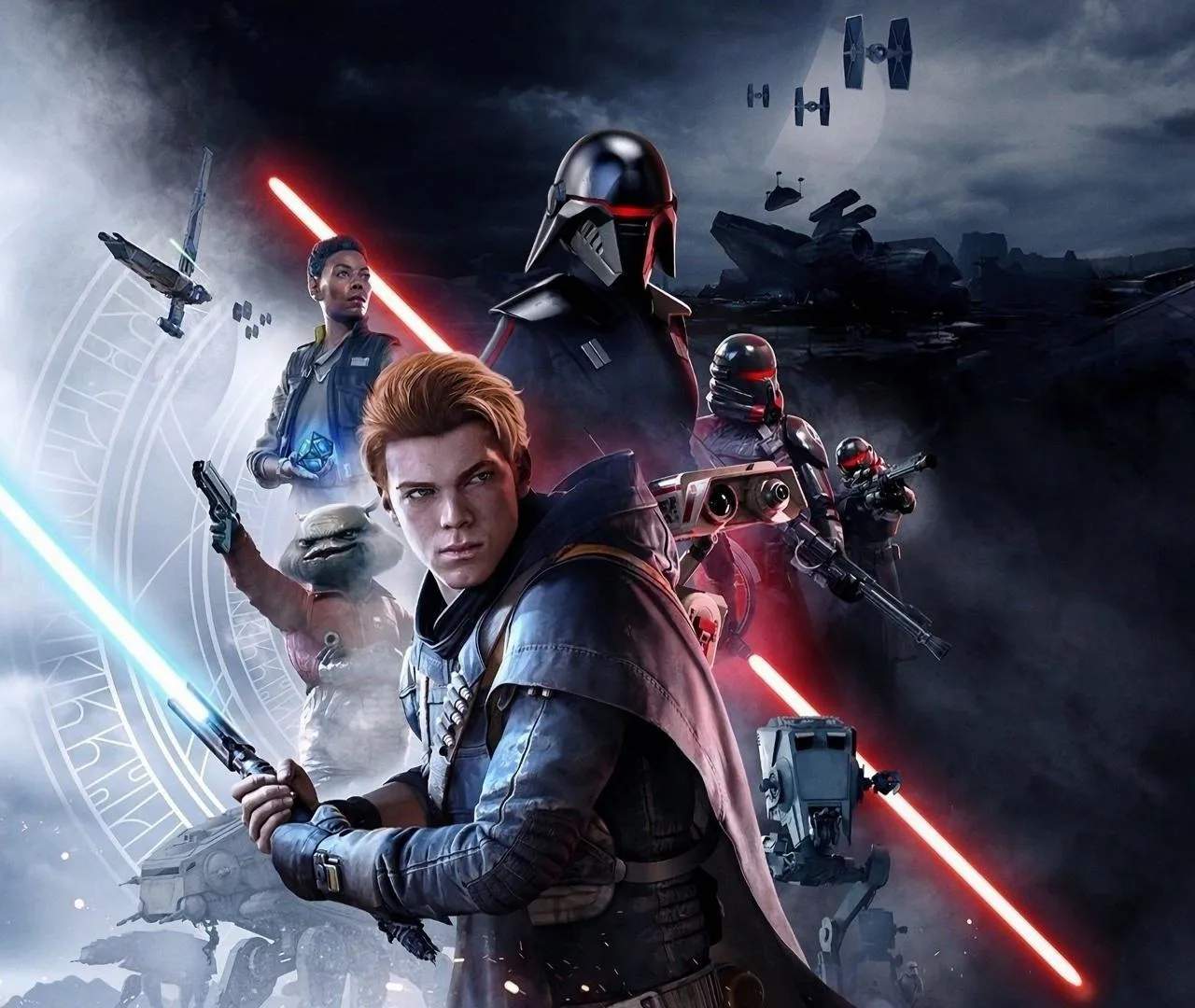
PC Performance Optimization
Ensure a smooth gameplay experience on PC with these optimization tips for Star Wars Jedi: Fallen Order. Adjust graphics settings, manage background processes, and update drivers to maximize frame rates and minimize stuttering for optimal performance.
Star Wars Jedi: Fallen Order, while visually impressive, can be demanding on PC hardware. To achieve the best possible performance, consider optimizing their system settings. This involves a combination of in-game graphics adjustments, driver updates, and system-level tweaks to ensure a stable frame rate and a fluid gameplay experience.
In-Game Graphics Settings
The most direct way to improve performance is by adjusting the game's graphics settings. Experiment with these options:
| Setting | Recommendation | Impact |
|---|---|---|
| Resolution | Match your monitor's native resolution. Lowering it can sificantly boost FPS but reduces visual clarity. | High |
| Texture Quality | Medium or High. Lowering this can help if you have less VRAM. | Medium |
| Anti-Aliasing | TAA or FXAA. Turning it off can boost FPS but may result in jagged edges. | Medium |
| Shadow Quality | Medium or Low. Shadows are very performance-intensive. | High |
| Visual Effects Quality | Medium or Low. Affects particle effects like explosions and Force powers. | Medium |
| Foliage Density | Medium or Low. Can impact performance in outdoor areas. | Medium |
| View Distance | Medium. Affects how far objects are rendered in detail. | Medium |
| VSync | Turn off if you experience input lag. Enable if you experience screen tearing. Consider using a frame rate limiter instead. | Low |
Driver Updates
Ensure your graphics card drivers are up to date. NVIDIA and AMD regularly release driver updates that include performance optimizations for new and existing games. Visit the manufacturer's website to download the latest drivers for your specific GPU.
System-Level Optimizations
- Close Background Applications: Before launching the game, close any unnecessary background applications, such as web browsers, streaming software, or other resource-intensive programs.
- Power Options: On Windows, set your power plan to 'High Performance' to ensure your CPU and GPU are running at their full potential.
- Windows Game Mode: Ensure Windows Game Mode is enabled. It prioritizes game performance by limiting background activity.
- Disable Overlays: Overlays from applications like Discord, Steam, or GeForce Experience can sometimes cause performance issues. Try disabling them if you encounter problems.
- SSD Installation: Installing the game on a Solid State Drive (SSD) can sificantly reduce loading times and can sometimes help with asset streaming, reducing stuttering.
Troubleshooting Common Issues
- Stuttering: Often caused by insufficient VRAM, CPU bottlenecks, or shader compilation. Lowering texture quality, shadow quality, and view distance can help. Ensure shaders are compiled fully by playing through areas without interruption.
- Low FPS: Primarily addressed by lowering graphics settings. Ensure your hardware meets or exceeds the recommended specifications.
- Crashes: Can be due to outdated drivers, overheating, or insufficient RAM. Monitor your system temperatures and ensure you have enough RAM for the game.
By implementing these optimization strategies, PC You can sificantly improve their Star Wars Jedi: Fallen Order experience, enjoying smoother gameplay and better visual fidelity.