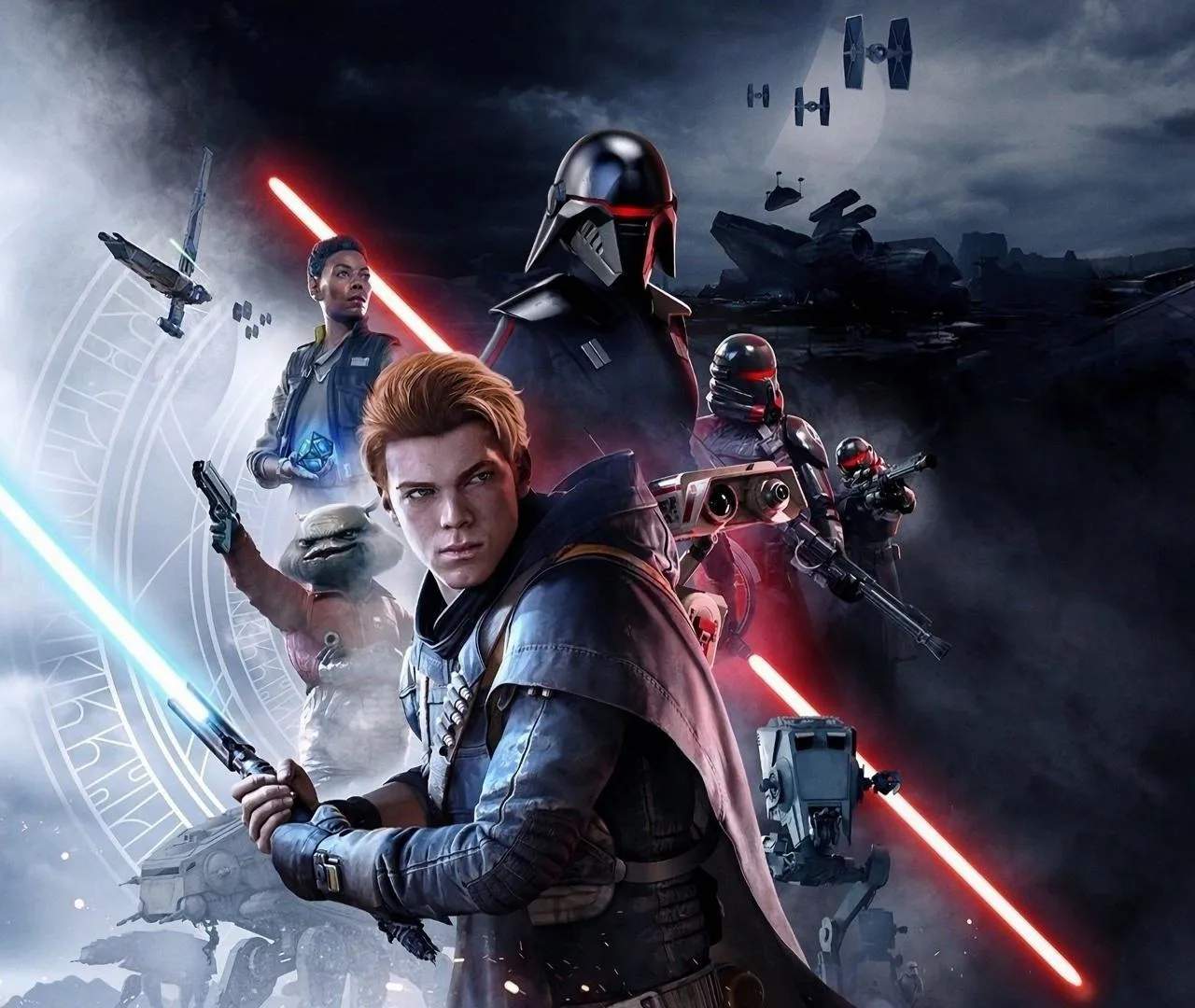
Encountering performance issues in Star Wars Jedi: Fallen Order can detract from the experience. This guide provides solutions and troubleshooting steps to help resolve common problems like stuttering, frame drops, and crashes, ensuring a smoother gameplay experience across various platforms.
Common Performance Issues and Causes
- Stuttering/Frame Drops: Often caused by demanding graphical settings, insufficient hardware resources, or background processes.
- Crashes: Can result from driver issues, corrupted game files, overheating, or memory leaks.
- Long Loading Times: Typically related to the speed of the storage drive (HDD vs. SSD).
- Input Lag: Can be due to V-Sync settings, display modes, or controller issues.
Troubleshooting Steps for PC Players
- Update Graphics Drivers: Ensure you have the latest drivers for your NVIDIA, AMD, or Intel graphics card.
- Adjust In-Game Settings: Lower graphical settings such as texture quality, shadow detail, anti-aliasing, and visual effects. Experiment with resolution and V-Sync.
- Disable Fullscreen Optimizations: Right-click the game's executable, go to Properties > Compatibility, and check 'Disable fullscreen optimizations'.
- Verify Game Files: Use the game launcher (Steam, Epic Games Store) to verify the integrity of game files.
- Monitor Temperatures: Ensure your CPU and GPU are not overheating. Clean dust from your PC's fans.
- Close Background Applications: Shut down unnecessary programs that consume CPU or RAM.
- Check System Requirements: Ensure your PC meets the minimum or recommended system requirements for the game.
Troubleshooting Steps for Console Players
- Update Console System Software: Make sure your PlayStation or Xbox is running the latest system update.
- Install Game Updates: Ensure Star Wars Jedi: Fallen Order is updated to its latest version.
- Clear Console Cache: Power cycle your console by holding the power button for 10 seconds. For some consoles, you may need to unplug the power cord for a minute.
- Reinstall the Game: If issues persist, uninstalling and reinstalling the game can resolve corrupted data.
- Storage Drive: Ensure the game is installed on the console's internal SSD or a compatible external SSD for optimal loading times.
- Performance vs. Quality Mode: On newer consoles (PS5, Xbox Series X/S), experiment with switching between Performance and Quality modes in the game's settings.
General Tips
- Monitor Resource Usage: On PC, use Task Manager to check CPU, GPU, and RAM usage.
- Overclocking: If you have overclocked your hardware, try reverting to stock speeds to rule out instability.
- Community Forums: Check official forums or community sites for known issues and potential workarounds specific to your hardware or platform.
By systematically addressing these potential issues, you can sificantly improve the performance and stability of Star Wars Jedi: Fallen Order, allowing you to fully immerse yourself in the adventure.