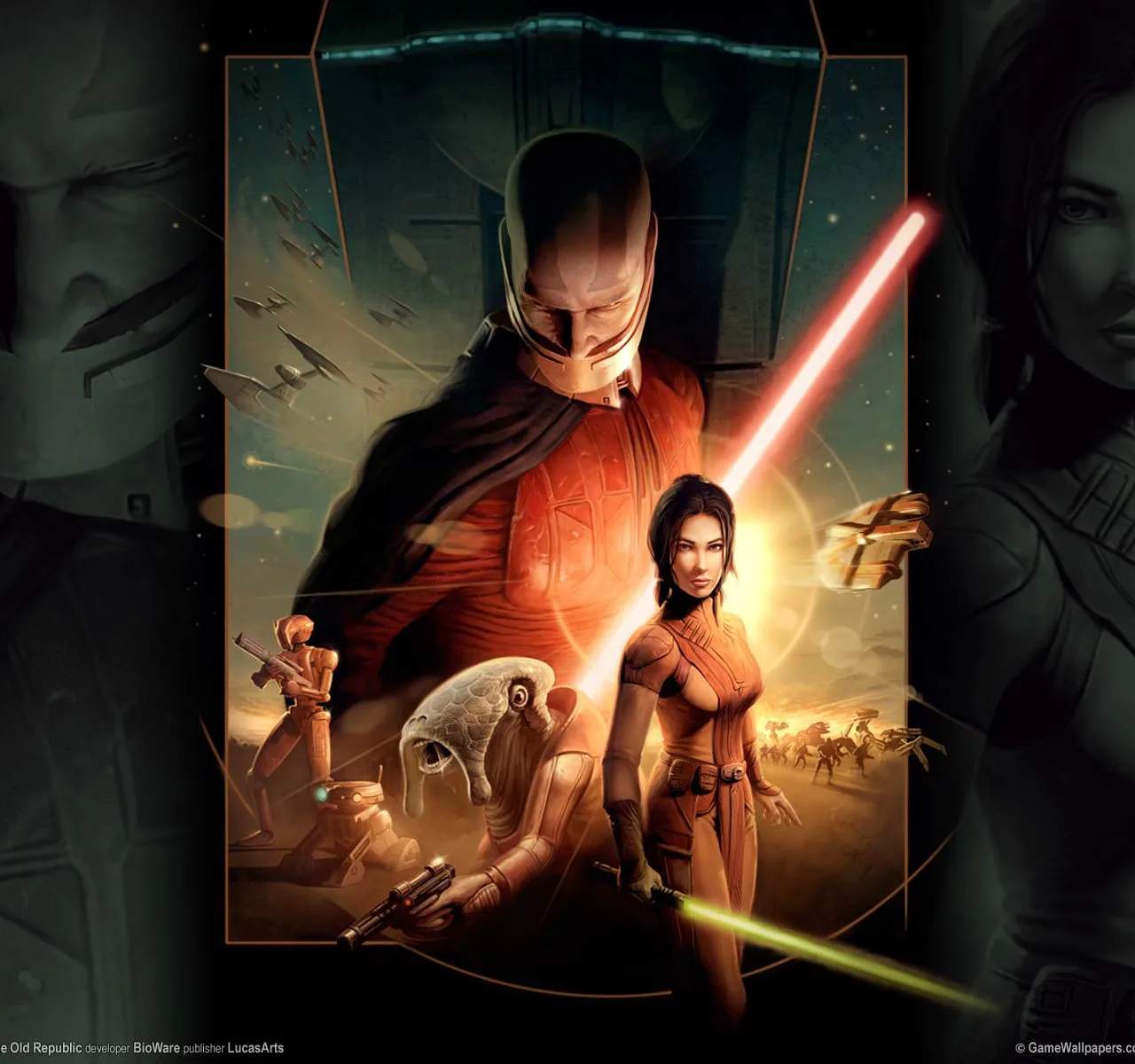
Optimizing graphics settings in Star Wars: Knights of the Old Republic can sificantly enhance visual fidelity and performance, especially on modern hardware. While the game is old, certain tweaks can bring its visuals closer to contemporary standards and resolve common graphical glitches.
In-Game Graphics Options
The game offers a basic set of graphics options accessible from the main menu or during gameplay:
- Resolution: Set this to your monitor's native resolution for the sharpest image.
- Texture Detail: Higher settings improve the clarity of surfaces, but can impact performance.
- Shadow Detail: Affects the quality and complexity of shadows. Lowering this can improve FPS.
- Vertical Sync (V-Sync): Synchronizes the game's frame rate with your monitor's refresh rate to prevent screen tearing. Can sometimes introduce input lag.
- Anti-Aliasing: Smooths out jagged edges on s. KOTOR's built-in AA is limited; external methods are often more effective.
Editing the 'swkotor.ini' File
For more advanced tweaks, you'll need to edit the 'swkotor.ini' file, located in the game's installation directory.
- Backup First: Always create a backup of 'swkotor.ini' before making any changes.
- Resolution Settings: Find the `[Graphics Options]` section and adjust `Width=` and `Height=` to your desired resolution.
- Enable Higher Quality Textures: Some users report success by adding or modifying lines like `EnableHighPrecision=1` or `TextureFilter=1` (though the latter might not be universally supported).
- Anisotropic Filtering: While not directly in the ini, you can often force anisotropic filtering through your graphics card's control panel (NVIDIA Control Panel or AMD Radeon Software). Set it to 16x for sificantly improved texture clarity at oblique angles.
External Graphics Enhancements
- Community Patches: Unofficial patches often include graphical improvements, bug fixes, and support for higher resolutions. Search for 'KOTOR community patch' or 'KOTOR widescreen fix'.
- EnbSeries/Reshade: For advanced users, ENBSeries or Reshade can be used to apply post-processing effects like improved lighting, color correction, and ambient occlusion. This requires careful configuration and can impact performance.
- Forcing Anti-Aliasing: If the in-game AA is insufficient, you can often force higher levels of anti-aliasing through your graphics card's control panel. Experiment with different AA modes (e.g., MSAA, FXAA).
Performance Troubleshooting
- Update Graphics Drivers: Ensure you have the latest drivers for your NVIDIA, AMD, or Intel graphics card.
- Close Background Applications: Free up system resources by closing unnecessary programs before launching the game.
- Lower Settings: If performance is poor, reduce shadow detail, texture quality, or disable V-Sync.
- Resolution Scaling: If performance is still an issue at native resolution, consider lowering the resolution slightly.
By combining in-game settings with ini tweaks and external enhancements, you can sificantly improve the visual presentation of Knights of the Old Republic.