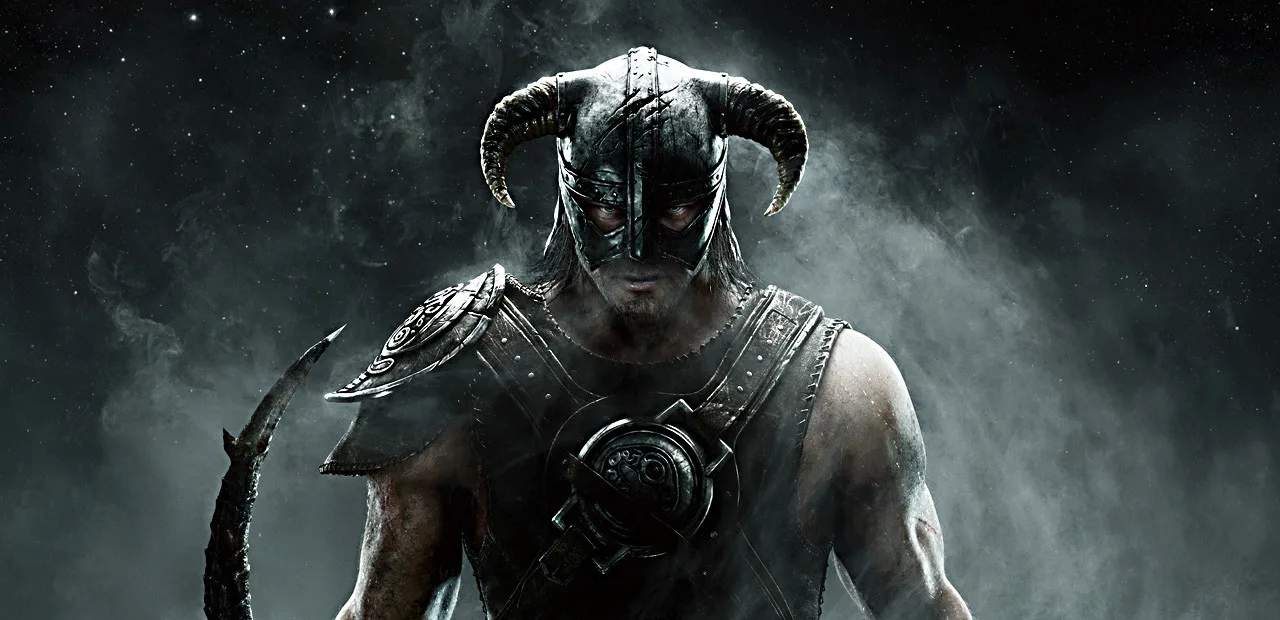
Before diving into the frozen north, ensure your Skyrim installation is smooth. initial setup, including choosing the right edition, managing game files, and essential first steps for PC players to optimize performance and avoid common issues. A clean setup is the foundation for a stable adventure.
Choosing Your Edition
Skyrim is available in several editions. The original The Elder Scrolls V: Skyrim, The Elder Scrolls V: Skyrim – Special Edition (SE), and The Elder Scrolls V: Skyrim – Anniversary Edition (AE). The Special Edition offers improved graphics, full mod support for consoles, and includes all official DLCs (Dawnguard, Hearthfire, Dragonborn). The Anniversary Edition includes everything in SE plus additional Creation Club content. For most players, the Special or Anniversary Edition is recommended due to enhanced visuals and content.
Installation Process
PC: If you purchased Skyrim digitally (e.g., via Steam), the installation process is typically automated. Launch your platform's client, navigate to your game library, select Skyrim, and click 'Install'. The client will download and install the game. Ensure you have sufficient disk space. For physical copies, insert the disc and follow the on-screen prompts.
Console: For PlayStation and Xbox, purchase the game digitally from the respective store or insert the game disc. The console will guide you through the installation. Once installed, the game will likely prompt you to download any available updates.
Initial Game Launch & Settings
Upon launching Skyrim for the first time, you'll be presented with a launcher (on PC) or initial settings menu. Here, you can adjust graphics settings like resolution, texture quality, shadow detail, and anti-aliasing. It's advisable to start with recommended settings and adjust based on your system's performance. For consoles, these settings are often managed within the console's system settings or the game's in-game options menu.
Essential First Steps (PC)
For PC players, especially those interested in modding, it's highly recommended to:
- Verify Game Files: On Steam, right-click Skyrim in your library, go to Properties > Local Files > Verify integrity of game files. This ensures all game files are present and uncorrupted.
- Install a Mod Manager: Tools like Vortex or Mod Organizer 2 are essential for managing mods. Download and install one of these before you start adding mods.
- SKSE (Skyrim Script Extender): Many advanced mods require SKSE. Download the correct version for your Skyrim edition (SE/AE) and install it according to its instructions.
Troubleshooting Common Issues
If you encounter issues like crashes or performance drops:
- Ensure your graphics drivers are up to date.
- Check that your system meets the minimum requirements for Skyrim.
- If modding, disable mods one by one to identify the culprit.
- Consult online forums and communities for specific error messages.