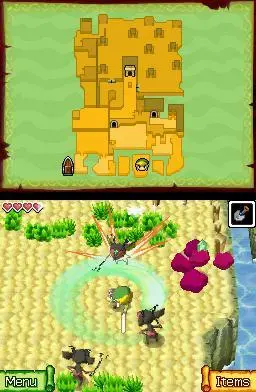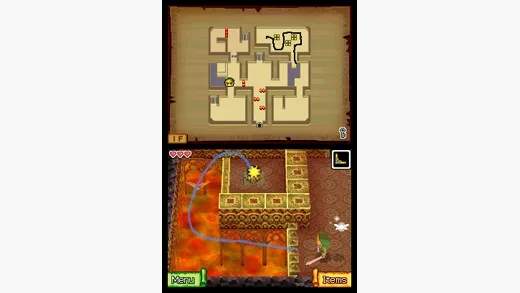
Stylus Controls:
- Movement: Tap and hold the stylus on the touch screen in the direction you want Link to move. The further you tap from Link, the faster he will run.
- Attacking: Tap an enemy to perform a sword slash. Drag the stylus across multiple enemies for a spin attack. Tap and hold on Link, then drag in a direction to perform a rolling attack.
- Interacting: Tap on objects, characters, or doors to interact with them.
- Using Items: Tap the item icon on the bottom screen to select it, then tap where you want to use it. Some items, like the Boomerang, require drawing a path.
- Map: The top screen displays the world map or dungeon map. You can draw notes on the map using the stylus on the bottom screen.
Button Controls:
- A Button: Not used for primary actions, but can sometimes confirm selections in menus.
- B Button: Not used for primary actions.
- X Button: Opens the item menu.
- Y Button: Opens the item menu.
- L/R Buttons: Rotate the camera in certain areas, particularly in dungeons.
- Start Button: Pauses the game and opens the main menu.
- Select Button: Not used.
User Interface (UI):
- Top Screen: Displays the main gameplay view, including Link, enemies, and the environment. In dungeons, it shows the dungeon map. On the Great Sea, it shows the sea chart.
- Bottom Screen: The interactive touch screen. Shows Link's health, Rupees, equipped items, and a mini-map or the full map for drawing notes.
- Heart Container: Located in the top-left of the bottom screen, indicates Link's current health.
- Rupee Counter: Displays your current Rupee count.
- Equipped Items: Two slots for items are shown on the bottom right. Tap to select, then tap again to use.
Understanding these controls is paramount to your success. Practice moving Link, attacking enemies, and using your items in the early areas of the game to get a feel for the stylus-based gameplay. The precision offered by the stylus is key to solving many of the game's puzzles and engaging in combat effectively.