Game Controls
Welcome, aspiring engineer! The Legend of Zelda: Spirit Tracks, being a Nintendo DS title, relies heavily on the stylus and touchscreen for almost all of its gameplay. Mastering these intuitive controls is key to navigating Hyrule, solving puzzles, and defeating formidable foes. This section will detail every aspect of Link's and the Spirit Train's controls, ensuring you're ready for any challenge the Spirit Tracks throw your way.
On-Foot Controls (Link)
When Link is exploring dungeons, towns, or the overworld on foot, the touchscreen is your primary interface. The top screen typically displays the current area, while the bottom screen shows Link, the map, and your inventory.
- Movement: Tap and hold the stylus on the touchscreen in the direction you wish Link to move. Link will follow your stylus. For more precise movement, especially in tight corridors or when avoiding traps, gently drag the stylus.
- Interacting with Objects/NPCs: Tap on an object (like a chest, sign, or pot) or a non-player character (NPC) to interact with them. Link will automatically walk to the object/NPC and perform the appropriate action (open, read, talk).
- Attacking with Sword:
- Standard Slash: Tap an enemy to initiate a standard sword slash. Link will automatically approach and attack.
- Spin Attack: Draw a circle around Link with your stylus. This powerful attack hits all enemies in a small radius around Link. It's excellent for clearing groups of weaker foes or breaking multiple pots at once.
- Stab Attack: Tap and hold the stylus on Link, then quickly flick it forward in the direction of an enemy. This is useful for enemies with specific weak points or for maintaining distance.
- Using Equipped Items:
- Equipping Items: Tap the item icon in the bottom-right corner of the touchscreen to open your inventory. Drag an item from your inventory to one of the two available item slots at the bottom of the screen to equip it.
- Activating Items: Once an item is equipped, tap its icon on the bottom screen, then tap on the target location or enemy on the screen to use it. For example, to use the Boomerang, tap its icon, then draw a path for it on the screen. For the Bow, tap its icon, then tap the target to fire an arrow.
- Rolling: Quickly tap the touchscreen twice in the direction you want Link to roll. Rolling is useful for dodging enemy attacks, crossing small gaps, or gaining a burst of speed.
- Map Management: Tap the map icon (usually in the top-left or bottom-left corner of the bottom screen) to toggle between a zoomed-in view of Link's immediate surroundings and a larger overview of the current area. In dungeons, the map will often display important features like locked doors, treasure chests, and the locations of enemies.
- Calling Out to Alfonzo/Princess Zelda: When Princess Zelda is possessing a Phantom, you can direct her by drawing a path for her on the touchscreen. Tap her icon, then draw the path. To call her back to Link, tap her icon again. This is crucial for solving many dungeon puzzles.
Spirit Train Controls
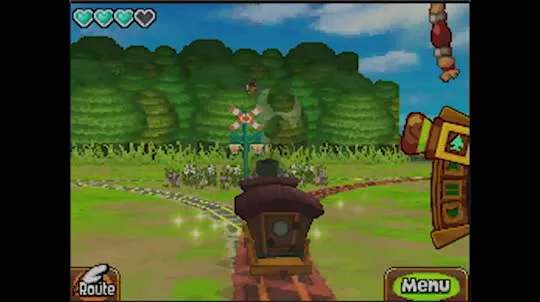
Operating the Spirit Train is a unique and engaging aspect of Spirit Tracks. The controls are designed to simulate the feel of a real train, with speed, direction, and safety all being paramount.
- Speed Control:
- Forward/Accelerate: Pull the lever on the right side of the bottom screen forward (towards the top of the screen) to increase the train's speed. There are several speed settings, indicated by the number of flames or lines on the lever.
- Brake/Reverse: Pull the lever backward (towards the bottom of the screen) to slow down or stop the train. Pulling it all the way back will engage the reverse gear, allowing you to back up.
- Whistle: Tap the whistle icon (usually in the bottom-left corner of the bottom screen) to sound the train's whistle. This can be used to clear animals off the tracks, alert other trains, or sometimes even reveal hidden secrets.
- Directional Switch (Track Changes): When approaching a track switch, a directional arrow will appear on the bottom screen. Tap the arrow in the direction you wish the train to go to change tracks. This must be done quickly and accurately, especially at high speeds.
- Cannon Controls:
- Aiming: When the cannon is available, a targeting reticle will appear on the top screen. Drag the stylus on the bottom screen to move the reticle and aim the cannon.
- Firing: Tap the cannon icon (usually in the bottom-right corner of the bottom screen) to fire the cannon. This is essential for destroying enemy trains, breaking obstacles, and defeating certain bosses.
- Emergency Brake: In dire situations, a red emergency brake lever may appear. Pulling this will bring the train to a rapid halt, but often at the cost of a few hearts or damage to the train. Use it sparingly!
- Map View: The top screen constantly displays a zoomed-out map of the current region, showing your train's location, upcoming tracks, and points of interest. Pay close attention to this for navigation and avoiding hazards.
Menu and System Controls
Beyond the direct gameplay, there are a few essential system controls to be aware of.
- Pause Menu: Tap the "Menu" icon (typically in the top-right corner of the bottom screen) to pause the game and access various options, including your inventory, quest log, and save function.
- Saving Your Game: Within the Pause Menu, select "Save" to record your progress. It's always a good idea to save frequently, especially before entering new dungeons or challenging areas.
- Spirit Flute: When prompted to play the Spirit Flute, you will use the stylus to guide the airflow into the microphone. Follow the on-screen prompts carefully to play the correct tunes and activate Spirit Tracks.
By understanding and mastering these controls, you'll be well on your way to becoming a true hero of New Hyrule. Practice makes perfect, so don't be afraid to experiment with different techniques and find what works best for you!