Basic Controls & Interface
Welcome, aspiring engineer! Navigating the world of New Hyrule and its Spirit Tracks requires a good grasp of Link's abilities and the information presented on your Nintendo DS screens. This section will detail everything you need to know to move, interact, and manage your inventory effectively, both on foot and aboard the Spirit Train.
On-Foot Controls
Link's movements and actions are primarily controlled using the stylus on the Nintendo DS Touch Screen. The top screen displays the main gameplay view, while the bottom screen serves as your interactive control panel and information hub.
- Movement: Tap and hold the stylus on the Touch Screen in the direction you wish Link to move. Link will follow your stylus. To run, tap further away from Link.
- Interacting with Objects/People: Tap on an object or character to interact with them. This can include talking to NPCs, opening chests, picking up items, or activating switches.
- Attacking: Tap on an enemy to perform a basic sword slash. For a spin attack, draw a circle around Link with the stylus. This consumes a small amount of stamina.
- Rolling: Tap the edge of the screen twice in quick succession in the direction you want to roll. This is useful for dodging attacks or quickly covering ground.
- Using Equipped Items:
- Equipping Items: On the bottom screen, you'll see three item slots. Tap on an empty slot or an already equipped item to open your inventory. Select the desired item to assign it to that slot.
- Activating Items: Once an item is equipped, tap its icon on the bottom screen to activate it. For example, tapping the Boomerang icon will allow you to draw its trajectory.
- Opening the Menu: Tap the "Menu" icon located on the bottom screen (usually in the top-right corner) to access your inventory, map, and other game options.
Spirit Train Controls
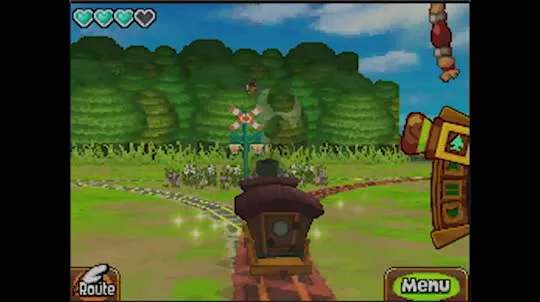
Operating the Spirit Train is a unique and crucial aspect of the game. The bottom screen transforms into your train's control panel when you are at the helm.
- Speed Control:
- Forward: Push the lever icon on the bottom screen forward to increase speed. There are three forward speeds.
- Reverse: Pull the lever icon backward to reverse.
- Stop: Center the lever icon to bring the train to a halt.
- Whistle: Tap the "Whistle" icon (often a bell or horn) to sound the train's whistle. This can alert animals, clear obstacles, or signal to other trains.
- Switching Tracks: When approaching a track junction, arrows will appear on the Touch Screen indicating the available paths. Tap the arrow corresponding to the direction you wish to take. Be quick, as you only have a short window to make your selection!
- Firing the Cannon: Once you acquire the Cannon, an icon will appear on the bottom screen. Tap it to aim, then tap again to fire. This is essential for destroying enemies and obstacles on the tracks.
- Viewing the Map: The top screen will display a zoomed-out view of the tracks ahead, while the bottom screen shows your immediate surroundings and controls.
The Interface: Top & Bottom Screens
Understanding the information presented on both screens is vital for your journey.
Top Screen
- Main Gameplay View: This is where you'll see Link, the environment, enemies, and interactive elements.
- Heart Container Display: Located in the top-left corner, this shows Link's current health. Each full heart represents two hit points. Collect Heart Containers to increase your maximum health.
- Rupee Count: Displays your current amount of Rupees, the currency of Hyrule.
- Equipped Item Icon: Shows the icon of the item currently assigned to your primary action slot.
Bottom Screen
- Action Panel (On Foot):
- Item Slots: Three customizable slots for quick access to your inventory items.
- Menu Icon: Tap to open the main menu.
- Map Icon: Tap to quickly view a larger map of your current area.
- Contextual Actions: Depending on the situation, other icons may appear, such as "Talk," "Examine," or "Lift."
- Train Control Panel (On Train):
- Speed Lever: Controls the train's speed and direction.
- Whistle Icon: Activates the train's whistle.
- Cannon Icon: Appears once the Cannon is acquired, used for aiming and firing.
- Mini-Map: A detailed view of your immediate surroundings on the tracks, including upcoming junctions and potential hazards.
- Main Menu: Accessed by tapping the "Menu" icon.
- Items: Manages your inventory of collected items. Tap an item to view its description or assign it to an action slot.
- Collection: View your progress on various collectibles, such as Force Gems, Treasure, and Stamps.
- Map: A comprehensive map of New Hyrule, showing discovered areas, Spirit Tracks, and important locations. You can draw notes on the map using your stylus.
- Save: Allows you to save your game progress.
- Options: Adjust game settings like sound volume or control sensitivity.
Mastering these controls and understanding the interface will ensure a smooth and enjoyable journey through the Spirit Tracks. Pay close attention to the contextual prompts on the bottom screen, as they often guide you to the correct action in various situations.