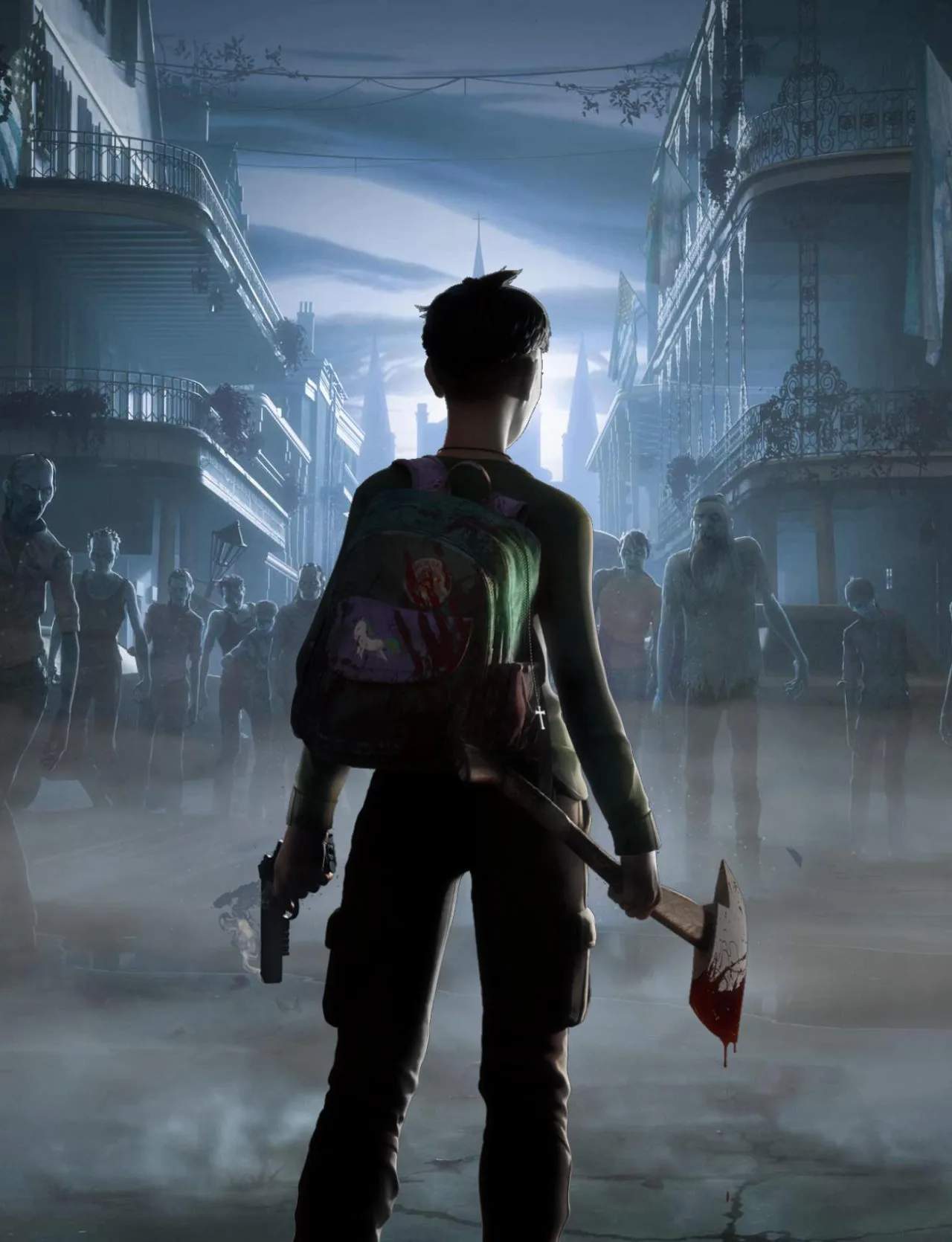
Game Settings & Accessibility Options
Navigating the treacherous streets of New Orleans in The Walking Dead: Saints & Sinners can be a challenge, but thankfully, the game offers a robust suite of settings and accessibility options to tailor your experience. Whether you're looking to fine-tune your VR comfort or adjust gameplay mechanics, this section will guide you through optimizing your playthrough.
Accessing the Settings Menu
To access the game's settings, follow these simple steps:
- From the main menu, locate and select the "Settings" option. This is typically represented by a gear icon.
- Alternatively, during gameplay, you can pause the game by pressing the designated menu button on your VR controller (e.g., the "Menu" button on Oculus Touch controllers or the "System" button on Valve Index controllers). From the in-game pause menu, select "Settings."
General Settings
This category covers broad gameplay and display adjustments.
- Language: Adjust the game's spoken dialogue and subtitle language. Available options include English, French, German, Spanish, and more.
- Subtitles: Toggle subtitles on or off. We highly recommend keeping these on for critical story elements and character dialogue, especially when dealing with the ambient noise of the undead.
- Subtitle Size: If subtitles are enabled, you can adjust their size for better readability. Options typically include Small, Medium, and Large.
- Brightness: Calibrate the overall brightness of the game world. This is particularly useful for ensuring visibility in darker areas like the Ward or the Catacombs.
- Volume Controls:
- Master Volume: Controls the overall game audio.
- Music Volume: Adjusts the intensity of the game's atmospheric and combat music.
- SFX Volume: Controls sound effects like walker groans, weapon impacts, and environmental noises. Crucial for situational awareness!
- Voice Volume: Adjusts the volume of character dialogue.
VR Comfort & Movement
These settings are vital for a comfortable and immersive VR experience, especially for players new to virtual reality or those prone to motion sickness.
- Movement Mode:
- Smooth Locomotion: Allows for continuous, fluid movement using the joystick. This is generally preferred by experienced VR users.
- Teleport: Instantly warp to a designated spot. This is the most comfortable option for many and can significantly reduce motion sickness.
- Turning Mode:
- Smooth Turn: Rotates your view continuously with the joystick.
- Snap Turn: Rotates your view in fixed increments (e.g., 30 or 45 degrees) with each joystick input. This is another excellent option for comfort.
- Vignette: When enabled, a dark border appears around your vision during movement or turning. This reduces peripheral vision, which can help alleviate motion sickness. You can often adjust the intensity of the vignette.
- Dominant Hand: Select your dominant hand (Left or Right) to optimize weapon holstering and interaction prompts.
- Height Adjustment: Manually adjust your in-game height to match your real-world stature. This ensures proper interaction with objects and environments.
- Crouch Mode:
- Physical Crouch: Requires you to physically crouch in your play space.
- Button Crouch: Allows you to toggle crouch with a button press.
Gameplay Settings
These options directly impact how you interact with the game world and its challenges.
- Weapon Holstering:
- Automatic: Weapons automatically snap to their holster locations when released near them.
- Manual: Requires you to intentionally place weapons into holsters. This can offer more control but might be slower in combat.
- Inventory Interaction:
- Grab: Directly grab items from your backpack or belt.
- Toggle: Press a button to open your inventory and then grab items.
- Combat Difficulty: While not a direct setting in the menu, remember that the game's difficulty dynamically adjusts based on your performance and the time of day. Be prepared for tougher encounters as the days progress and during nighttime excursions.
- Tutorial Hints: Toggle on or off the in-game tutorial messages that guide you through new mechanics. If you're a seasoned player or on a second playthrough, you might want to disable these.
Advanced Settings (PC VR Specific)
For PC VR users, additional graphical and performance settings may be available, depending on your headset and platform (e.g., SteamVR, Oculus PC app). These typically include:
- Resolution Scale: Adjust the rendering resolution. Higher values offer sharper visuals but demand more from your GPU.
- Anti-Aliasing: Smooths jagged edges. Options like MSAA or TAA might be available.
- Shadow Quality: Controls the fidelity of shadows.
- Texture Quality: Determines the resolution of in-game textures.
- Draw Distance: Affects how far objects are rendered in the distance.
Experiment with these settings to find the optimal balance between visual quality and smooth performance for your specific hardware. A stable framerate is crucial for a comfortable VR experience in The Walking Dead: Saints & Sinners.