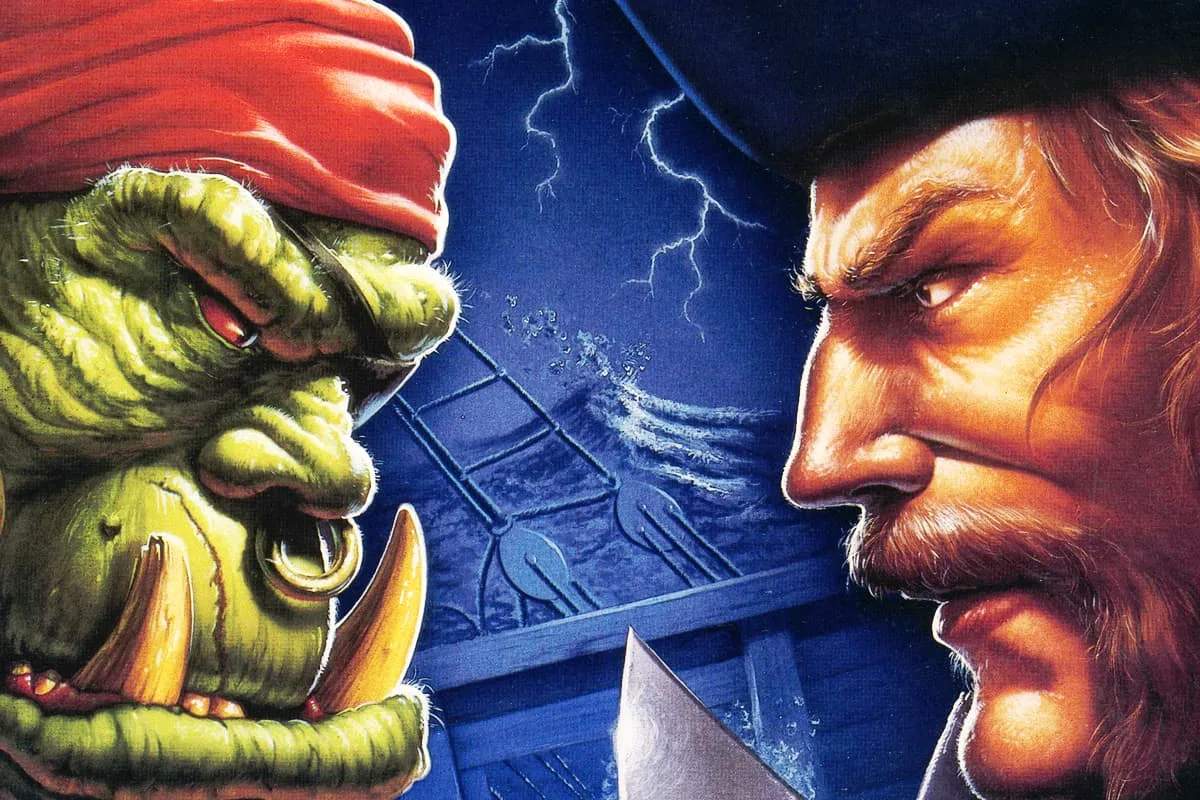
Warcraft II Editor Advanced Features
The Warcraft II Editor is a powerful tool for crafting custom scenarios, but delving into its advanced features can elevate your maps from simple skirmishes to epic sagas. This section will guide you through some of the more intricate functionalities, allowing you to create truly unique and challenging experiences for players.
Triggering Events with Map Flags
Map Flags are invisible markers that, when activated, can trigger several in-game events. Mastering their use is crucial for creating dynamic and interactive maps.
- Placing Map Flags:
- Open the Editor and navigate to the "Objects" menu.
- Select "Map Flag" from the dropdown list.
- Click on the desired location on the map to place the flag. You can place multiple flags.
- Configuring Flag Properties:
- Double-click on a placed Map Flag to open its properties window.
- Name: Assign a descriptive name (e.g., "Player1_Base_Destroyed", "Orc_Advance_Trigger"). This is essential for referencing it in event conditions.
- Initial State: Set whether the flag starts as "Active" or "Inactive." Most trigger flags will start as "Inactive."
- Linking Flags to Events:
Map Flags are typically used as conditions within the "Events" panel (accessible via the "Scenario" menu).
- Go to "Scenario" -> "Events."
- Click "New Event."
- In the "Conditions" section, select "Map Flag State."
- Choose the specific Map Flag you named earlier and set its required state (e.g., "Is Active").
- In the "Actions" section, define what happens when the flag's condition is met. This could be anything from spawning units to displaying a message.
- Practical Application: Reinforcement Triggers
Imagine you want reinforcements to arrive after a player destroys an enemy structure. Place a Map Flag near the enemy structure. In the "Events" panel, create an event:
- Condition: "Unit Destroyed" (select the enemy structure).
- Action: "Set Map Flag State" (select your reinforcement flag, set to "Active").
Then, create a second event:
- Condition: "Map Flag State" (your reinforcement flag, "Is Active").
- Action: "Create Units" (spawn your reinforcements at a designated rally point).
Customizing Unit and Building Attributes
Beyond simply placing units, the Editor allows for granular control over their statistics, opening up possibilities for unique challenges or hero units.
- Accessing Unit/Building Properties:
- Select a unit or building on the map.
- Right-click and choose "Properties" (or double-click the object).
- Key Attributes to Modify:
- Hit Points: Increase or decrease health for stronger bosses or weaker cannon fodder.
- Armor: Adjust defensive capabilities.
- Attack Damage: Fine-tune offensive power.
- Sight Range: Affects how far a unit can see. Useful for creating scouting challenges or hidden objectives.
- Movement Speed: Make units faster or slower for strategic purposes.
- Gold/Lumber Cost: For units that can be built, you can modify their resource cost.
- Build Time: Alter how long it takes to construct buildings or train units.
- Creating Unique Heroes:
To create a powerful hero unit, select a standard unit (e.g., a Knight or Ogre) and significantly boost its Hit Points, Armor, and Attack Damage. You might also increase its Sight Range to make it a more effective scout. Consider giving it a unique name in the "Name" field within its properties to distinguish it from regular units.
- Altering Resource Nodes:
You can modify the amount of Gold in a Gold Mine or Lumber in a Forest patch. Select the resource node, open its properties, and adjust the "Resources" value. This is vital for balancing economic challenges in your maps.
Advanced Terrain Manipulation and Vision Blocking
Terrain isn't just aesthetic; it plays a critical role in line of sight and pathfinding. Advanced manipulation can create strategic choke points and hidden areas.
- Using "High Ground" and "Low Ground":
The "Terrain" palette offers various elevation levels. Strategically placing "High Ground" can provide vision advantages for ranged units, while "Low Ground" can create natural ambushes.
- Select the "Terrain" tool.
- Choose "High Ground" or "Low Ground" from the palette.
- Paint these elevations onto your map. Remember that units on high ground have a vision advantage over units on low ground.
- Vision Blocking Objects:
Certain objects inherently block line of sight, creating "fog of war" even in explored areas. These are invaluable for creating suspense and tactical depth.
- Trees and Forests: Dense forest patches (found under the "Objects" -> "Trees" category) are excellent for blocking vision and creating ambush points.
- Mountains and Cliffs: These natural barriers (from the "Terrain" palette) are the most effective vision blockers and also restrict unit movement.
- Large Structures: Buildings like Keeps, Castles, and even Barracks can partially block vision around them.
- Creating Hidden Paths and Ambushes:
Combine high ground, low ground, and vision-blocking objects to design intricate battlefields. For example, a narrow path through a dense forest, flanked by high cliffs, can be a perfect ambush location. Place enemy units within the forest, out of sight until the player's forces are committed to the path.
using the "Player" Settings for Complex Scenarios
The "Scenario" -> "Player" menu offers deep customization for each of the eight potential players, including AI behavior and starting conditions.
- Player Ownership and AI:
- Player 1 (Human): This is typically the primary player.
- Computer Players: For AI opponents, select "Computer" for their race.
- Neutral Players: For neutral units or structures that don't attack unless provoked, set their owner to a "Neutral" player slot.
- Starting Resources:
Adjust the initial Gold, Lumber, and Oil for each player. This is crucial for balancing early game economies and dictating the pace of the map.
- Go to "Scenario" -> "Player."
- Select the desired player tab (e.g., "Player 2").
- Modify the "Starting Gold," "Starting Lumber," and "Starting Oil" values.
- Starting Units and Buildings:
Beyond placing units directly on the map, you can define starting units and buildings for each player through this menu. This is particularly useful for ensuring specific starting compositions or for creating scenarios where players begin with pre-established bases.
- In the "Player" menu, select the player.
- Under the "Starting Units" or "Starting Buildings" sections, add the desired units/buildings and their quantities.
- AI Personalities:
For computer players, you can assign different AI personalities (e.g., "Aggressive," "Defensive," "Balanced"). Experiment with these to create varied AI challenges.
- In the "Player" menu, select a computer player.
- Choose an "AI Personality" from the dropdown.