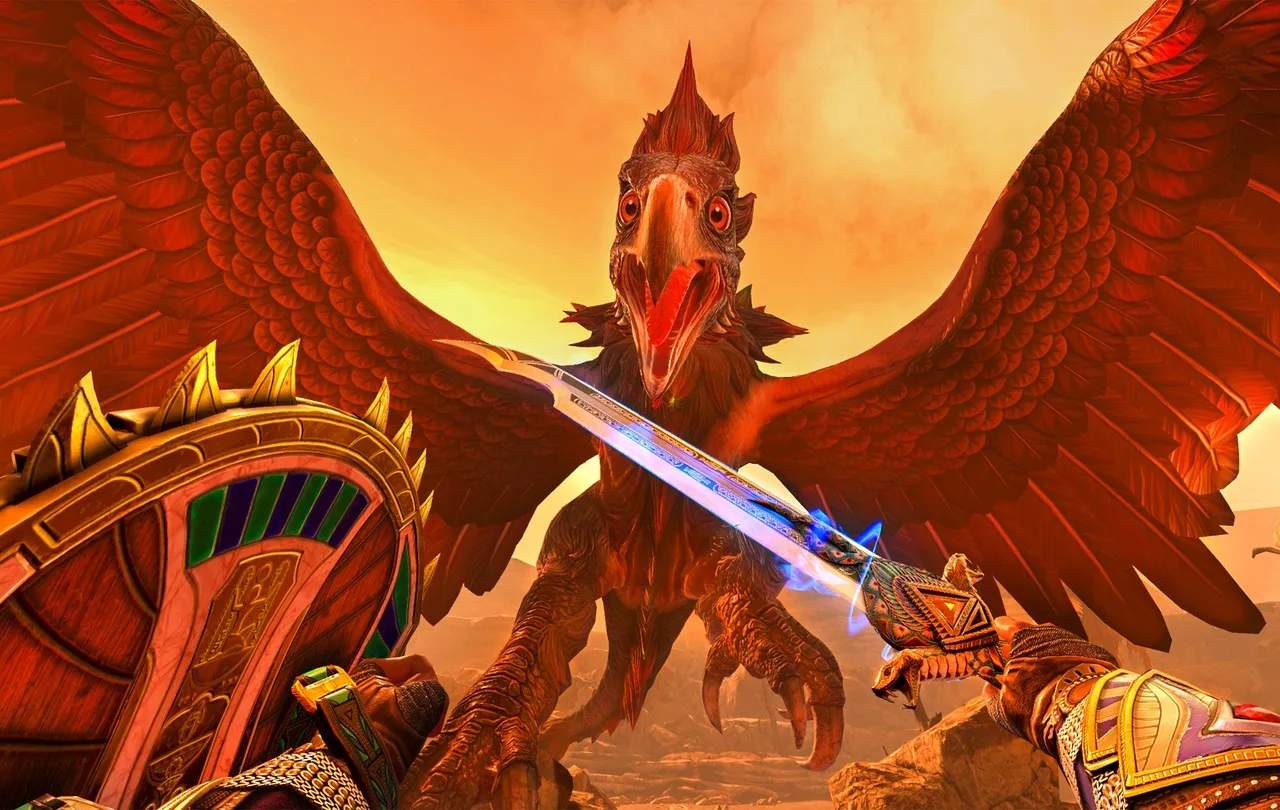
Game Settings & Options
Optimizing your game settings in Asgard's Wrath 2 is crucial for both performance and a personalized gameplay experience. Whether you're aiming for buttery-smooth combat or a more accessible adventure, this section will guide you through every significant option available.
Accessing the Settings Menu
To begin, pause the game at any point during your journey through the realms. This can typically be done by pressing the Menu Button on your right-hand controller (often represented by three horizontal lines). From the pause menu, navigate to the "Settings" option, usually found at the bottom of the list, and select it to open the full configuration interface.
Graphics & Performance
These settings directly impact the visual fidelity and frame rate of Asgard's Wrath 2. Adjusting them can significantly improve your experience, especially on different hardware configurations.
- Resolution Scaling: This slider (ranging from 50% to 150%) dictates the internal rendering resolution.
- Strategy: For maximum visual clarity, set this to 100% or higher if your system can maintain a stable frame rate. If you experience performance dips, gradually lower it to find a balance.
- Recommendation: Start at 100%. If combat feels sluggish in areas like the Desert of Souls or during large-scale battles in Midgard, try 80-90%.
- Texture Quality: Controls the detail level of in-game textures (Low, Medium, High, Ultra).
- Strategy: Higher settings make environments like the intricate carvings in Valhalla or the detailed enemy models appear sharper.
- Recommendation: Set to "High" for a good balance. Only use "Ultra" if you have ample VRAM and a powerful GPU. "Medium" can significantly boost performance on older hardware.
- Shadow Quality: Adjusts the resolution and complexity of shadows (Off, Low, Medium, High).
- Strategy: Shadows are often a performance heavy setting. Lowering this can yield significant FPS gains.
- Recommendation: "Medium" is a safe bet. If you're struggling, "Low" or even "Off" can make a big difference without drastically impacting gameplay.
- Anti-Aliasing: Smooths jagged edges on objects (FXAA, TAA, MSAA x2, MSAA x4).
- Strategy: TAA (Temporal Anti-Aliasing) generally provides a good balance of smoothness and performance. MSAA offers superior quality but is more demanding.
- Recommendation: Start with "TAA". If you notice shimmering or jagged lines, try "MSAA x2" if performance allows.
Audio Settings
Fine-tune the soundscape of Asgard's Wrath 2 to your preference, ensuring you catch every crucial audio cue and enjoy the epic soundtrack.
- Master Volume: Controls the overall game volume (0-100).
- Music Volume: Adjusts the volume of the background music (0-100).
- Strategy: Lower this slightly if you find the music overpowering dialogue or sound effects during intense boss fights, such as against the Serpent of the World.
- SFX Volume: Controls sound effects like combat impacts, environmental noises, and character abilities (0-100).
- Strategy: Keep this high to clearly hear enemy attacks and environmental hazards.
- Dialogue Volume: Adjusts the volume of spoken dialogue (0-100).
- Strategy: Crucial for understanding the rich lore and quest objectives from NPCs like Freya or Mimir. Ensure this is set high enough to be easily heard.
Gameplay & Accessibility
These options allow you to customize the core gameplay experience, from combat difficulty to movement preferences, catering to a wide range of player needs.
- Difficulty: Select your preferred challenge level (Easy, Normal, Hard, Nightmare).
- Strategy: If you're new to action RPGs or want to focus on the story, "Easy" is a great starting point. "Nightmare" is for seasoned warriors seeking the ultimate test against foes like the Draugr Lords.
- Recommendation: "Normal" offers a balanced experience for most players. You can change this at any time from the settings menu.
- Combat Assist: Toggles features that simplify combat (On/Off).
- Strategy: When "On," this can include auto-blocking or simplified parry windows, making encounters less demanding.
- Recommendation: If you find yourself struggling with precise timing against agile enemies, activate this.
- Vibration Feedback: Enables or disables controller vibration (On/Off).
- Strategy: Vibration adds immersion to combat and environmental interactions. Turn it off if you find it distracting or prefer to conserve controller battery.
- Movement Type: Choose between various locomotion methods (Smooth Locomotion, Teleport, Snap Turn).
- Strategy: Smooth Locomotion offers the most natural movement but can cause motion sickness for some. Teleport is excellent for comfort and precise positioning. Snap Turn provides discrete rotations instead of smooth turning.
- Recommendation: Experiment with these early on in a safe area like your Sanctuary to find what works best for you.
- Comfort Options: A suite of settings designed to reduce motion sickness.
- Vignette: Applies a darkening effect around the edges of your vision during movement. Adjust the intensity (Low, Medium, High).
- Blind Spot: Reduces your field of view during quick turns or movement.
- Head-Relative Movement: Toggles whether movement direction is relative to your head or controller.
- Recommendation: If you experience any discomfort, start by enabling a "Medium" vignette and experiment with the other options.
Controls
Customize your button mappings and sensitivity to ensure your actions are always precise and comfortable.
- Controller Layout: View and customize button assignments for your primary and off-hand controllers.
- Strategy: If a default action feels awkward, such as using a specific runic ability, remap it to a more accessible button.
- Look Sensitivity: Adjusts the speed of your camera movement (1-10).
- Strategy: A higher sensitivity allows for quicker reactions in combat, especially against fast-moving enemies or when needing to survey your surroundings rapidly in areas like the sprawling World Tree branches.
- Recommendation: Start at 5 and adjust incrementally. Too high can make precise aiming difficult, while too low can feel sluggish.