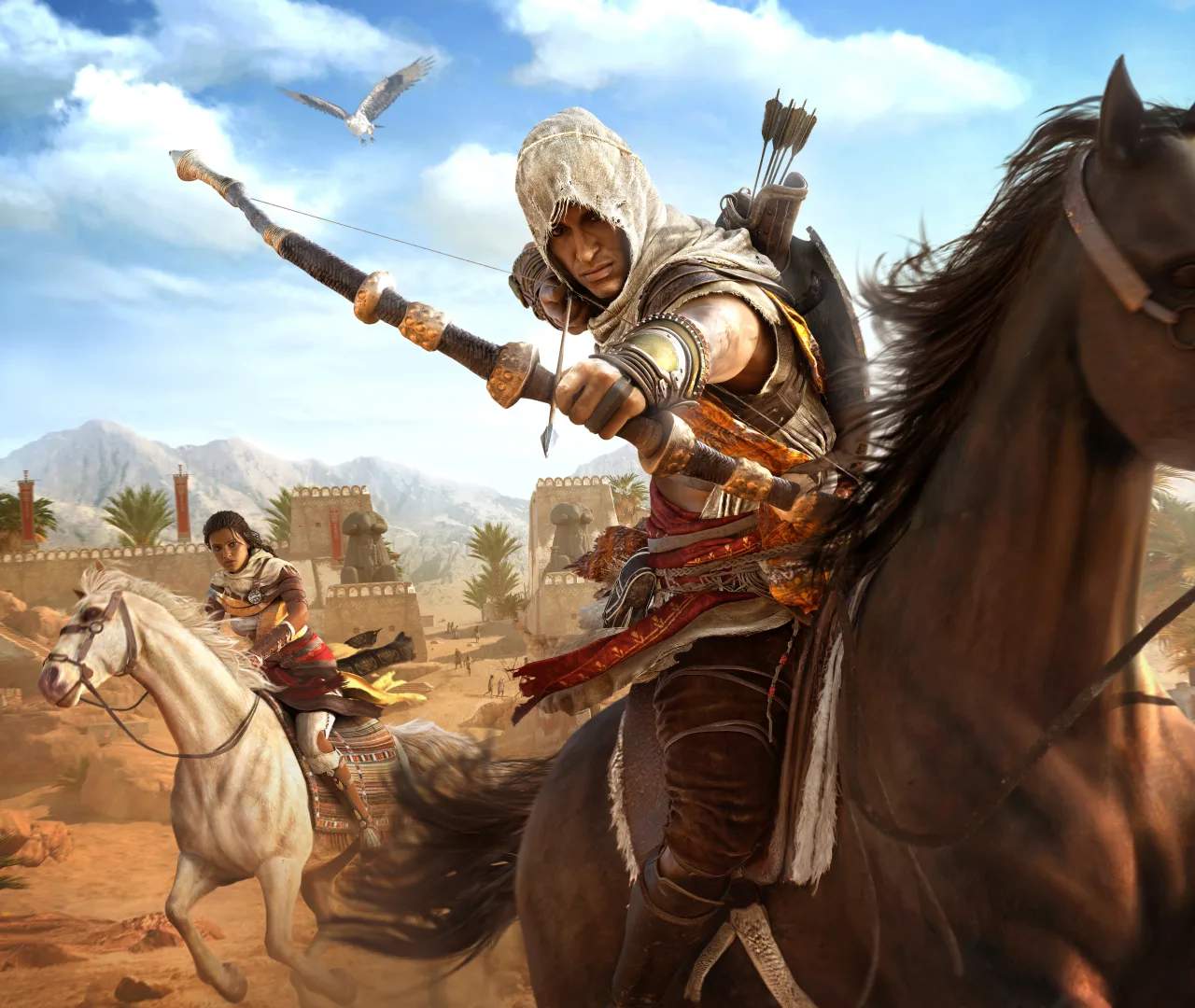
Photo Mode Tips & Tricks
Assassin's Creed Origins offers a stunning recreation of ancient Egypt, and its Photo Mode is your personal tool to capture its beauty, epic moments, and even hilarious glitches. More than just a screenshot button, Photo Mode provides a suite of options to frame the perfect shot. Master these techniques to elevate your in-game photography and share your unique perspective of Bayek's journey.
Activating Photo Mode
Accessing Photo Mode is straightforward, but the exact button varies slightly by platform:
- PlayStation 4: Press both L3 and R3 simultaneously.
- Xbox One: Press both Left Stick and Right Stick simultaneously.
- PC: The default key is F3. This can be customized in the Key Bindings menu under 'Controls'.
You can activate Photo Mode at almost any time, whether Bayek is mid-combat, exploring a bustling city, or simply admiring a sunset over the desert. Experiment with different situations to find unique photographic opportunities.
Essential Camera Controls
Once in Photo Mode, you'll have a range of controls to manipulate your shot:
- Camera Movement: Use the left stick (L-Stick on PS4/Xbox, W/A/S/D on PC) to move the camera horizontally and vertically.
- Camera Rotation: Use the right stick (R-Stick on PS4/Xbox, Mouse on PC) to rotate the camera and adjust its angle.
- Zoom In/Out: Use L2/R2 (PS4), LT/RT (Xbox), or the Mouse Wheel (PC) to zoom the camera.
- Roll Camera: Press L1/R1 (PS4), LB/RB (Xbox), or Q/E (PC) to tilt the camera for dynamic angles.
Advanced Photo Mode Settings
Beyond basic camera movement, Photo Mode offers several powerful settings to fine-tune your images. These are typically accessed via a menu within Photo Mode itself, often navigated with the D-Pad or arrow keys.
Field of View (FOV)
Adjusting the FOV is crucial for framing. A wider FOV (lower number) can capture more of the environment, ideal for sweeping landscapes or large-scale battles. A narrower FOV (higher number) will zoom in, perfect for character portraits or highlighting specific details. Experiment with this setting to see how it changes the perspective of your shot.
Depth of Field (DOF)
DOF allows you to control which parts of your image are in focus. This is a powerful artistic tool:
- Aperture: Adjust this to control the intensity of the blur. A lower aperture creates a stronger blur, isolating your subject.
- Focus Distance: Manually set the distance at which your camera focuses. Use this to ensure Bayek, a specific NPC, or an environmental detail is perfectly sharp while the background or foreground blurs.
Using DOF effectively can make your photos look more professional and draw the viewer's eye to your intended subject.
Exposure and Contrast
These settings allow you to adjust the brightness and tonal range of your image:
- Exposure: Brightens or darkens the entire image. Useful for correcting shots that are too dim or overexposed.
- Contrast: Increases or decreases the difference between light and dark areas. Higher contrast can make images pop, while lower contrast can create a softer, more dreamlike feel.
Color Filters
Assassin's Creed Origins includes several pre-set color filters that can dramatically change the mood and aesthetic of your photo. Some notable filters include:
- Sepia: Gives an old, faded look, perfect for historical shots.
- Black & White: Emphasizes contrast and texture, ideal for dramatic scenes.
- Vibrant: Boosts color saturation, making landscapes and character outfits stand out.
Cycle through the filters to see which one best complements your scene. Sometimes, a subtle filter can make all the difference.
Strategic Photo Opportunities
- Action Shots: Activate Photo Mode during combat, mid-air assassinations, or while Bayek is performing a parkour move. The ability to freeze time allows you to capture dynamic poses and intense moments.
- Scenic Views: Climb to the top of synchronization points like the Great Pyramid of Giza or the Lighthouse of Alexandria. These vantage points offer unparalleled panoramic views.
- Wildlife Encounters: Capture the diverse fauna of Egypt, from majestic lions in the White Desert Oasis to crocodiles lurking in the Nile. Use DOF to focus on the animal.
- Character Portraits: Get close to Bayek or interesting NPCs. Use the FOV and DOF to create compelling portraits. toggle Bayek's hair and beard styles in the Gear menu (using triggers and Triangle on PS4, or equivalent on other platforms) for varied looks!
- Story Moments: Some of the most impactful photos can be taken during cutscenes or pivotal story quests. Be ready to activate Photo Mode when a memorable scene unfolds.
- "Autopilot" Shots: While Bayek is on his mount using auto-travel (hold X on Xbox, A on PS4 after setting a waypoint), you can enter Photo Mode. This allows you to capture Bayek riding through the landscape from unique angles without having to control the mount yourself. You can even switch to Senu and scout ahead while Bayek is on autopilot, then quickly switch back to Bayek and enter Photo Mode to capture him from Senu's perspective.
Sharing Your Masterpieces
Once you've captured your perfect shot, the game will save it to your console's or PC's screenshot gallery. From there, you can easily share your photos with friends and the wider Assassin's Creed community online. Many players use the in-game Photo Mode to document their journey, discover hidden details, and showcase the game's incredible artistry. Happy snapping, Medjay!