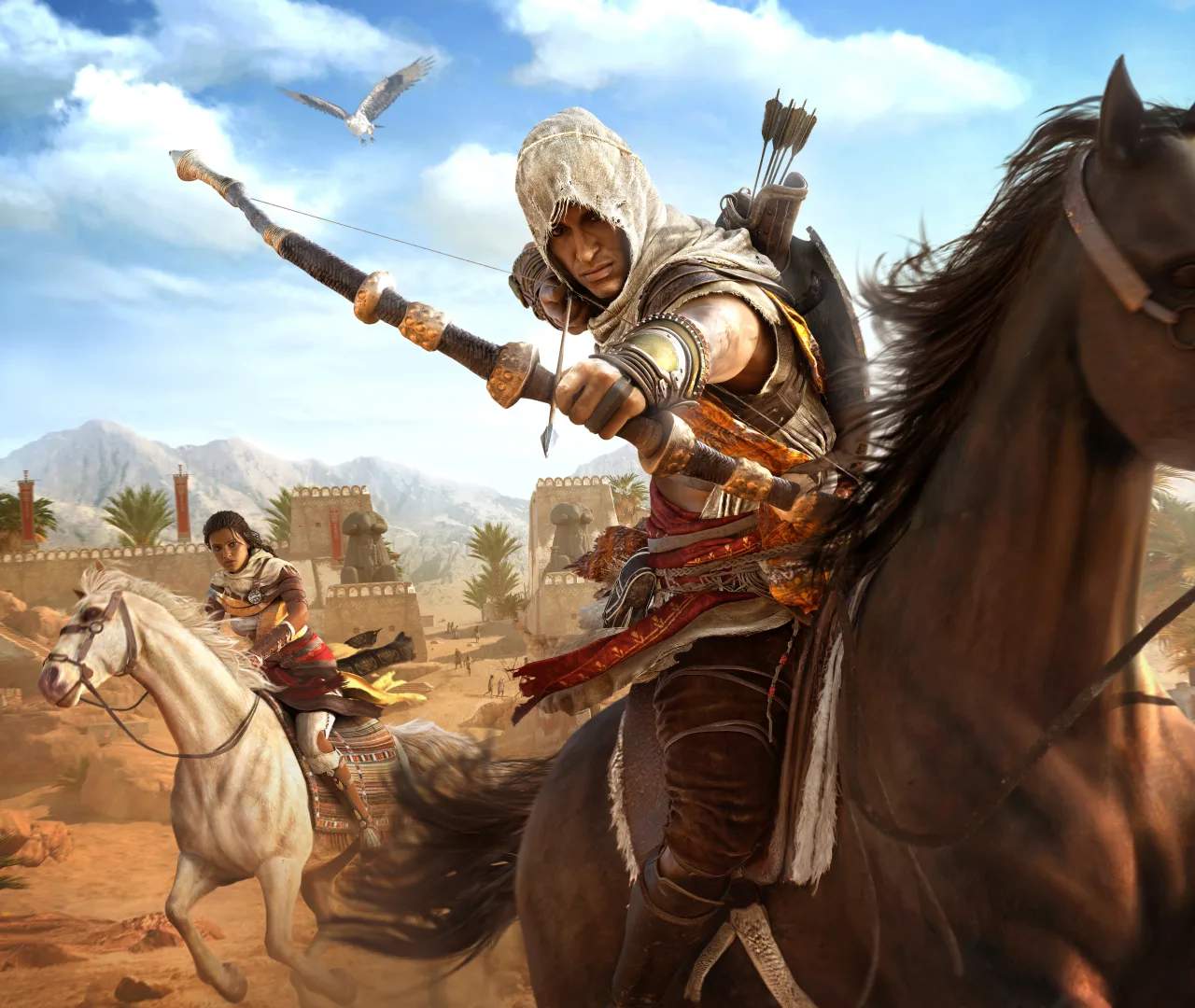
Photo Mode Guide
Assassin's Creed Origins offers a robust Photo Mode, allowing you to capture the stunning beauty of ancient Egypt and Bayek's epic journey. This guide will walk you through its features and offer tips for taking breathtaking screenshots.
Activating Photo Mode
To enter Photo Mode, simply press both analog sticks (L3 + R3 on PlayStation, LS + RS on Xbox) simultaneously. This will pause the action and bring up the Photo Mode interface. You can activate Photo Mode at almost any time, whether you're mid-combat, exploring a bustling city, or soaring with Senu.
Navigating the Interface
Once in Photo Mode, you'll have access to several tools to frame and enhance your shot. The interface is divided into several categories, each controlling different aspects of the camera and visual effects.
Camera Controls
- Movement: Use the left analog stick to move the camera horizontally and vertically.
- Rotation: Use the right analog stick to rotate the camera around its axis.
- Zoom: Use the D-Pad Up/Down to zoom in and out.
- Tilt: Use the L1/R1 (PlayStation) or LB/RB (Xbox) buttons to tilt the camera.
- Reset Camera: If you get lost or want to start fresh, look for an option to reset the camera position (often indicated by a specific button prompt on-screen).
Visual Adjustments
These options allow you to fine-tune the aesthetic of your photo.
- Depth of Field (DoF): This setting controls the blurriness of the background and foreground. Adjust the aperture to create a cinematic look, focusing attention on your subject.
- Exposure: Brighten or darken your image to compensate for lighting conditions.
- Contrast: Enhance the difference between light and dark areas in your photo.
- Saturation: Increase or decrease the vibrancy of colors.
- Temperature: Adjust the color balance, making the image warmer (more yellow/orange) or cooler (more blue).
- Grain: Add a film grain effect for a more classic or gritty feel.
- Vignette: Darken the edges of your photo to draw focus to the center.
Character and Environment Options
Photo Mode also allows you to manipulate elements within the scene itself.
- Hide Bayek: Toggle Bayek's visibility if you want to capture a landscape shot without him in the frame.
- Hide NPCs: Remove non-player characters from the scene for a cleaner shot or to focus on specific elements.
- Time of Day: While not a direct Photo Mode option, remember that the time of day significantly impacts lighting. Consider exiting Photo Mode, waiting for the desired time (or using the "Meditate" ability to advance time), and then re-entering Photo Mode for optimal lighting.
- Weather: Similar to time of day, weather effects like sandstorms or rain can dramatically alter the mood of your photo.
Tips for Capturing the Perfect Shot
- Golden Hour: The periods just after sunrise and before sunset (often called "golden hour") provide the most flattering and dramatic lighting. Experiment with these times in locations like the Siwa Oasis or the bustling streets of Memphis.
- Action Shots: Activate Photo Mode during a critical moment in combat, like a finishing move or an arrow mid-flight, to capture dynamic and exciting images.
- Senu's Perspective: While Bayek is on auto-pilot (by holding X on a mount with a waypoint set, then pressing L3 on legacy controls), switch to Senu and fly around. You can then enter Photo Mode from Senu's perspective for unique aerial views of locations like the Pyramids of Giza or the Lighthouse of Alexandria.
- Rule of Thirds: Imagine a grid over your screen and place points of interest along the lines or at their intersections for a more balanced and visually appealing composition.
- Experiment with Filters: Photo Mode often includes various filters that can instantly change the mood and style of your image. Don't be afraid to try them all!
- Focus on Details: Ancient Egypt is rich with intricate details. Use the zoom and depth of field to highlight specific carvings, ancient artifacts, or the expressions on Bayek's face.
- Storytelling: Think about what story you want your photo to tell. Is it an epic battle, a serene landscape, or a candid moment of Bayek interacting with the world?
Saving and Sharing Your Photos
Once you've composed your masterpiece, look for the "Take Photo" or "Capture" button prompt within the Photo Mode interface. This will save the image to your console's or PC's screenshot gallery. From there, you can share your incredible captures with the Assassin's Creed Origins community and beyond!