Accessibility Options
Brotato, while seemingly simple, offers a surprising depth of accessibility features to ensure players of all abilities can enjoy the chaotic fun. This section details how to locate, configure, and leverage these options to tailor your gameplay experience. Whether you're looking to reduce visual clutter, adjust input sensitivity, or simply make the game more comfortable to play for extended periods, Brotato has you covered.
Accessing the Accessibility Menu
To begin customizing your accessibility settings, follow these straightforward steps:
- From the Main Menu, navigate to the Options button. This is typically located in the bottom-right corner of the screen, often represented by a gear icon.
- Click on Options to open the general settings menu.
- Within the Options menu, you will see several tabs or categories. Look for the tab labeled Accessibility. Click on this tab to reveal all the available accessibility settings.
- Once in the Accessibility menu, you can freely adjust the various parameters described below. Remember to click Apply or Save (if prompted) before exiting the menu to ensure your changes take effect.
Detailed Accessibility Settings
Visual Aids
These settings are designed to reduce visual strain, improve clarity, and minimize distractions during intense combat encounters.
- Enemy Outline:
- Location: Accessibility Menu -> Visual Aids.
- Function: Toggles a distinct outline around all enemy entities. This can be incredibly useful for players who struggle with distinguishing enemies from the background, especially during waves with many projectiles or environmental hazards.
- Strategy: Experiment with this setting. While it can improve visibility, some players might find the constant outlines distracting. It's particularly effective when playing as characters like the Streamer or Explorer who often deal with large groups of enemies.
- Projectile Visibility:
- Location: Accessibility Menu -> Visual Aids.
- Function: Allows you to adjust the transparency of enemy projectiles. Options typically range from Normal to High Visibility (more opaque) or Low Visibility (more transparent).
- Strategy: If you find yourself overwhelmed by bullet-hell patterns, increasing projectile visibility can make them easier to track. Conversely, if you feel the screen is too cluttered, slightly reducing visibility might help focus on enemy positions. This is highly recommended for builds that prioritize dodging over tanking.
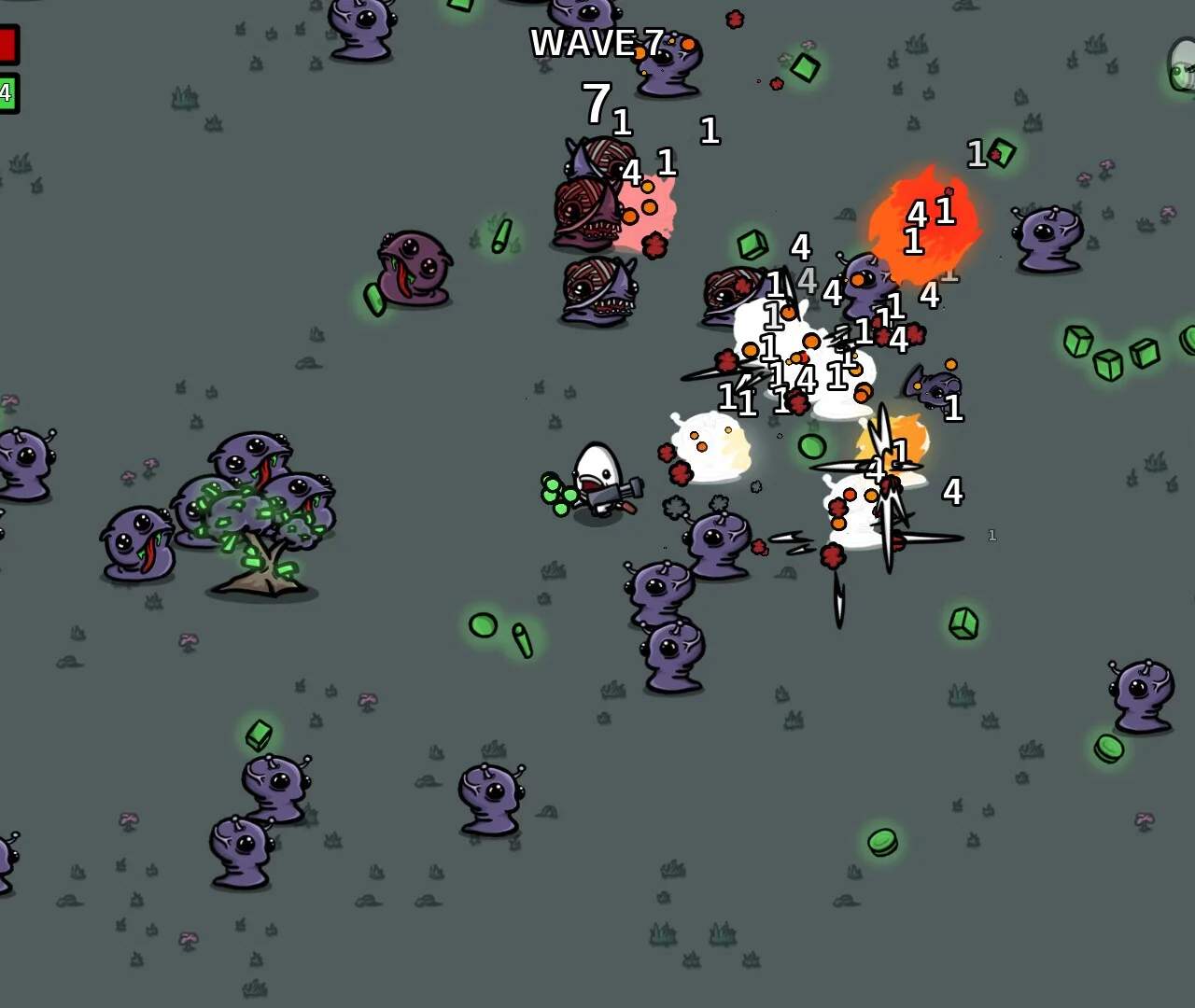
- Damage Numbers:
- Location: Accessibility Menu -> Visual Aids.
- Function: Toggles the display of floating damage numbers when you hit enemies.
- Strategy: Disabling damage numbers can significantly reduce visual clutter, especially with high attack speed builds or weapons like the SMG or Minigun. If you're more focused on survival and less on precise damage output per hit, turning these off can make the screen much cleaner.
- Screen Shake:
- Location: Accessibility Menu -> Visual Aids.
- Function: Controls the intensity of screen shake effects that occur during powerful hits, boss attacks, or certain item activations.
- Strategy: Many players find screen shake disorienting or even motion-sickness inducing. Setting this to Off or Reduced can lead to a much smoother and more comfortable gameplay experience, particularly during long runs.
Input & Control
These settings focus on refining how you interact with the game, offering adjustments for various input preferences.
- Auto-Aim:
- Location: Accessibility Menu -> Input & Control.
- Function: Enables or disables the automatic targeting of the nearest enemy.
- Strategy: For players who prefer a more relaxed aiming experience or have difficulty with precise mouse/joystick control, enabling auto-aim is a game-changer. It allows you to focus more on movement and dodging. However, for builds requiring specific target prioritization (e.g., focusing down elite enemies with a Sniper Rifle), disabling auto-aim provides more control.
- Controller Vibration:
- Location: Accessibility Menu -> Input & Control.
- Function: Toggles haptic feedback on compatible controllers.
- Strategy: Some players find controller vibration immersive, while others find it distracting or even painful. You can turn this On or Off based on your personal preference.
- Mouse Sensitivity:
- Location: Accessibility Menu -> Input & Control.
- Function: Adjusts how quickly your cursor moves in response to mouse input.
- Strategy: Finding the right mouse sensitivity is crucial for comfortable play. If you find yourself overshooting targets or struggling to turn quickly, adjust this setting until it feels natural. This is particularly important for characters like the Hunter or Soldier who rely on precise aiming.
Audio Settings
While not strictly "accessibility" in the traditional sense, these audio options can significantly impact comfort and focus.
- Master Volume:
- Location: Options Menu -> Audio.
- Function: Controls the overall game volume.
- Strategy: Adjust to a comfortable level. Prolonged exposure to loud audio can cause fatigue.
- Music Volume:
- Location: Options Menu -> Audio.
- Function: Controls the volume of the in-game soundtrack.
- Strategy: If you find the music distracting during intense moments, you can lower it. Some players prefer to play with music off entirely to better hear sound cues.
- SFX Volume:
- Location: Options Menu -> Audio.
- Function: Controls the volume of sound effects (weapon fire, enemy hits, item pickups, etc.).
- Strategy: Sound effects are often crucial for gameplay feedback. Keeping SFX at a reasonable level can help you react to incoming damage or enemy spawns. If you're struggling to hear specific cues, consider lowering music and increasing SFX.
By taking the time to explore and configure these accessibility options, you can significantly enhance your Brotato experience, making it more enjoyable, comfortable, and tailored to your individual needs.