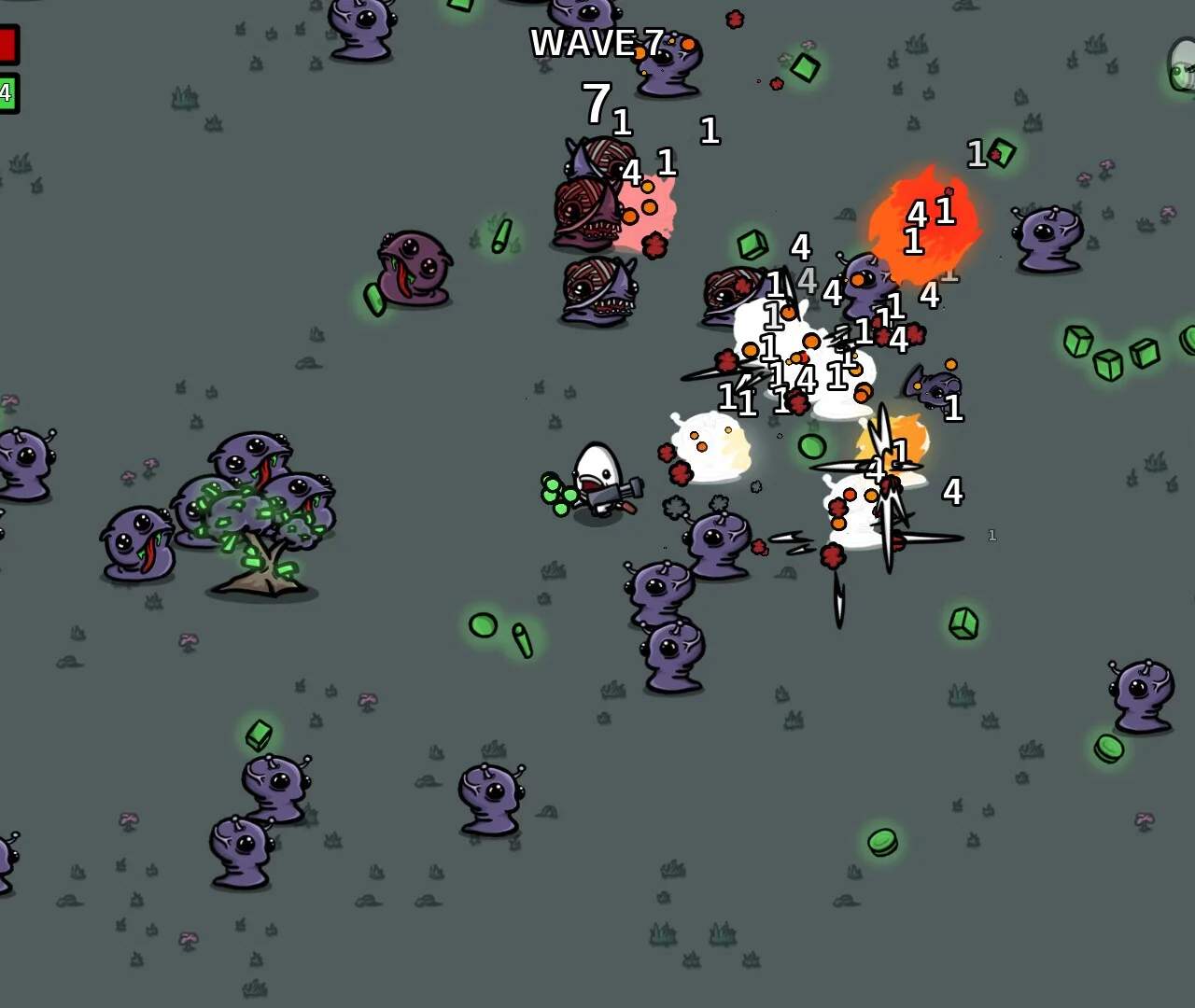
Performance & Graphics Settings
Even the most seasoned Brotato veterans can experience hiccups in their potato-blasting adventures. Optimizing your game's performance and graphics settings can be the difference between a smooth, high-score run and a frustrating, lag-induced demise. This detailed guide will walk you through each crucial setting, helping you fine-tune your experience for maximum efficiency and visual clarity.
Accessing the Settings Menu
Before diving into the specifics, you need to know where to find these options:
- From the main menu, navigate to the "Options" tab.
- Select "Graphics & Performance" to open the dedicated settings panel.
Alternatively, if you're already in a run and notice performance issues, you can pause the game (default key: 'Esc') and select "Settings" from the in-game menu. Changes made here will apply immediately, allowing for on-the-fly adjustments.
Core Performance Settings
These settings directly impact your frame rate and overall game responsiveness. Prioritize these if you're experiencing lag or stuttering.
- Resolution: This is arguably the most impactful setting.
- Strategy: Lowering your resolution significantly reduces the load on your GPU. While playing on a lower resolution might make the game appear less sharp, the performance gain is often substantial. Experiment with resolutions like 1280x720 or 1024x768 if you're struggling to maintain a stable framerate, especially on older hardware or integrated graphics.
- Location: Graphics & Performance -> Display -> Resolution.
- V-Sync: Vertical Synchronization aims to prevent screen tearing by synchronizing your game's frame rate with your monitor's refresh rate.
- Strategy: If you experience screen tearing (horizontal lines appearing during fast movement), enable V-Sync. However, V-Sync can introduce input lag, which can be detrimental in a fast-paced game like Brotato. If you have a high refresh rate monitor and don't notice tearing, consider disabling it for the lowest input latency.
- Location: Graphics & Performance -> Display -> V-Sync.
- Frame Rate Cap: This setting limits the maximum frames per second the game will render.
- Strategy: While it might seem counter-intuitive to limit your frames, capping it to a stable number (e.g., 60 FPS or your monitor's refresh rate) can prevent erratic frame rate fluctuations that feel more jarring than a consistently lower, but stable, frame rate. If your system struggles to hit high frame rates, capping it can also reduce CPU/GPU usage and heat.
- Location: Graphics & Performance -> Advanced -> Frame Rate Cap.
- Particle Effects Quality: Controls the visual fidelity and density of in-game particle effects (explosions, projectile trails, enemy deaths).
- Strategy: Brotato features a lot of on-screen action, and particle effects can quickly become a performance hog. Reducing this to "Low" or "Medium" can significantly improve performance during intense waves without drastically impacting gameplay clarity.
- Location: Graphics & Performance -> Visuals -> Particle Effects Quality.
Visual & Clarity Settings
These settings primarily affect the aesthetic appeal of the game. Adjust them based on your preference and remaining performance headroom.
- Texture Quality: Determines the resolution of in-game textures.
- Strategy: On most modern systems, "High" or "Medium" should be fine. If you have a very old GPU or limited VRAM, lowering this to "Low" can free up resources, though the visual impact might be noticeable.
- Location: Graphics & Performance -> Visuals -> Texture Quality.
- Shader Quality: Affects the complexity of lighting, shadows, and material rendering.
- Strategy: Similar to Texture Quality, "High" or "Medium" is generally recommended. Reducing this to "Low" will simplify visual effects, potentially offering a small performance boost.
- Location: Graphics & Performance -> Visuals -> Shader Quality.
- Bloom: Adds a glowing effect to bright areas.
- Strategy: This is purely aesthetic. Disabling Bloom can slightly improve performance and, for some players, enhance visual clarity by reducing screen "glow."
- Location: Graphics & Performance -> Visuals -> Bloom.
- Screen Shake: Controls the intensity of screen movement during certain events (e.g., large explosions, boss attacks).
- Strategy: While not directly a performance setting, excessive screen shake can be disorienting and make it harder to track projectiles and enemies, indirectly impacting your ability to play effectively. Consider reducing or disabling it for a clearer view of the battlefield.
- Location: Graphics & Performance -> Accessibility -> Screen Shake Intensity.
Advanced Troubleshooting Tips
- Update Graphics Drivers: Always ensure your graphics card drivers are up to date. Manufacturers frequently release optimized drivers that can significantly improve game performance. Check the official websites for NVIDIA, AMD, or Intel.
- Close Background Applications: Before launching Brotato, close any unnecessary applications running in the background (web browsers, streaming services, other games). These can consume valuable CPU, GPU, and RAM resources.
- Monitor Performance: Use tools like MSI Afterburner (for GPU monitoring) or your operating system's Task Manager (for CPU/RAM) to identify bottlenecks. This can help you pinpoint which settings are having the biggest impact on your system.
- Experiment and Test: The optimal settings will vary depending on your specific hardware. Don't be afraid to experiment with different combinations. Make one change at a time, then play a few waves to assess the impact before making further adjustments.