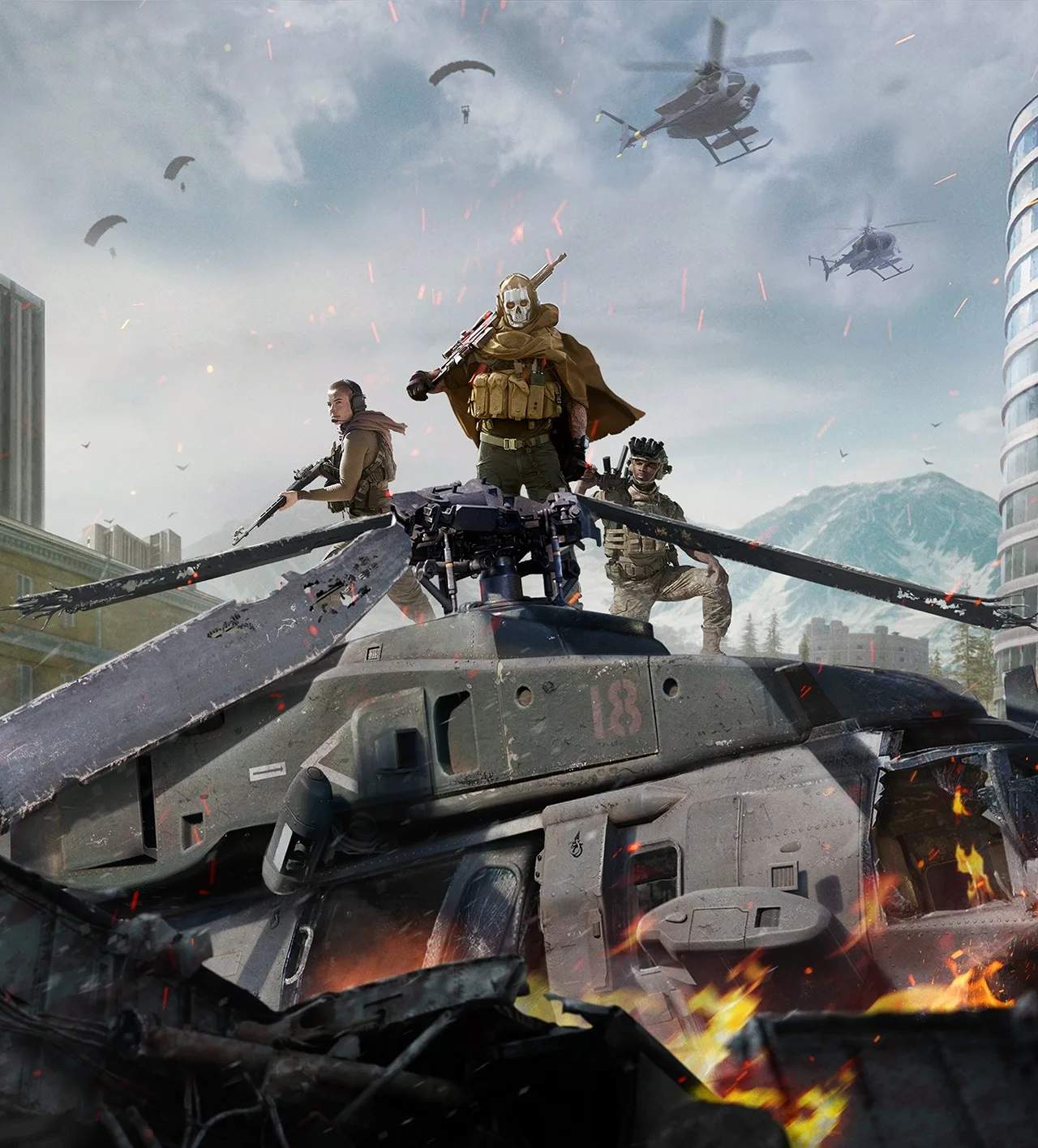
Proximity Chat & Voice Communication
In the high-stakes environment of Warzone, effective communication is paramount. Beyond your squad's internal voice chat, Proximity Chat offers a unique layer of interaction and strategy, allowing you to hear and be heard by nearby enemy players. Mastering both forms of communication can give you a significant edge on the battlefield.
Understanding Proximity Chat
Proximity Chat automatically activates when an enemy player is within a certain audible range of your character. This isn't just for taunting; it's a powerful tool for intel gathering and psychological warfare. The range is roughly equivalent to the audible footsteps of an unsuppressed weapon, making it effective in close-quarters engagements, especially within buildings in areas like Al Mazrah City or the underground tunnels of the Observatory.
Strategic Applications of Proximity Chat
- Intel Gathering: Listen for enemy callouts, reload sounds, or even their reactions to your presence. If you hear an enemy say "He's one shot!" or "Reloading!", you immediately gain critical information about their health and current state.
- Psychological Warfare: A well-timed taunt or misleading statement can throw off an enemy's focus. For example, if you're pushing a building, shouting "I'm flanking left!" when you're actually going right can create confusion.
- Baiting and Trapping: Pretend to be a lone wolf or in distress to lure enemies into a trap set by your squad. A simple "Help, I'm downed!" can draw unsuspecting foes into a crossfire.
- Identifying Solo Players: If you only hear one voice in a close engagement, it might indicate a solo player, allowing your squad to push more aggressively.
Optimizing Your Proximity Chat Experience
To make the most of Proximity Chat without it becoming a distraction, consider these settings adjustments:
- Audio Mix: Experiment with different audio mixes (e.g., "Headphone Bass Boost" or "Home Theater") in the Audio settings to ensure enemy voices are clear but don't overpower crucial game sounds like footsteps or gunfire.
- Voice Chat Volume: Adjust the "Voice Chat Volume" slider to find a balance where enemy comms are audible but not deafening. You can find this in the Audio tab under the "Voice Chat" section.
- Microphone Threshold: If you're using an open mic, set your "Microphone Threshold" appropriately to prevent background noise from being broadcast via Proximity Chat. This is crucial for maintaining stealth.
Squad Voice Communication
Your primary communication channel remains your squad's dedicated voice chat. Clear, concise, and timely callouts are the backbone of successful team play in Warzone.
Essential Callouts & Best Practices
- Enemy Locations: Always specify direction (e.g., "Enemy on ping," "Two enemies on the roof, 300 meters, facing west," "One pushing from the gas station"). Use the in-game ping system (default: Alt on PC, Up on D-Pad on console) to mark enemy positions accurately.
- Enemy Status: Communicate enemy health ("He's cracked!", "One shot!", "Armor broken!"), and whether they are downed or eliminated.
- Loot & Resources: Call out valuable items like Self-Revive Kits, Armor Plates, UAVs, or Loadout Drop Markers, especially if a teammate needs them.
- Movement & Intentions: Inform your squad of your next move ("I'm pushing left," "Holding this angle," "Going for the revive").
- Pings: use the contextual ping system for marking enemies, loot, objectives, and even danger zones. A quick double-ping can mark a dangerous area.
Voice Chat Settings for Squad Comms
Navigate to the Audio settings, then the "Voice Chat" section, to fine-tune your squad communication:
- Voice Chat Device: Ensure your preferred microphone and output device are selected.
- Voice Chat Mode: Choose between "Open Mic" (always on) or "Push-to-Talk." For competitive play, "Push-to-Talk" (default: V on PC) is highly recommended to prevent accidental background noise or unnecessary chatter from distracting your teammates.
- Microphone Volume: Adjust this to ensure your voice is clear and audible to your squad without being too loud or quiet.
- Voice Chat Effects: While fun, consider disabling any voice chat effects to maintain clarity in critical moments.
By understanding and effectively using both Proximity Chat and your squad's dedicated voice communication, you'll transform your Warzone gameplay, turning potential chaos into coordinated victory.