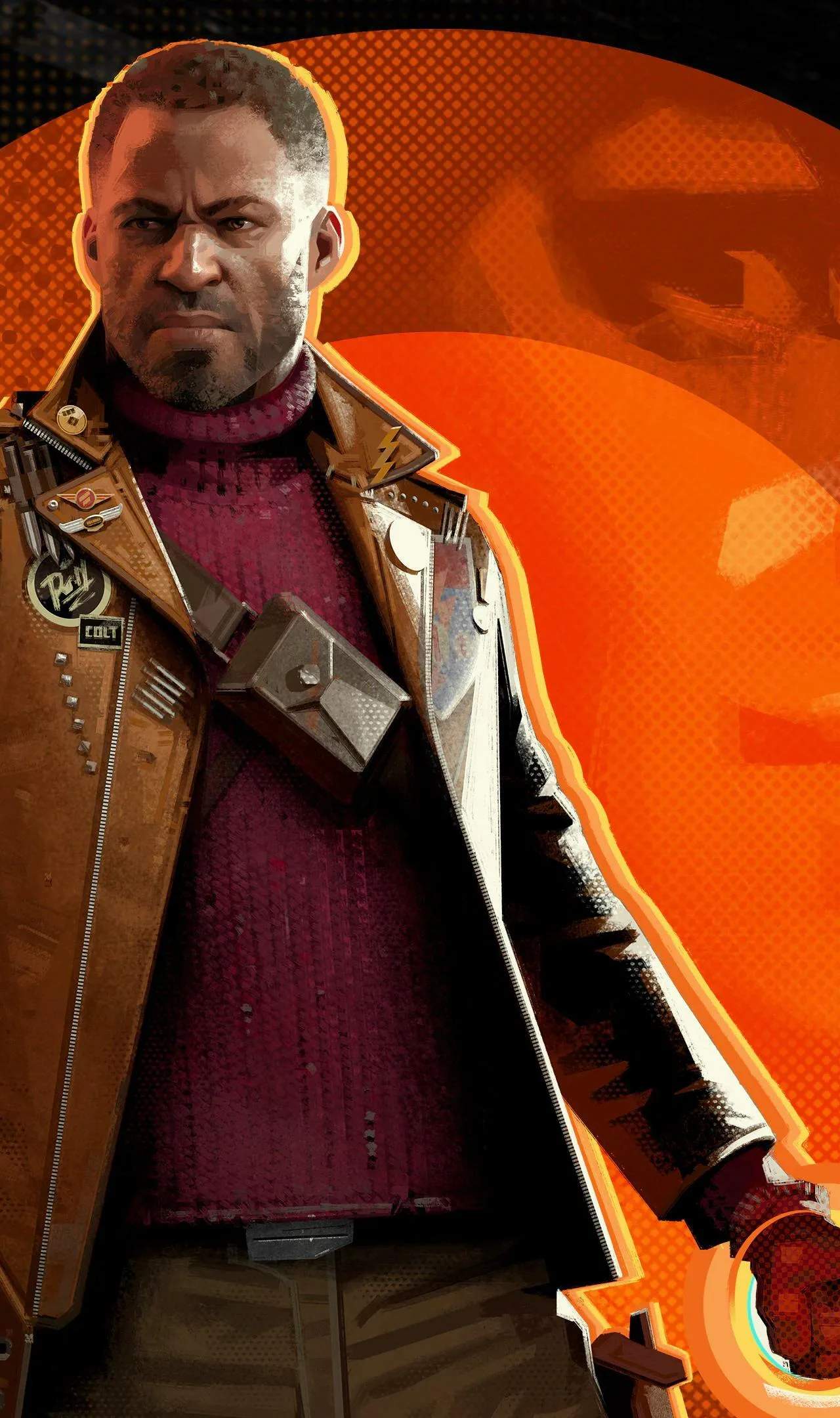
Performance & Technical Issues
Even the most meticulously crafted time loop can sometimes glitch. While Deathloop generally offers a smooth experience, some players might encounter performance hiccups, stuttering, or other technical snags. This section provides detailed troubleshooting steps to help you get back to assassinating Visionaries without interruption.
General Performance Optimization
Before diving into more specific fixes, ensure your system is running optimally. These steps can often resolve common performance issues:
- Update Graphics Drivers: This is paramount. Outdated drivers are a frequent cause of poor performance. Visit your GPU manufacturer's website (NVIDIA, AMD, Intel) and download the latest stable drivers for your specific card.
- Close Background Applications: Programs running in the background consume valuable CPU and RAM resources. Close any unnecessary applications, especially web browsers with multiple tabs, streaming services, or other games.
- Verify Game Files: Corrupted game files can lead to crashes or performance drops.
- Steam: Right-click Deathloop in your Library > Properties > Local Files > "Verify integrity of game files...".
- Epic Games Store: Go to your Library > Click the three dots next to Deathloop > Manage > Verify.
- Restart Your PC: A simple restart can clear temporary files and resolve memory leaks that might be impacting performance.
In-Game Settings for Better Performance
Adjusting Deathloop's in-game graphics settings can significantly impact frame rates and stability. Experiment with these options:
- Display Mode: Always use Fullscreen Exclusive. Borderless Windowed or Windowed modes can introduce input lag and reduce performance.
- Resolution: Lowering your resolution will provide a substantial performance boost. If you're struggling, try dropping from 4K to 1440p, or 1440p to 1080p.
- Upscaling Technology:
- AMD FSR 2.0: If you have an AMD GPU (or even NVIDIA, though DLSS is preferred), enable FSR 2.0. Set the FSR 2.0 Quality Preset to "Quality" or "Balanced" for a good balance between visuals and performance. Avoid "Performance" unless absolutely necessary, as it can make the game look blurry.
- NVIDIA DLSS: For NVIDIA RTX card owners, DLSS is generally superior to FSR. Enable DLSS and choose "Quality" or "Balanced."
- Texture Details: This setting primarily affects VRAM usage. If you have less than 8GB of VRAM, consider setting this to "Medium" or "Low."
- Shadow Details: Shadows are notoriously demanding. Reducing Shadow Details to "Medium" or "Low" can yield significant FPS gains with a minimal visual impact.
- Ambient Occlusion: This effect adds depth to shadows but is resource-intensive. Try setting Ambient Occlusion to "Medium" or "Low."
- Volumetric Lighting: Similar to shadows, volumetric lighting can be a performance hog. Lowering this setting can help.
- Motion Blur & Depth of Field: These are largely aesthetic. Disabling both can slightly improve performance and often makes the game feel crisper.
Addressing Stuttering and Frame Drops
Stuttering, especially during specific actions or area transitions, can be particularly frustrating. Here are some targeted solutions:
- Disable Ray Tracing: While visually impressive, Ray Tracing is extremely demanding. If you're experiencing stuttering, especially in areas like Updaam during the evening with its complex lighting, disable all Ray Tracing options (Ray Traced Shadows, Ray Traced Ambient Occlusion) entirely.
- Cap Frame Rate: Sometimes, allowing your GPU to render frames as fast as possible can lead to instability. Try capping your frame rate slightly below your monitor's refresh rate (e.g., 58 FPS for a 60Hz monitor, or 140 FPS for a 144Hz monitor) using either the in-game setting or your GPU control panel (NVIDIA Control Panel, AMD Adrenalin).
- Shader Compilation Stutter: Some players reported initial stuttering, particularly after a fresh install or driver update, due to shader compilation. This often resolves itself after playing for a while as the game compiles necessary shaders. If it persists, ensure your graphics drivers are up to date.
- Check for Background Processes (Again): Double-check for any unexpected background processes, including anti-virus scans or Windows updates, that might be intermittently consuming resources.
Known Issues and Specific Fixes
Deathloop has had a few specific technical quirks since launch. While many have been patched, some persist for certain configurations:
- Mouse Input Lag/Stutter:
- Ensure your display mode is set to Fullscreen Exclusive.
- Disable any in-game V-Sync and instead use your GPU's control panel (NVIDIA Control Panel > Manage 3D Settings > Program Settings > Deathloop > Vertical Sync: On/Fast) or G-Sync/FreeSync if available.
- Try disabling "Enhanced Pointer Precision" in Windows Mouse Settings.
- Audio Issues (Crackling, Dropping Out):
- Update your audio drivers.
- Try changing your audio output device's sample rate and bit depth in Windows Sound Settings (Right-click Speaker icon > Sounds > Playback tab > Select device > Properties > Advanced tab). Experiment with "24 bit, 48000 Hz" or "16 bit, 44100 Hz."
- Disable any spatial audio enhancements (e.g., Windows Sonic, Dolby Atmos) temporarily.
- Game Crashing to Desktop:
- If crashes are frequent, try running the game as an administrator.
- Monitor your CPU and GPU temperatures. Overheating components can cause instability.
- Ensure your power supply unit (PSU) is sufficient for your components.
- Perform a clean reinstallation of your graphics drivers (using DDU - Display Driver Uninstaller - in Safe Mode).
By systematically working through these steps, you should be able to significantly improve your Deathloop experience and ensure Colt and Julianna's eternal struggle plays out as smoothly as possible.