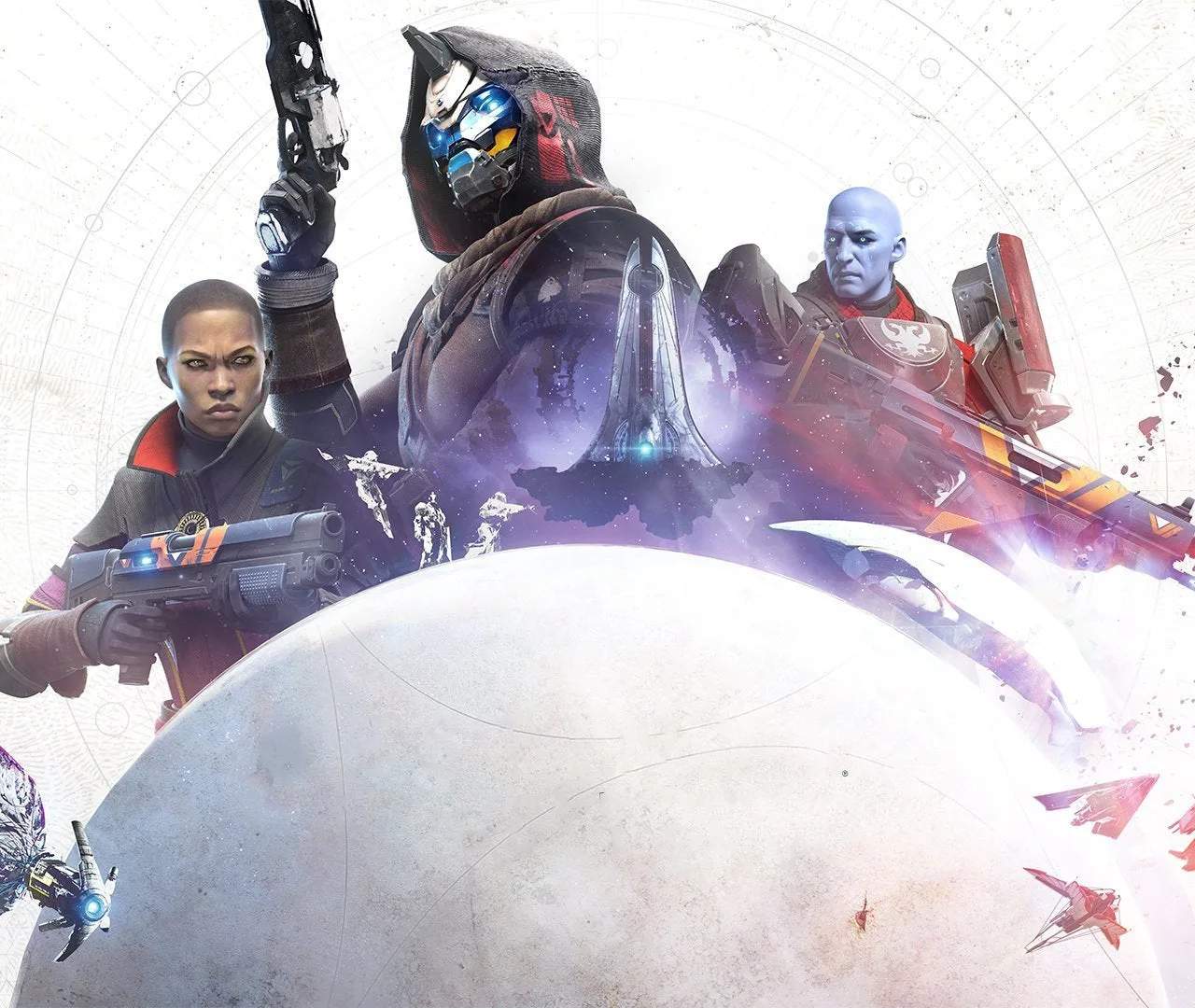
Mastering Destiny 2's Controls and UI
Navigate the vast universe of Destiny 2 with confidence by understanding its intuitive controls and comprehensive user interface. From movement and combat to managing your inventory and understanding crucial on-screen information, a solid grasp of the UI is your first step to becoming a legendary Guardian. This guide breaks down the essential elements to get you started.
Core Movement and Combat Controls
Destiny 2 offers a fluid and responsive control scheme designed for fast-paced action. While specific button layouts can be customized, the core mechanics remain consistent across platforms.
- Movement: Standard WASD keys on PC or left analog stick on consoles control your Guardian's movement. Sprinting is typically achieved by holding the Shift key or pressing the left analog stick. Jumping is bound to the Spacebar or A/X button, with a double-jump or triple-jump available depending on your chosen subclass and jump type. Crouching, essential for cover and stealth, is usually bound to the Ctrl key or B/Circle button.
- Combat: Aiming down sights (ADS) is done with the Right Mouse Button (RMB) or Left Trigger (LT/L2). Firing your weapon is the Left Mouse Button (LMB) or Right Trigger (RT/R2). Your grenade is typically activated with the G key or Left Bumper (LB/L1), and your melee attack with the V key or Right Bumper (RB/R1).
- Abilities: Super abilities, your most powerful combat tools, are activated with a combination of keys (e.g., Middle Mouse Button + E on PC) or by pressing both shoulder buttons simultaneously on consoles. Class abilities, such as a Hunter's dodge or a Titan's barricade, are usually mapped to the F key or a single shoulder button press.
The User Interface (UI) Explained
The Destiny 2 UI is packed with information vital for survival and progression. Familiarizing yourself with its various elements will significantly enhance your gameplay experience.
| UI Element | Description |
|---|---|
| HUD (Heads-Up Display) | The primary on-screen display showing your health, shield, ability cooldowns, ammo count, radar, and equipped weapons. The radar is crucial for detecting enemy positions. |
| Inventory Screen | Accessed via the Tab key or Menu button. This is where you manage your weapons, armor, mods, consumables, and other items. You can equip gear, dismantle unwanted items, and apply mods here. |
| Character Screen | Shows your Guardian's stats, subclass, equipped gear, and character level. This is also where you can inspect other players. |
| Director | The galaxy map, accessed by pressing the M key or touchpad. Here you can select destinations, activities (Strikes, Crucible, Raids), and view world events. |
| Quest Log | Tracks your active quests and bounties. Essential for guiding your progression and earning rewards. |
Tips for Effective Control and UI Usage
- Customize your Keybinds: Don't be afraid to rebind keys to suit your playstyle. Many players find it beneficial to move certain abilities to more accessible buttons.
- Pay Attention to the Radar: The radar is your best friend in combat, providing early warnings of approaching enemies and their general direction.
- Regularly Check Your Inventory: Keep your inventory organized and dismantle or store unwanted gear to make space for new loot.
- Understand Modifiers: Pay attention to activity modifiers (e.g., increased Arc damage) as they can significantly impact your loadout choices.
By mastering these controls and understanding the UI, you'll be well on your way to conquering the challenges that await you in Destiny 2.