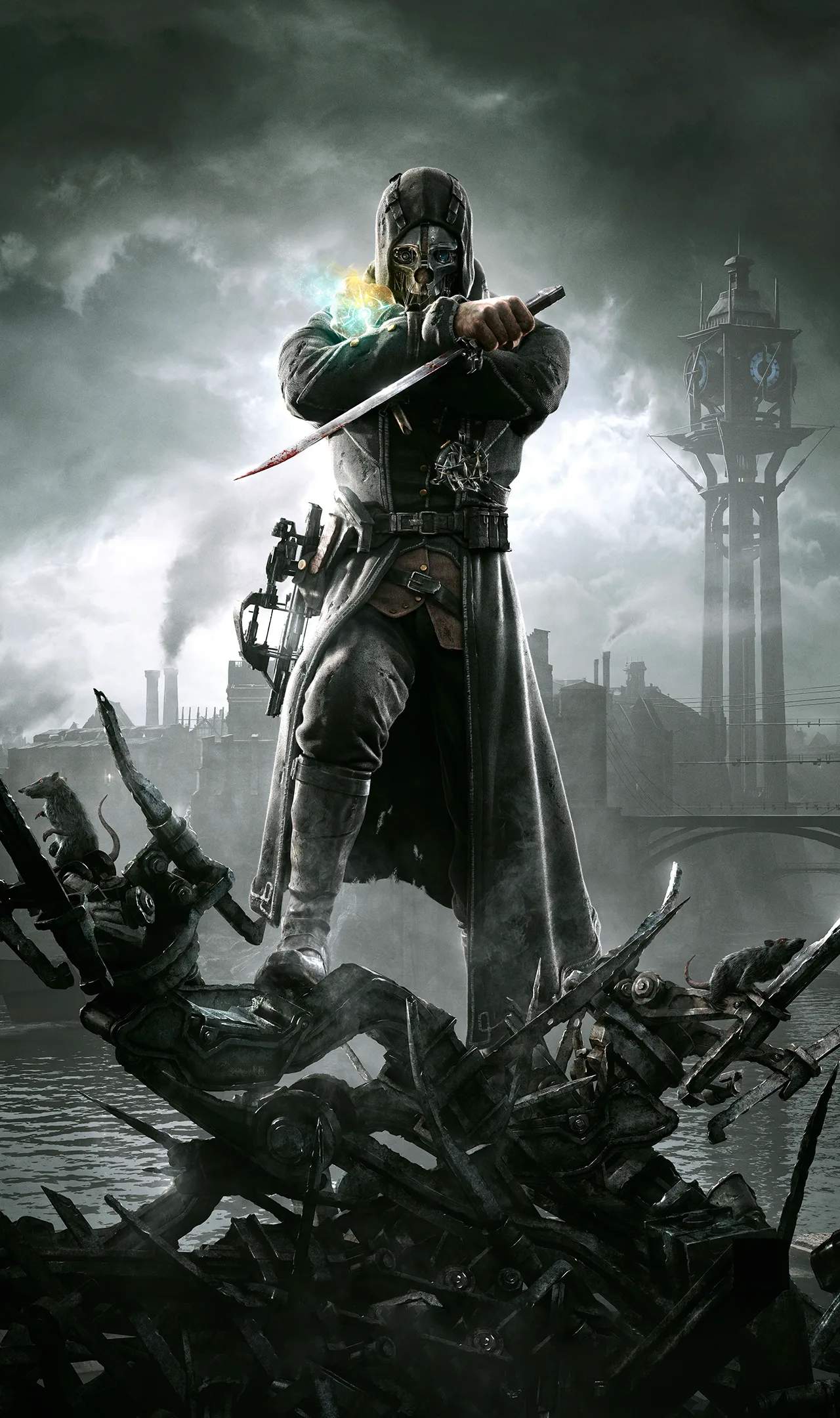
Controls & User Interface
Mastering the controls and understanding the user interface (UI) are paramount to navigating the treacherous streets of Dunwall and achieving your objectives, whether you choose a path of stealth, combat, or a blend of both. Dishonored offers a deeply immersive first-person experience across multiple platforms, and while the core mechanics remain consistent, the input methods adapt to each system.
This section will detail the default control schemes for PC and consoles, highlight key UI elements, and offer tips for customizing your experience to best suit your playstyle.
PC Controls (Keyboard & Mouse)
The PC version of Dishonored offers the most granular control customization, allowing players to remap nearly every action. The default scheme is intuitive for most first-person games, emphasizing quick access to movement, stealth, and supernatural abilities.
- Movement:
- W, A, S, D: Move Forward, Left, Backward, Right. Essential for all navigation.
- Left Shift: Sprint. Use to cover ground quickly, but be mindful of noise.
- C: Crouch/Stealth Mode. Crucial for remaining undetected. Corvo moves slower and quieter while crouched.
- Spacebar: Jump. Useful for traversing obstacles and reaching higher ground.
- Combat & Interaction:
- Left Mouse Button: Primary Attack (e.g., sword swing, pistol shot). Your main offensive action.
- Right Mouse Button: Block/Aim (e.g., parry with sword, aim with pistol/crossbow). Defensive and precision action.
- E: Interact/Use. Opens doors, picks up items, activates levers, talks to NPCs.
- R: Reload Weapon. Essential for maintaining combat readiness.
- F: Use Equipped Item (e.g., drink a health elixir, throw a grenade). Quick access to consumables and throwables.
- G: Toggle Weapon/Item Wheel. Allows for quick selection of weapons and secondary items.
- Mouse Wheel Up/Down: Cycle Weapons/Items. Alternative to the weapon wheel for quick swaps.
- Supernatural Powers:
- Q: Power Wheel. Hold to bring up the power selection menu, then move the mouse to select a power.
- Middle Mouse Button (or a dedicated key, often 'F' by default for the currently selected power): Activate Equipped Power. Once a power is selected via the wheel, this button will cast it. For example, after selecting "Blink," pressing this button will teleport Corvo.
- Z: Dark Vision. A toggleable power that highlights enemies, items, and security systems through walls.
- X: Bend Time. A powerful ability to slow or stop time.
- V: Possession. Allows Corvo to inhabit creatures and people.
- B: Devouring Swarm. Summons a swarm of rats.
- H: Windblast. A powerful gust of wind to knock back enemies or clear obstacles.
- Miscellaneous:
- Tab: Inventory/Journal. Access your collected items, lore, and mission objectives.
- M: Map. Displays your current location and objectives.
- P: Pause Menu. Access game options, save/load, and quit.
- T: Lean. Allows Corvo to peek around corners while remaining partially concealed.
- Caps Lock: Walk. A slower, quieter movement option than normal walking, useful for fine adjustments in stealth.
Customization Tip: While the default bindings are generally effective, consider remapping keys for powers you use frequently to easily accessible buttons, such as side mouse buttons or keys near WASD, to minimize reliance on the power wheel during intense moments.
Console Controls (PS3, PS4, Xbox 360, Xbox One, Nintendo Switch)
Console versions of Dishonored adapt the control scheme to gamepads, prioritizing fluid movement and contextual actions. While specific button labels differ between PlayStation (X, O, Square, Triangle) and Xbox (A, B, X, Y) controllers, the functional mapping is largely consistent. The Nintendo Switch version, whether docked or handheld, follows a similar logical layout.
General Console Layout (Example: Xbox Controller)
- Left Analog Stick: Movement. Pushing it lightly often results in stealthy movement, while pushing fully causes normal walking/running.
- Right Analog Stick: Camera Control. Used to look around the environment.
- Left Trigger (LT): Aim/Block. Similar to the Right Mouse Button on PC.
- Right Trigger (RT): Primary Attack. Similar to the Left Mouse Button on PC.
- Left Bumper (LB): Use Equipped Power. Activates the currently selected supernatural power.
- Right Bumper (RB): Use Equipped Item. Activates the currently selected secondary item (e.g., elixir, grenade).
- A Button (Xbox) / X Button (PlayStation) / B Button (Switch): Jump.
- B Button (Xbox) / O Button (PlayStation) / A Button (Switch): Crouch/Stealth Mode. Often a toggle.
- X Button (Xbox) / Square Button (PlayStation) / Y Button (Switch): Interact/Reload. Contextual action.
- Y Button (Xbox) / Triangle Button (PlayStation) / X Button (Switch): Weapon/Power Wheel. Hold to bring up the selection menu, then use the Right Analog Stick to select.
- D-Pad Up/Down: Cycle Secondary Items.
- D-Pad Left/Right: Cycle Weapons.
- Start/Menu Button: Pause Menu.
- Back/View Button: Inventory/Journal.
- Click Left Analog Stick (L3): Sprint (often a toggle or hold).
- Click Right Analog Stick (R3): Lean (often a toggle or hold).
Customization Tip: While console controls offer less remapping flexibility than PC, most versions allow for inversion of camera axes and sensitivity adjustments. Experiment with these settings to find what feels most natural for aiming and movement.
User Interface (UI) Elements
The UI in Dishonored is designed to be minimalist yet informative, providing crucial information without cluttering the screen. Key elements are typically located at the bottom of the screen or around the crosshair.
- Health Bar (Bottom Left): Displays Corvo's current health. Depletes upon taking damage. Can be restored with Health Elixirs.
- Mana Bar (Bottom Left, below Health): Shows Corvo's current mana pool. Mana is consumed when using supernatural powers and regenerates slowly over time, or instantly with Piero's Spiritual Remedy.
- Equipped Weapon/Power (Bottom Right): Clearly indicates your currently selected weapon (e.g., sword, pistol) and supernatural power (e.g., Blink, Dark Vision). This area also shows ammunition counts for ranged weapons.
- Equipped Item (Bottom Right, below Weapon/Power): Displays your currently selected secondary item (e.g., Health Elixir, Grenade, Spring Razor).
- Detection Indicator (Center Bottom): This is a crucial stealth tool. It appears as an "eye" icon.
- Closed Eye: You are completely hidden.
- Partially Open Eye: An enemy is suspicious or has briefly glimpsed you. They might investigate.
- Fully Open Eye with White Pupil: An enemy has seen you and is actively searching for you.
- Fully Open Eye with Red Pupil: You have been spotted, and enemies are in combat mode.
- Objective Tracker (Top Left/Right, contextual): Briefly displays your current mission objective and updates as you progress. Can be accessed in full via the Journal.
- Coin/Rune/Bone Charm Counter (Top Right, contextual): Shows your current amount of collected coins, runes, and bone charms, which are vital for upgrades and power acquisition.
- Crosshair (Center Screen): Indicates where your attacks will land and highlights interactive objects. Changes color or shape to indicate target lock or interaction readiness.
UI Tip: Pay constant attention to the detection indicator. It is your best friend for stealth playthroughs. Learning to react to its various states will significantly improve your ability to remain undetected.
By familiarizing yourself with these controls and UI elements, you'll be well-equipped to navigate the challenges of Dunwall, execute precise maneuvers, and harness Corvo's formidable powers effectively, regardless of your chosen platform.
Compare controls & user interface inAsgard's Wrath 2