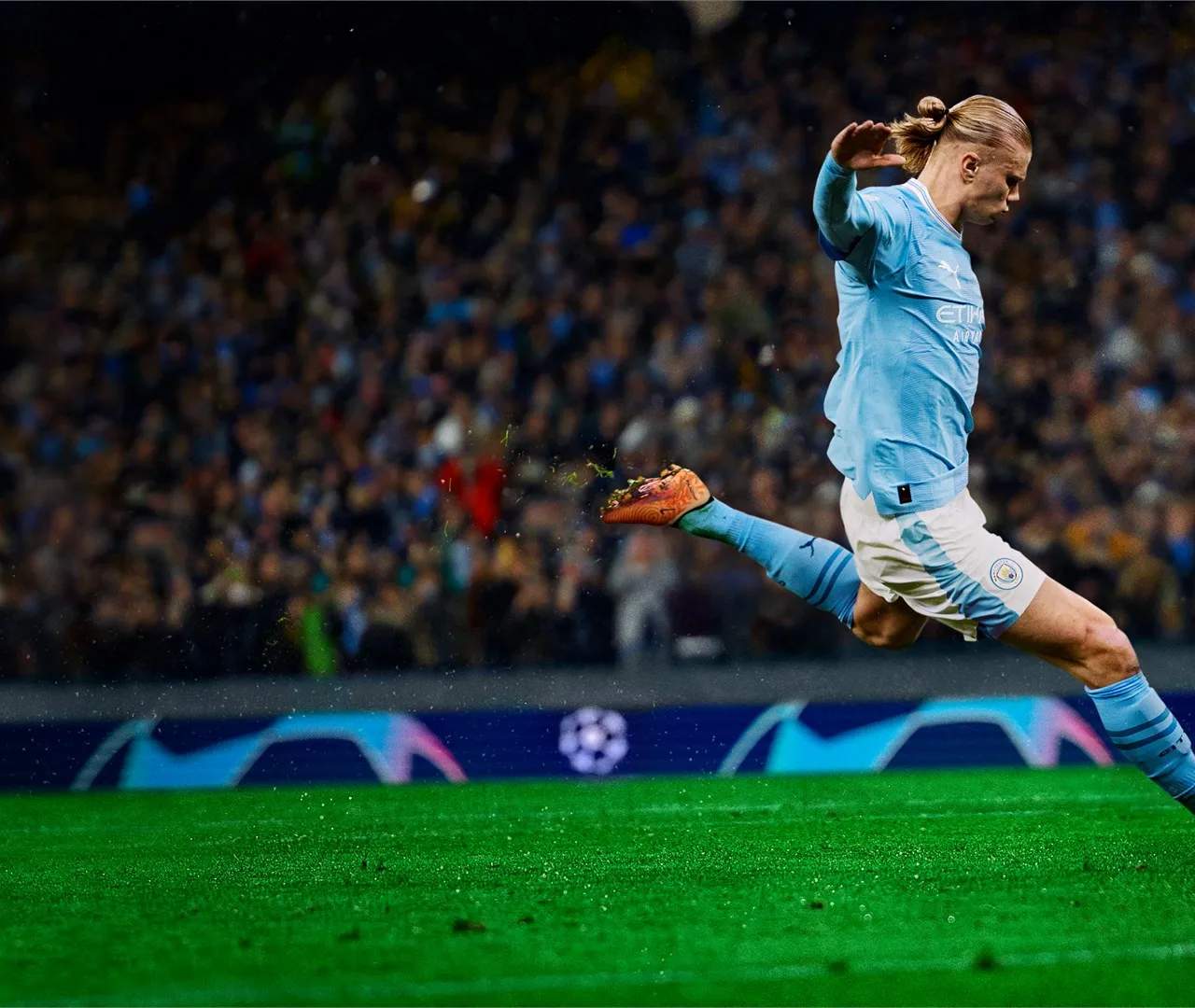
Navigating the EA Sports FC 24 Main Menu
The main menu is your central hub in EA Sports FC 24, providing access to all game modes, settings, and customization options. A clear understanding of the user interface (UI) will ensure you can quickly jump into the action and manage your game effectively. This section provides an overview of the main menu and its key components.
The Main Menu Layout
Upon launching EA Sports FC 24, you'll be greeted by the main menu screen. This screen is typically divided into several key sections, often presented as tabs or prominent icons:
- Home: This is your default landing page, often featuring news, featured content, recent activity, and quick access to popular modes.
- Play: This section houses all the core gameplay modes, including Kick-Off, Online Seasons, Career Mode, Clubs, Volta Football, and Ultimate Team.
- Ultimate Team: A dedicated section for all things FUT, including Squad Management, Transfer Market, Packs, Objectives, and FUT Champions.
- Customise: Here you'll find options to manage your club, edit kits, crests, stadium, and adjust various game settings like controller mapping and camera angles.
- Online: Access modes like Online Friendlies, Online Seasons, and Clubs matchmaking.
- Store: Where you can purchase FUT packs using FUT Points or coins, and potentially other in-game content.
Key UI Elements and Navigation
- Navigation Bar/Tabs: Typically located at the top or side of the screen, these allow you to switch between the main sections of the menu.
- Contextual Menus: When you select an item or mode, a sub-menu or options panel will often appear, providing further choices.
- Notifications and Alerts: Look for icons indicating new messages, pack rewards, or important updates.
- Player/Club Information: Often, your current Ultimate Team or Career Mode club details (name, crest, coins) will be prominently displayed.
- Controller Prompts: On-screen prompts will guide you on which buttons to press for specific actions (e.g., 'X' to select, 'Circle' to go back).
Quick Access and Featured Content
The 'Home' screen is desed for convenience. You'll often find:
- Featured Squads: Showcasing community-created or EA-curated squads.
- Live Events: Information on ongoing in-game events, promotions, or special challenges.
- Quick Links: Direct access to recently played modes or popular activities.
- News Feed: Updates from EA Sports regarding game patches, new content, or community highlights.
Settings and Customization Hub
The 'Customise' section is vital for tailoring your experience:
- Game Settings: Adjust difficulty, half length, audio, and visual options.
- Controller Settings: Remap buttons, adjust sensitivity, and configure vibration.
- Camera Settings: Choose from various camera angles for gameplay and set preferred zoom and height.
- Club Management: In Career Mode and FUT, this is where you'll manage your squad, tactics, and player roles.
Navigating Ultimate Team Specifically
Within the Ultimate Team section, you'll find:
- Squads: Manage your active squads, edit lineups, and apply chemistry styles.
- Stadium: Customize your FUT stadium's appearance.
- Transfer Market: Buy and sell players and consumables.
- Packs: Open earned or purchased packs.
- Objectives: Track and complete in-game tasks for rewards.
- SBCs: Complete Squad Building Challenges.
Familiarizing yourself with the EA Sports FC 24 main menu and UI will streamline your gameplay experience, allowing you to spend less time navigating and more time playing the football you love.