Learn about the office equipment and security systems in Five Nights at Freddy's 3, including cameras, lights, doors, and power management.
Walkthrough
- 1Understand your limited security equipment due to budget cuts.
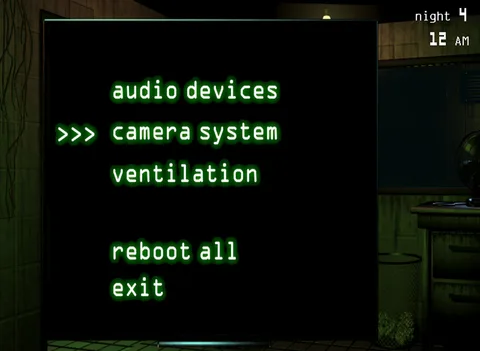
- 2Use the Cameras by pulling up your tablet via the double-arrow icon at the bottom of the screen to view 11 different camera feeds.
- 3Familiarize yourself with each camera feed:
- Cam 1A - Show Stage: Starting location for Freddy, Bonnie, and Chica.
- 4Cam 1B - Dining Area: All three main animatronics can be here.
- 5Cam 1C - Pirate Cove: Foxy's location, currently closed to the public.
- 6Cam 2A - West Hall: Connects to the dining area and your office; triggers Foxy's attack.
- 7Cam 2B - West Hall Corner: Next to your office; features a Freddy poster.
- 8Cam 3 - Storage Room: Located off the West Hall, generally ignorable.
- 9Cam 4A - East Hall: Similar to the West Hall, but Foxy does not attack from here.
- 10Cam 4B - East Hall Corner: Chica and Freddy often appear here before attacking.
- 11Cam 5 - Backstage Area: Off the left side of the dining area.
- 12Cam 6 - Kitchen: Camera feed has issues; you primarily hear the kitchen.
- 13Cam 7 - Restrooms: Located off the right side of the dining area, far from threats.
- 14Use the Lights by pressing a button to illuminate the hallways outside your office. Only one light can be on at a time, and they turn off when you view cameras.
- 15Use the Doors as your last line of defense. Closing them prevents animatronics from entering.
- 16Manage your limited Power, represented by the Usage bar at the bottom left. Essential systems like your office light and desk fan drain power constantly. Closing doors, using lights, or viewing cameras drains additional power. The Usage bar can have up to four bars.
- 17Warning: If you run out of power, the building goes on auxiliary power, leaving your doors permanently open. If backup power fails and your shift is not over, you will fail.
Tips
- Knowing animatronic locations via the cameras helps you stay ahead.
- Be ready to react quickly if you catch an animatronic in the lights.
- You cannot simply close the doors all night to survive.
100% Human-Written. AI Fact-Checked. Community Verified. Learn how AntMag verifies content