
Saving your progress in Grand Theft Auto: Liberty City Stories is essential to avoid losing valuable mission progress or collected items. Unlike some modern games, LCS does not feature an auto-save system for general gameplay, though some missions will create temporary checkpoints. Always manually save your game regularly, especially after completing a difficult mission or acquiring significant wealth.
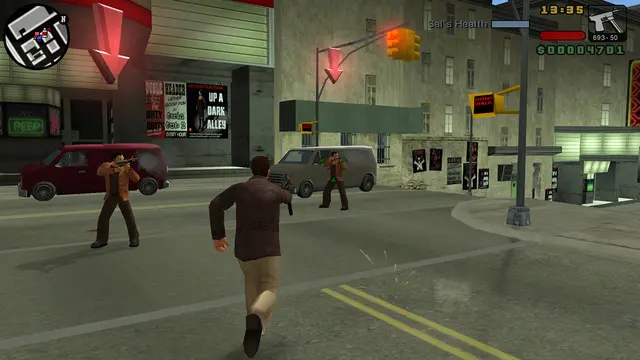
How to Save:
- Go to a Safehouse: Toni's safehouses are marked on the map with a green house icon. You'll unlock your first safehouse in Portland early in the game.
- Enter the Safehouse: Drive or walk into the green marker outside your safehouse.
- Approach the Floppy Disk Icon: Inside the safehouse, look for a spinning floppy disk icon.
- Press Circle: Stand on the floppy disk icon and press the Circle button to initiate the save menu.
- Select a Save Slot: Choose an empty slot or overwrite an existing save. It's often a good idea to use multiple save slots, especially before major missions, in case you need to revert to an earlier point.
Remember that saving your game also fully restores Toni's health and armor, making safehouses valuable strategic points. Utilize them frequently to ensure your progress is always secure.
Compare saving your game inGTA IV