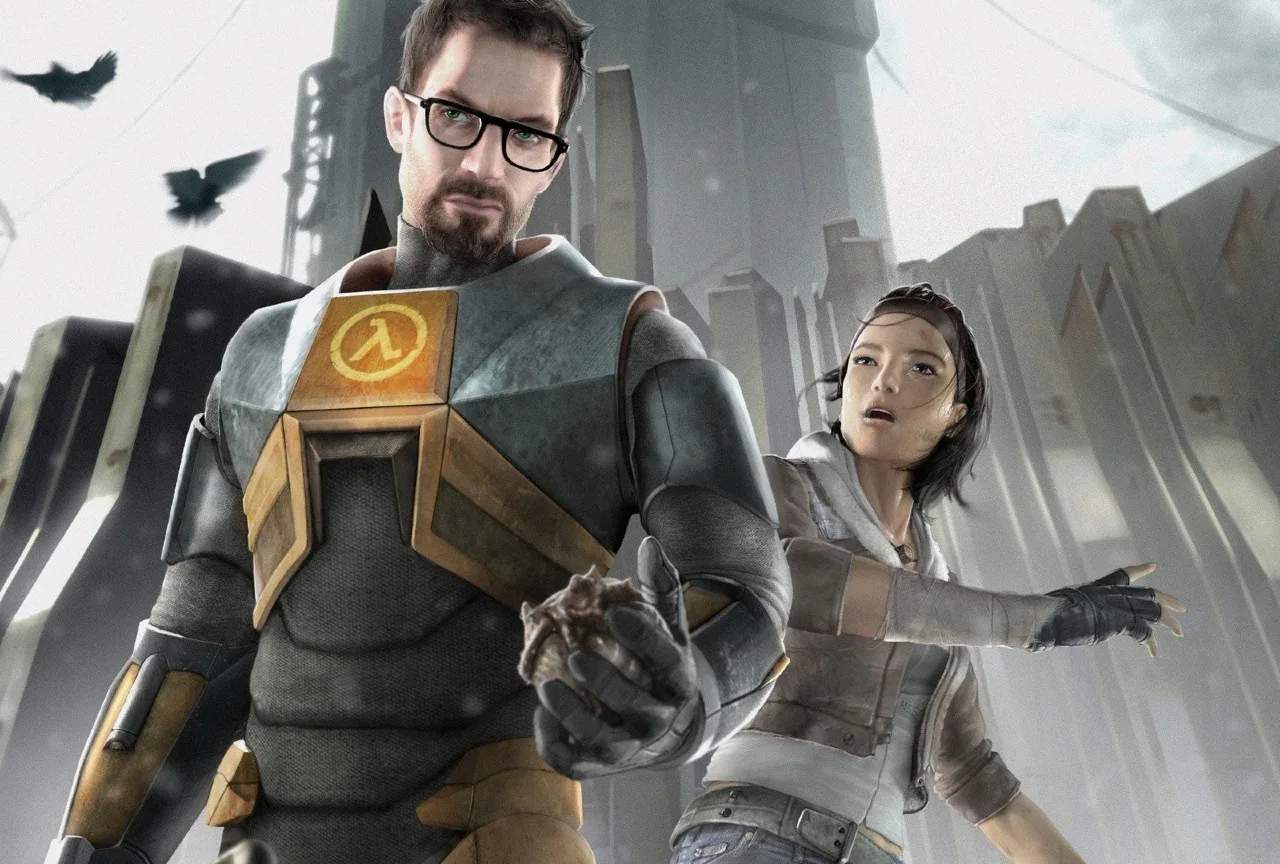
Experiencing crashes to desktop (CTD) in Half-Life 2 can be frustrating, but often these issues stem from common technical problems. This guide provides solutions for frequently encountered CTDs, focusing on driver updates, game file verification, and configuration adjustments to ensure a stable gameplay experience.
Verify Game Files
Corrupted or missing game files are a common cause of crashes. Steam provides a simple way to check and repair these:
- Open your Steam Library.
- Right-click on Half-Life 2.
- Select 'Properties'.
- Go to the 'Local Files' tab.
- Click 'Verify integrity of game files...'.
Steam will scan your game files and download any missing or corrupted ones.
Update Graphics Drivers
Outdated or corrupt graphics drivers are a frequent culprit for game instability. Ensure you have the latest drivers for your NVIDIA, AMD, or Intel graphics card.
- Visit the manufacturer's website (NVIDIA, AMD, Intel).
- Download the latest drivers for your specific graphics card model and operating system.
- Perform a clean installation of the drivers if the option is available.
Adjust In-Game Graphics Settings
Sometimes, certain graphics settings can cause instability on specific hardware configurations. Try lowering settings like:
- Resolution: Try a lower resolution.
- Texture Detail: Reduce texture quality.
- Anti-aliasing and Anisotropic Filtering: Turn these off or set them to lower levels.
- Shader Detail: Lowering this can sometimes resolve issues.
If the game runs stably after lowering settings, you can gradually increase them to find the optimal balance between performance and stability.
Check for Conflicting Software
Background applications can sometimes interfere with game processes. Try closing unnecessary programs before launching Half-Life 2, especially:
- Overclocking utilities
- Overlay programs (e.g., Discord overlay, Steam overlay if causing issues)
- Antivirus software (temporarily disable if suspected, but re-enable afterward)
Launch Options (Steam)
You can try adding specific launch options in Steam to force compatibility or resolve certain issues:
- In your Steam Library, right-click Half-Life 2.
- Select 'Properties'.
- Under 'General', click 'Set Launch Options...'.
- Try adding the following one at a time:
-dxlevel 81(Forces DirectX 8.1, can help with older hardware or compatibility issues)-autoconfig(Resets game settings to recommended defaults)-novid(Skips intro videos)
System Requirements and Overheating
Ensure your PC meets the minimum system requirements for Half-Life 2. Overheating can also cause crashes; monitor your CPU and GPU temperatures using monitoring software.
Reinstall the Game
As a last resort, if none of the above solutions work, completely uninstalling and then reinstalling Half-Life 2 can resolve persistent issues.