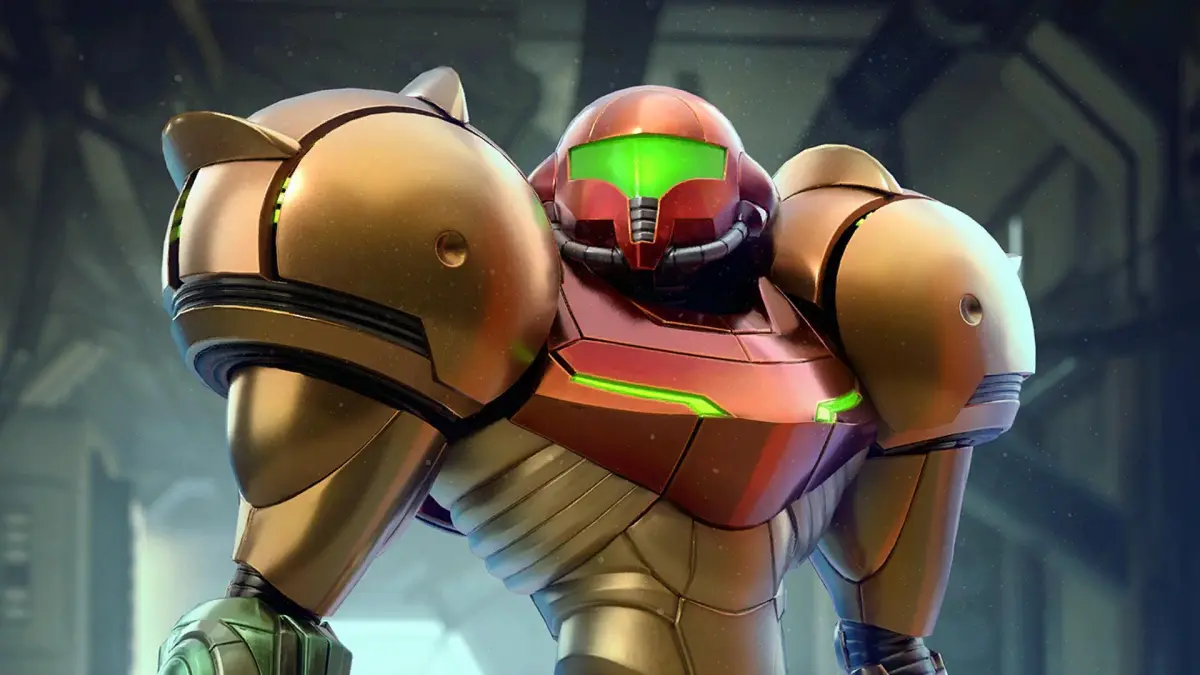
Navigate Metroid Prime Remastered menus like Main, Pause, and Options. Understand your HUD, including radar, energy, and missile reserves.
Walkthrough
- 1From the Title Screen, press A to access the Main Menu.
- 2Select 'Play' to start a game or manage save files.
- 3Choose 'Options' to adjust settings.
- 4Select 'Extras' to view the Concept Gallery, Character Gallery, and Soundtrack Gallery.
- 5During gameplay, press the pause button to access the Pause Menu.
- 6From the Pause Menu, select 'Inventory' to see collected items and weapons.
- 7Access the 'Log Book' to review analyzed entries.
- 8Select 'Options' from the Pause Menu for a more comprehensive settings list than the Main Menu offers.
Main Visor Display Breakdown:
- Energy Reserve Meter: Located across the top of your heads-up display (HUD), showing your active Energy Tank and any reserve Energy Tanks.
- Mini-radar (your minimap with nearby blips and threats marked): In the top left corner, orange dots indicate enemies, and a cone shows your forward field of vision.
- Sector Map: A small map of your current section is in the top right corner.
- Threat Assessment: On the left side, this meter increases near dangerous areas like lava or acid, indicating potential damage.
- Missile Reserves: On the right side, this tracks your current Missile count.
- Visors: Shown in the lower left corner.
- Beam Weapons: Shown in the lower right corner.
- Targeting Reticle: In the center, this shows where your shots will go and may be adjustable depending on your control scheme.
Options Menu Details:
- Controls: Adjust your Control Scheme.
- Display:
- HUD Opacity: Controls how transparent your HUD elements are (100 is default, 0 is invisible except for the reticle).
- Helmet Visibility: Toggles the visibility of helmet elements around the screen's edge.
- HUD Lag: Simulates suit lag by delaying HUD elements as you turn; disable for immediate response.
- Hint System: On by default, provides alerts for your next story objective. Turn off for no hints.
- Extras Alert: On by default, notifies you of new Extras content. Turn off to avoid distractions.
- Color Assist: An accessibility feature (off by default) offering Red, Green, or Blue Assist for color differentiation.
- Color Assist Intensity: Adjusts the intensity of Color Assist if enabled.
- Sound:
- SFX Volume: Adjusts sound effect volume (100 is default, 0 is silent).
- Music Volume: Adjusts music volume (100 is default, 0 is silent).
- Narration: Enable 'Partial' for European-style narration (intro/finale voice-over) or 'Full' for Japanese-style narration (adds area announcements).
- Cinematic Subtitles: Displays subtitles for voiced narration if Narration is set to Partial or Full.
- Restore Defaults: Resets all options to their default settings.
- Quit Game: Returns you to the Main Menu. Ensure you have saved before quitting.
Tips
- Check the Options Menu from within the game for the full range of available settings, as the Main Menu version is reduced.
- Save your game frequently, especially before quitting.
- The Hint System can be turned off if you prefer to find objectives on your own.
100% Human-Written. AI Fact-Checked. Community Verified. Learn how AntMag verifies content