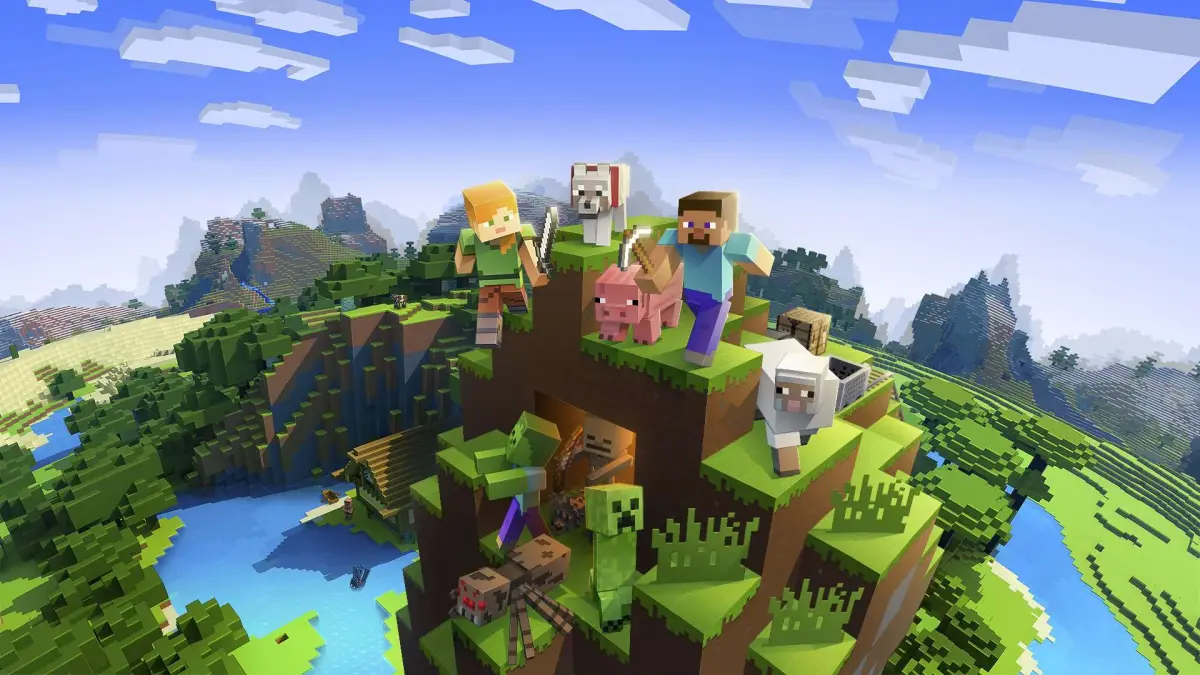
Learn how to install modifications for Minecraft on PC (Windows, Linux, Mac OS/X). Find your .minecraft folder and modify the Minecraft.jar file.
Alright, so you want to spice up your Minecraft world with some mods? Awesome! It's not too tricky, but you gotta follow these steps carefully to get your game files ready. We're basically going to find where Minecraft lives on your computer and then pop the mod files into the right spot.
First things first, you need to find your main Minecraft folder. This is where all the game's data is stored. The exact location depends on your operating system:
- On Windows: Hit the Windows Key + R to open the 'Run' box. Type
%appdata%and hit Enter. You'll see a folder called.Minecraft– that's the one! - On Linux: Open your file browser and head to
/home/Your User Name/.minecraft. - On Mac OS/X: Go to your user folder, then navigate to
Library/Application Support/minecraft.
Once you've found that main .Minecraft folder, you'll need to go inside it and find the .bin folder. Inside .bin, you'll see a file called Minecraft.jar. This is the magic file!
Now, here's the crucial part: you can't just open Minecraft.jar with a regular program. You'll need a special tool like WinRAR or 7-Zip to open it up like a compressed folder. Once it's open, the exact way you install the mod will depend on what the mod creator has told you. Always check their specific instructions for that mod!
100% Human-Written. AI Fact-Checked. Community Verified. Learn how AntMag verifies content