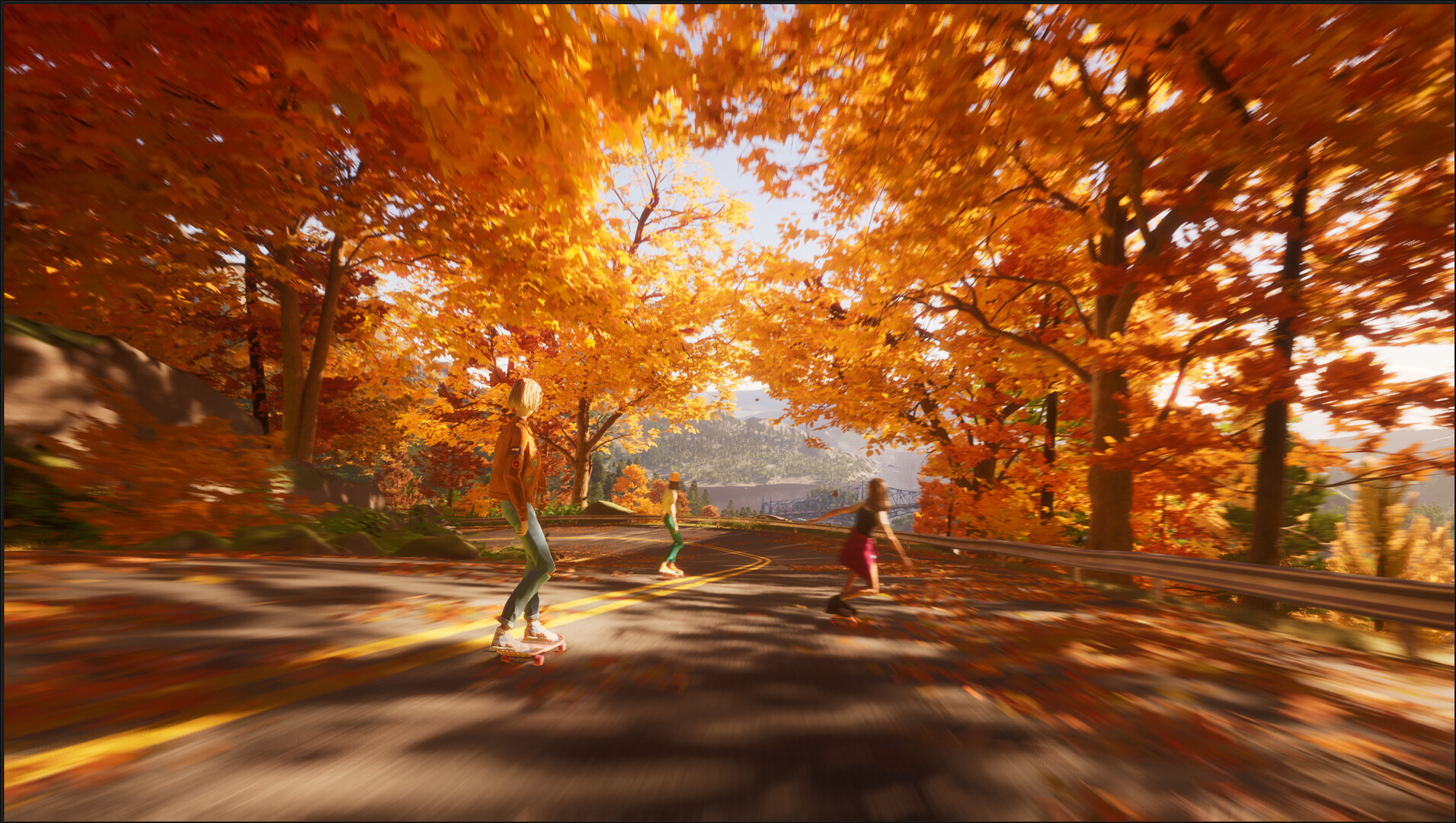

Boost your PC performance in Mixtape (2025) with expert tips. Optimize graphics settings and ensure your kickflips are smooth and responsive.
To ensure your journey through the summer of '93 is as smooth as a perfectly landed kickflip, optimizing your PC's performance is key. Mixtape (2025) is designed to be accessible, but tweaking a few settings can make a significant difference in frame rates and overall responsiveness.
Graphics Settings Deep Dive
Access the game's graphics options through the main menu. Here's a breakdown of settings and their impact:
- Resolution: Lowering the resolution will have the most significant impact on performance. If you're struggling, try dropping from 1440p to 1080p, or even 720p if necessary.
- Texture Quality: This affects the detail of surfaces. Lowering it from "Ultra" or "High" to "Medium" can free up VRAM and improve performance, especially on older GPUs.
- Shadow Quality: Shadows are computationally expensive. Setting this to "Medium" or "Low" can provide a substantial performance boost without drastically altering the game's aesthetic.
- Anti-Aliasing (AA): Techniques like FXAA or TAA smooth out jagged edges. While visually pleasing, they can impact performance. Experiment with different AA settings or disable it if you're on a tight budget.
- Ambient Occlusion (AO): This adds depth by simulating how light is blocked in crevices. Turning AO to "Low" or disabling it can yield performance gains.
- Post-Processing Effects: Bloom, motion blur, and depth of field can be turned off or reduced to improve frame rates.
Advanced Tweaks
Beyond in-game settings, consider these system-level optimizations:
- Update Graphics Drivers: Always ensure you have the latest drivers from NVIDIA, AMD, or Intel.
- Close Background Applications: Shut down any unnecessary programs like web browsers, streaming services, or other launchers while playing.
- Power Management: On laptops, ensure your power plan is set to "High Performance." For desktops, check your GPU control panel for similar settings.
- Game Mode (Windows): Ensure Windows Game Mode is enabled, as it prioritizes game performance.
- Verify Game Files: Use the "Verify integrity of game files" option in your launcher to ensure no game files are corrupted.
Monitor Refresh Rate and V-Sync
If your monitor supports a high refresh rate (e.g., 144Hz), ensure it's set correctly in Windows display settings. V-Sync can help prevent screen tearing but may introduce input lag. Experiment with enabling or disabling V-Sync in-game or through your GPU control panel to find the best balance.
By carefully adjusting these settings, you can tailor Mixtape (2025) to run optimally on your PC, allowing you to fully enjoy the narrative and gameplay without performance interruptions.
100% Human-Written. AI Fact-Checked. Community Verified. Learn how AntMag verifies content