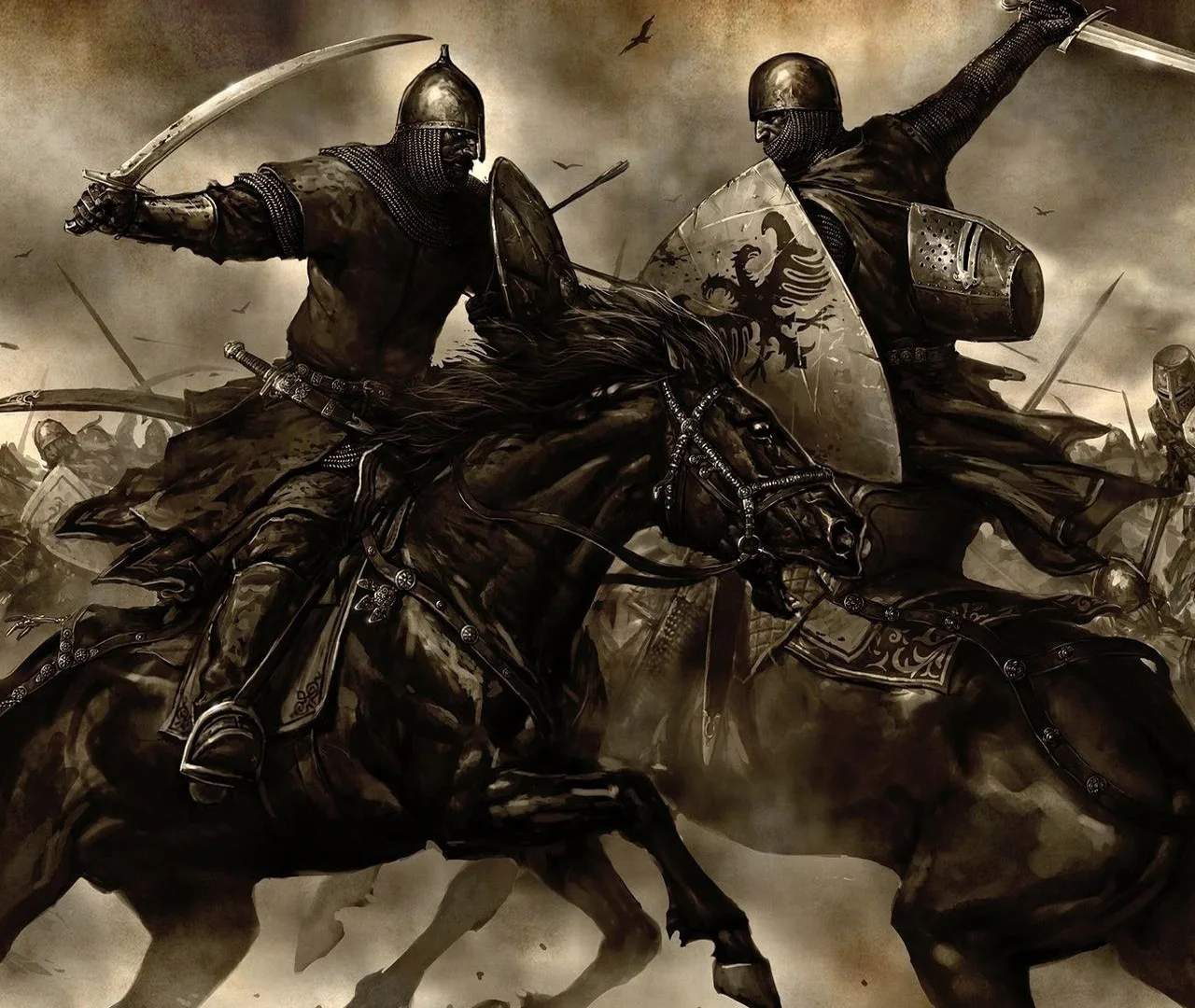
Game Settings & Options
Optimizing your game settings in Mount & Blade: Warband can significantly enhance your gameplay experience, whether you're looking for smoother performance, improved visuals, or a more challenging combat encounter. This section will guide you through the various options available and recommend configurations for different playstyles.
Accessing the Options Menu
To access the game settings, follow these simple steps:
- From the main menu, select "Configure".
- This will open a new window with several tabs: Video, Audio, Gameplay, and Input.
- You can also access a more limited set of options during gameplay by pressing Esc and selecting "Options".
Video Settings: Balancing Performance and Fidelity
The Video tab is crucial for ensuring a smooth experience, especially during large-scale battles. Here's a breakdown of key settings:
- Resolution: Set this to your monitor's native resolution for the sharpest image. Lowering it can boost performance if you're struggling.
- Texture Detail:
- High: Recommended for modern systems with dedicated graphics cards.
- Medium/Low: If you experience stuttering or low frame rates, reduce this. It primarily affects the clarity of environmental and character textures.
- Shader Quality:
- High: Enables more advanced lighting and visual effects.
- Medium/Low: Reduces the complexity of lighting and shadows, which can significantly improve performance on older hardware.
- Antialiasing: Smooths jagged edges.
- 2x, 4x, 8x: Higher values provide better visual quality but demand more GPU power. Disable it if performance is a priority.
- Shadows:
- Enabled/Disabled: Shadows are a major performance hog. If you're struggling, disabling them entirely will yield a significant FPS boost.
- Shadow Quality: If enabled, lower this to improve performance.
- Number of Corpses: This setting determines how many fallen soldiers remain on the battlefield.
- High: Can lead to impressive, chaotic battlefields but will tax your CPU and GPU.
- Low/None: Recommended for large battles or lower-end systems to prevent slowdowns as the battle progresses.
- Ragdolls: Controls the physics of fallen characters. Enabling this adds realism but can slightly impact performance.
- Battle Size: This is arguably the most impactful setting for performance during combat.
- Recommended: Start with a value that your system can comfortably handle (e.g., 150-250).
- Lower Values (e.g., 50-100): Ideal for very old systems or if you prefer smaller, more manageable engagements.
- Higher Values (e.g., 500+): For powerful systems, allowing for epic, sprawling battles. Be aware that even high-end PCs can struggle with the maximum battle size.
Audio Settings: Immersion and Awareness
The Audio tab allows you to adjust sound levels and preferences:
- Master Volume: Controls the overall game volume.
- Music Volume: Adjusts the volume of the game's soundtrack.
- Sound Effects Volume: Controls the volume of combat sounds, environmental effects, and other in-game noises.
- Voice Volume: Adjusts the volume of character dialogue.
- Enable 3D Sound: Recommended for a more immersive experience, allowing you to better pinpoint the direction of sounds in battle.
Gameplay Settings: Tailoring Your Experience
This tab offers crucial options that directly impact how you play the game and its difficulty:
- Difficulty Settings:
- Combat AI: Affects how intelligently enemy AI fights. Higher settings make enemies more aggressive and tactical.
- Campaign AI: Influences the strategic decisions of lords and factions on the world map.
- Damage to Player:
- 1/4, 1/2, 1/1 (Normal), 2/1 (Realistic): Determines how much damage your character takes. For a true challenge, select Realistic. New players might prefer 1/2 or 1/4.
- Damage to Allies: Similar to player damage, affecting friendly units.
- Battle Difficulty: A global modifier for combat difficulty.
- Campaign Difficulty: A global modifier for campaign difficulty, affecting things like economy and faction relations.
- Auto-Save Frequency: Set this to a comfortable interval (e.g., 15-30 minutes) to prevent losing significant progress due to unforeseen crashes or mistakes.
- Show Blood: Toggle blood effects on or off.
- Tutorial Messages: Enable or disable in-game tutorial pop-ups. Useful for new players, but veterans might turn them off.
- Quick Battle Mode: Allows you to quickly jump into custom battles for practice or fun.
Input Settings: Customizing Your Controls
The Input tab is where you can rebind keys and adjust mouse sensitivity:
- Mouse Sensitivity: Adjust this to your preference. A lower sensitivity can offer more precise aiming, especially for ranged combat.
- Invert Mouse Y-Axis: For players who prefer inverted vertical mouse movement.
- Key Bindings:
- Review and customize all key bindings for movement, combat actions (attack, block, kick), inventory, map, and troop commands.
- Pro Tip: Consider binding frequently used troop commands (e.g., "Follow Me," "Charge," "Hold Position") to easily accessible keys for better battlefield control.
- The default key to dismount a horse is typically looking down at its head while stationary and pressing the 'F' key (or your assigned 'Use' key) when the "dismount" prompt appears.
Experiment with these settings to find the perfect balance that suits your hardware and playstyle. A well-configured game will allow you to fully immerse yourself in the world of Calradia!