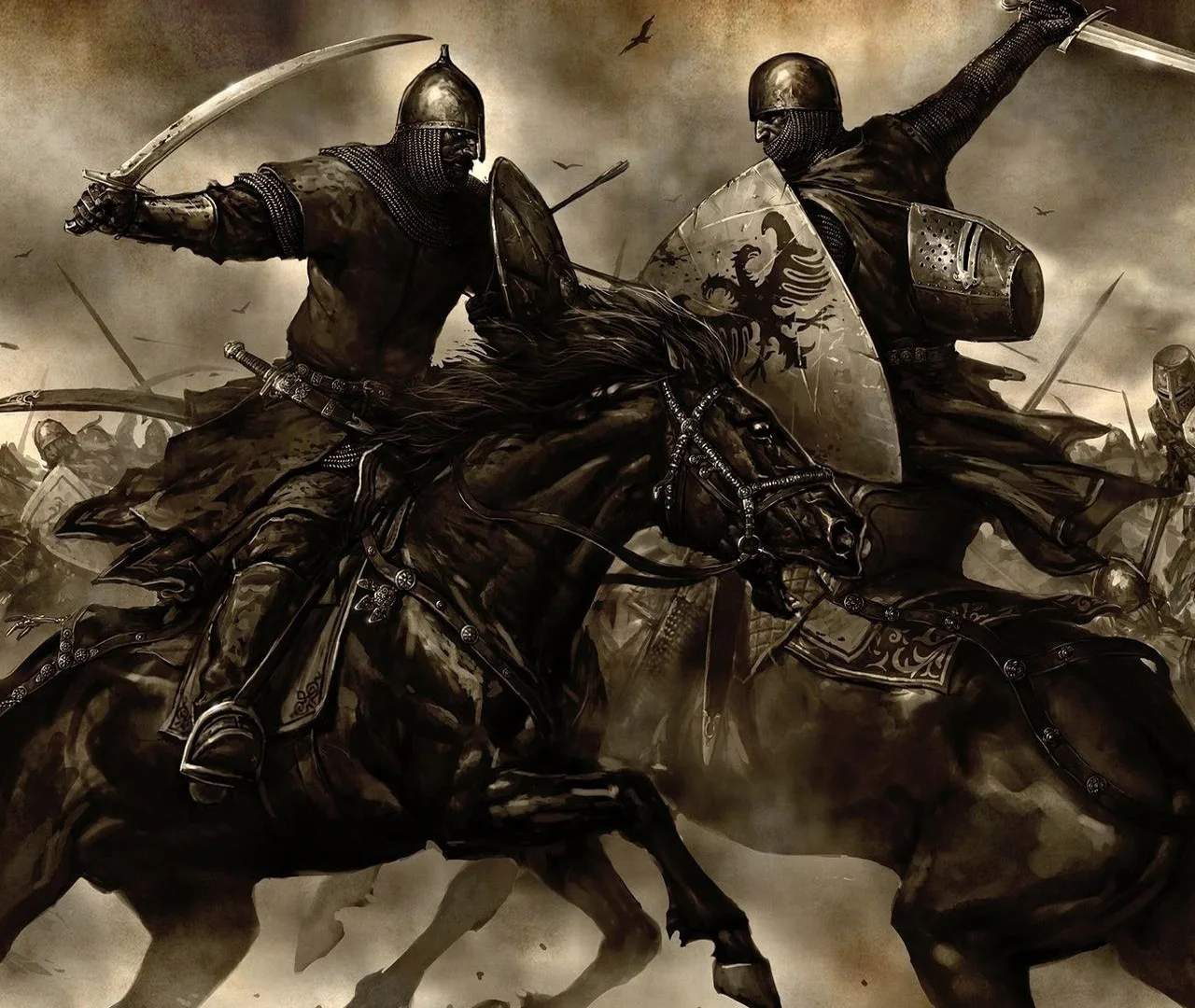
For players who prefer gaming with a controller, Mount & Blade: Warband offers a customizable controller layout that allows for intuitive gameplay. While the game is traditionally played with a mouse and keyboard, adapting to a gamepad can provide a different, often more relaxed, gaming experience. Understanding the default layout and how to rebind keys is essential.
Default Controller Layout (Xbox Controller Example)
The default controller layout in Mount & Blade: Warband is designed to map the most common actions to easily accessible buttons. While specific button mappings can vary slightly depending on the platform and version, a typical Xbox controller layout includes:
- Left Analog Stick: Movement (character on foot, horse on world map).
- Right Analog Stick: Camera control (looking around, aiming).
- A Button (or equivalent): Interact, confirm actions, talk to NPCs, advance dialogue.
- B Button (or equivalent): Cancel, go back, dismount/mount horse.
- X Button (or equivalent): Attack (primary attack).
- Y Button (or equivalent): Secondary attack (if applicable), or other context-sensitive actions.
- Left Bumper (LB): Block (in combat).
- Right Bumper (RB): Special attack or ability (e.g., shield bash, secondary weapon attack).
- Left Trigger (LT): Aim (for ranged weapons), or command menu.
- Right Trigger (RT): Fire (for ranged weapons), or primary attack.
- D-Pad:
- Up/Down: Troop commands (e.g., advance, retreat), or menu navigation.
- Left/Right: Weapon switching, or menu navigation.
- Start/Menu Button: Open game menu, pause.
- Back/Select Button: Open inventory, character sheet, or other sub-menus.
Combat Controls with a Controller
Combat is where controller mapping becomes particularly important:
- Melee: Left stick for movement, right stick for aiming/direction of attack, X button for primary attack, Y for secondary, LB for block.
- Ranged: Left stick for movement, right stick for aiming, LT to aim, RT to fire.
- Horseback: Left stick for movement, right stick for camera, X/RT for attacks, LB for blocking.
Customizing Your Controller Layout
Mount & Blade: Warband allows for extensive customization of controls. To rebind your controller layout:
- Access the Options Menu: From the main menu, navigate to the 'Options' or 'Settings' menu.
- Find the Controls Section: Look for a tab or section dedicated to 'Controls' or 'Keybindings.'
- Select Controller/Gamepad: If the game differentiates between keyboard/mouse and controller, select the controller option.
- Rebind Keys: You will see a list of actions and their currently assigned buttons. Select an action you wish to change, and then press the desired button on your controller to ass it.
- Save Changes: Ensure you save your new control scheme before exiting the menu.
Tips for Controller Gameplay
- Experiment: Don't be afraid to try different layouts until you find one that feels natural and efficient for your playstyle.
- Prioritize Combat: Ensure your primary combat actions (attack, block, aim, fire) are mapped to easily accessible buttons.
- Menu Navigation: Make sure menu navigation with the D-pad and face buttons is intuitive.
- Practice: Like any control scheme, it takes time to get used to playing with a controller. Spend time in the arena or on easier battles to build muscle memory.
Controller Support
While Mount & Blade: Warband has built-in controller support, the quality and implementation can sometimes vary. For the best experience, ensure your controller drivers are up to date and that the game recognizes your controller correctly. Some players may find that using third-party software to map keyboard and mouse inputs to a controller offers even greater flexibility.