System Requirements
Ensuring your system meets or exceeds the recommended specifications is crucial for a smooth and immersive Oni experience. While the game is a classic, modern operating systems and hardware can sometimes present compatibility challenges. This section will guide you through verifying your setup and offer solutions for common issues.
Minimum System Requirements (For Basic Play)
- Operating System: Windows 98/ME/2000/XP (Windows 7/8/10 may require compatibility mode or fan patches).
- Processor: Pentium II 300 MHz or equivalent.
- RAM: 64 MB.
- Graphics Card: 8 MB DirectX 7.0 compatible 3D accelerator card.
- Hard Drive Space: 600 MB free space.
- Sound Card: DirectX 7.0 compatible sound card.
- Input: Keyboard and Mouse.
Recommended System Requirements (For Optimal Experience)
- Operating System: Windows XP (or later with community patches).
- Processor: Pentium III 500 MHz or faster.
- RAM: 128 MB or more.
- Graphics Card: 32 MB DirectX 7.0 compatible 3D accelerator card (e.g., NVIDIA GeForce 2, ATI Radeon 7500).
- Hard Drive Space: 1 GB free space.
- Sound Card: DirectX 7.0 compatible sound card (EAX support recommended for enhanced audio).
- Input: Keyboard and Mouse, or a compatible USB Gamepad for a more console-like feel.
Troubleshooting & Modern System Compatibility
Even if your system far surpasses these specs, you might encounter issues due to the game's age. Here are some actionable steps:
- Compatibility Mode:
- Locate the
oni.exefile in your game installation directory (typicallyC:\Program Files (x86)\Onior similar). - Right-click on
oni.exeand select "Properties." - Navigate to the "Compatibility" tab.
- Check the box for "Run this program in compatibility mode for:" and select "Windows 98 / Windows Me" or "Windows 2000."
- Also, try checking "Run in 640 x 480 screen resolution" for older displays or "Disable display scaling on high DPI settings" if you have a high-resolution monitor.
- Apply changes and attempt to launch the game.
- Locate the
- DirectX Version:
- Ensure you have DirectX 7.0 or later installed. Modern Windows versions include newer DirectX versions, but sometimes older games require specific runtime components.
- If you experience graphical glitches, consider installing the DirectX End-User Runtime Web Installer from Microsoft.
- Graphics Drivers:
- Update your graphics card drivers to the latest version directly from NVIDIA, AMD, or Intel's official websites. Outdated drivers are a common cause of performance issues or crashes.
- Community Patches & Mods:
- For the best experience on modern systems, consider the "Anniversary Edition" or "Daodan Project" community patches. These fan-made updates often include widescreen support, bug fixes, and improved compatibility for Windows 7, 8, and 10.
- Search online for "Oni PC Anniversary Edition" or "Oni Daodan Project" to find these resources. Installation usually involves downloading an executable and running it in your game directory.
- Sound Issues:
- If you have no sound or distorted audio, try disabling hardware acceleration for sound. In older Windows versions, this was done via
dxdiag(Run ->dxdiag-> Sound tab). On newer systems, this might involve updating sound drivers or using compatibility settings for your sound card.
- If you have no sound or distorted audio, try disabling hardware acceleration for sound. In older Windows versions, this was done via
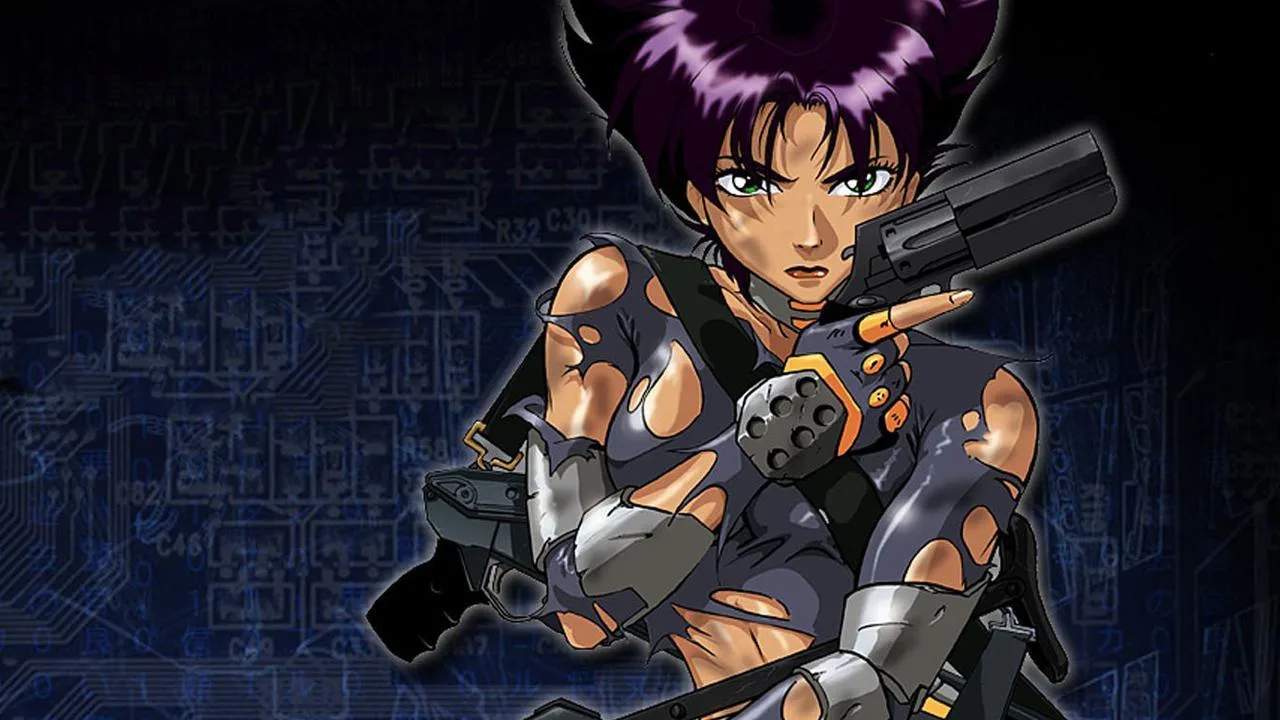
By following these steps, you should be able to get Oni running smoothly, allowing you to fully enjoy Konoko's journey through the Technology Crimes Task Force.