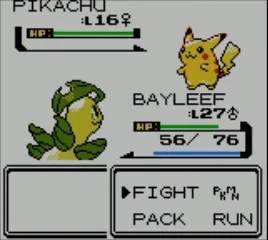
The Pokémon Crystal UI is straightforward but packed with information. Here's a breakdown of what you'll see:
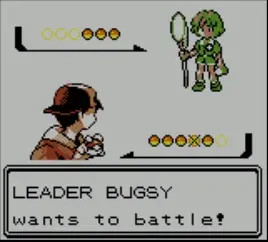
- Overworld Screen: Displays your character, the environment, and any NPCs or wild Pokémon. The bottom of the screen often shows a small text box for dialogue or notifications.
- Main Menu (START Button):
- POKéMON: View your current party, their stats, moves, and held items.
- BAG: Access your items, categorized into 'ITEMS', 'KEY ITEMS', and 'TM/HM'.
- POKéDEX: Track all the Pokémon you've seen and caught.
- TRAINER CARD: Displays your name, ID number, badges, and play time.
- SAVE: Crucial for saving your progress. Save often!
- OPTION: Adjust game settings like text speed, battle style, and sound.
- TURN OFF: Safely turn off your Game Boy Color.
- Battle Screen: Shows your Pokémon, the opponent's Pokémon, their HP bars, and a menu with options like 'FIGHT', 'POKéMON', 'BAG', and 'RUN'. Pay attention to status conditions and type effectiveness displayed here.
Familiarizing yourself with these menus will make managing your team and resources much easier throughout your journey.
Compare understanding the user interface (ui) inPokémon Yellow