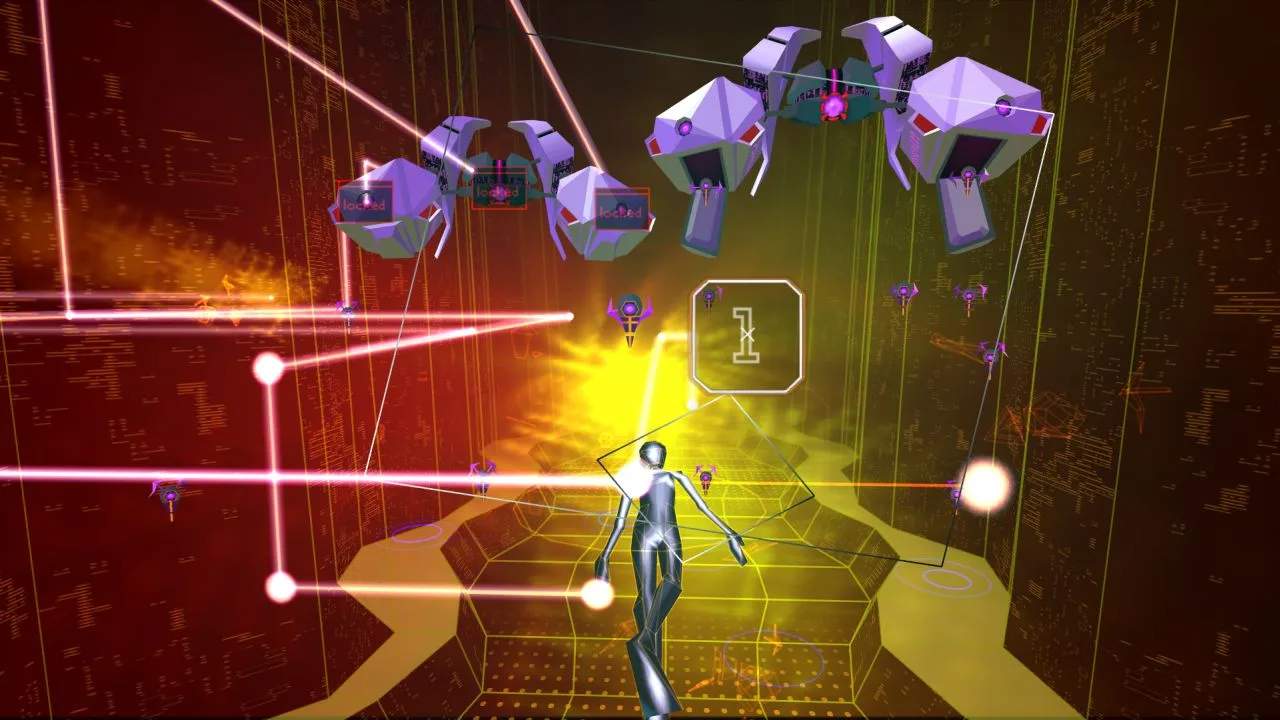
Accessibility Options
Rez Infinite offers several accessibility options designed to make the game enjoyable for a wider range of players. These settings can significantly alter the gameplay experience, from visual aids to control modifications. Taking the time to explore and adjust these options can greatly enhance your journey through the Project K network.
Accessing Accessibility Settings
To access the accessibility options, follow these simple steps:
- From the game's Title Screen, select "Options".
- Within the Options menu, navigate to "Accessibility". This will open a dedicated sub-menu with all available adjustments.
Visual Aids
These settings focus on enhancing visual clarity and reducing potential discomfort.
- Colorblind Mode:
- Location: Accessibility Menu > Visual Aids > Colorblind Mode
- Description: This option adjusts the color palette of the game to improve visibility for players with various forms of colorblindness.
- Strategy: Experiment with the different presets (e.g., Protanopia, Deuteranopia, Tritanopia) to find the one that best suits your visual needs. This can make identifying enemies, projectiles, and power-ups much clearer.
- Reduced Flashing Effects:
- Location: Accessibility Menu > Visual Aids > Reduced Flashing Effects
- Description: Toggles off or reduces the intensity of rapidly flashing lights and visual effects that can occur during gameplay, particularly during boss battles and when collecting items.
- Strategy: If you are sensitive to flashing lights or experience discomfort, enabling this option is highly recommended. It maintains the core visual style while mitigating potential triggers.
- HUD Contrast:
- Location: Accessibility Menu > Visual Aids > HUD Contrast
- Description: Allows you to increase or decrease the contrast of the Heads-Up Display elements, such as your Evolution Level, Overdrive meter, and score.
- Strategy: If you find the default HUD blends too much with the background, increasing the contrast can make critical information stand out more clearly, especially in visually busy areas.
Control Modifications
These options provide flexibility in how you interact with the game, catering to different control preferences and physical needs.
- Auto-Lock On:
- Location: Accessibility Menu > Control Modifications > Auto-Lock On
- Description: When enabled, your targeting reticle will automatically lock onto the nearest enemy within range, reducing the need for precise manual aiming.
- Strategy: This is an excellent option for players who prefer a more relaxed aiming experience or have difficulty with fine motor control. It allows you to focus more on dodging and strategic Overdrive usage.
- Overdrive Button Hold:
- Location: Accessibility Menu > Control Modifications > Overdrive Button Hold
- Description: Changes the Overdrive activation from a tap to a hold. Holding the designated Overdrive button will continuously activate the ability until released or the meter is depleted.
- Strategy: If you find rapidly tapping the Overdrive button challenging or prefer a sustained effect, enabling this option can be beneficial. It allows for more consistent Overdrive usage without repeated button presses.
- Controller Vibration:
- Location: Accessibility Menu > Control Modifications > Controller Vibration
- Description: Toggles the haptic feedback (rumble) of your controller on or off.
- Strategy: While vibration can enhance immersion, some players may find it distracting or uncomfortable. Disabling it can provide a smoother, less tactile experience.
Audio Adjustments
These settings allow you to fine-tune the game's audio experience.
- Music Volume:
- Location: Accessibility Menu > Audio Adjustments > Music Volume
- Description: Adjusts the overall volume of the game's iconic soundtrack.
- Strategy: If you prefer to focus more on sound effects or find the music overwhelming, you can lower this. Conversely, if the music is your primary draw, feel free to turn it up!
- SFX Volume:
- Location: Accessibility Menu > Audio Adjustments > SFX Volume
- Description: Controls the volume of sound effects, including enemy attacks, lock-on confirmation, and item collection.
- Strategy: Adjusting SFX volume can help you prioritize auditory cues. For instance, increasing it might make enemy projectile sounds more noticeable, aiding in dodging.
Remember, these options are there to tailor Rez Infinite to your personal preferences. Don't hesitate to experiment with different combinations to find the setup that provides you with the most enjoyable and accessible journey through the digital world.