Settings & Customization
Welcome, fellow data stream voyager! While Rez Infinite is renowned for its immersive, on-rails experience, a surprising depth of customization lies beneath its sleek, abstract surface. Tailoring your journey through the Project K network can significantly enhance both your performance and enjoyment. This detailed guide will walk you through every essential setting, ensuring your dive into the digital realm is perfectly calibrated.
Accessing the Settings Menu
From the game's main title screen, navigate to the "Options" selection. This will open a sub-menu containing various categories for fine-tuning your experience. Remember, changes made here are typically saved automatically, so feel free to experiment!
Visual Settings
Optimizing your visual experience is crucial for both immersion and target acquisition. These settings can be found under the "Display" sub-menu.
- Resolution: This determines the clarity of the game's visuals.
- Location: Display > Resolution
- Strategy: For PC players, match this to your monitor's native resolution for the sharpest image. Console players often have fewer options here, but ensure it's set to the highest available (e.g., 1080p, 4K) for your display. Lowering resolution can improve performance on less powerful systems.
- Anti-Aliasing: Smooths out jagged edges on objects.
- Location: Display > Anti-Aliasing
- Strategy: Options typically include Off, FXAA, SMAA, or MSAA (with various levels like 2x, 4x, 8x). Higher settings provide a cleaner look but can impact performance. For a casual play-through, a moderate setting like SMAA or 2x MSAA offers a good balance.
- V-Sync: Synchronizes the game's frame rate with your monitor's refresh rate to prevent screen tearing.
- Location: Display > V-Sync
- Strategy: Turn this On if you experience horizontal "tears" across your screen. If you have a high refresh rate monitor (e.g., 120Hz, 144Hz) and a powerful system, you might prefer to keep it Off for lower input lag, but be mindful of tearing.
- Brightness/Contrast: Adjusts the overall luminosity and distinction between light and dark areas.
- Location: Display > Brightness / Contrast
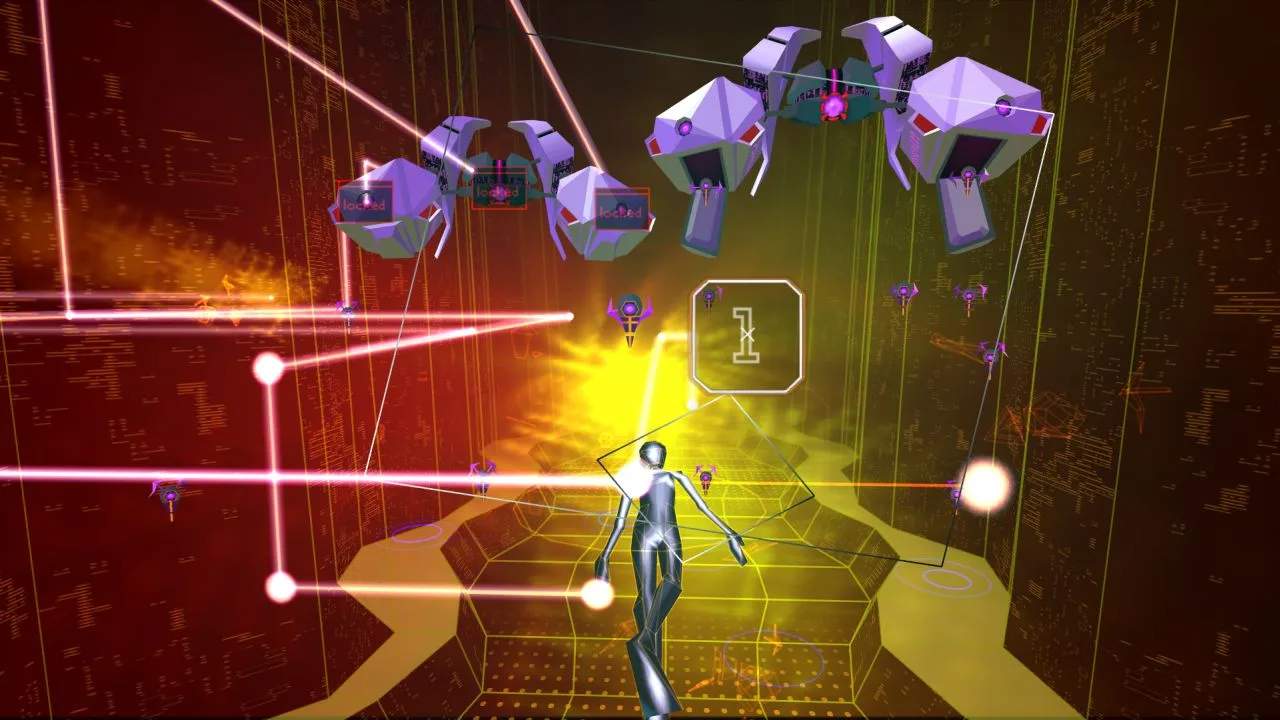
- Strategy: These are highly personal. Adjust them until the game's vibrant colors pop without feeling washed out or overly dark. A good test is to ensure you can clearly distinguish details in both the brightest and darkest sections of a level, like the intricate wireframe structures of Area 01.
Audio Settings
The soundscape of Rez Infinite is integral to its experience. Fine-tune your audio under the "Audio" sub-menu.
- Master Volume: Controls the overall game volume.
- Location: Audio > Master Volume
- Strategy: Set this to a comfortable level. You want to hear the music and sound effects clearly without it being overwhelming.
- Music Volume: Adjusts the volume of the game's iconic soundtrack.
- Location: Audio > Music Volume
- Strategy: Since the music is a core part of the rhythm-action gameplay, we recommend keeping this relatively high. Experiment to find a balance where the music drives your actions without drowning out critical sound cues.
- SFX Volume: Controls the volume of sound effects, such as lock-on tones, enemy explosions, and evolution sounds.
- Location: Audio > SFX Volume
- Strategy: Crucial for gameplay feedback. Keep this high enough to clearly hear when you've locked onto enemies, when your Overdrive is ready, and when you've taken damage.
- Voice Volume: Adjusts the volume of any spoken dialogue or vocalizations (less prominent in Rez Infinite but present).
- Location: Audio > Voice Volume
- Strategy: Can generally be kept at default or slightly lower, as it's not critical for gameplay.
Control Settings
Your interaction with the digital world is paramount. The "Controls" sub-menu allows you to customize your input method.
- Controller Type: Select your preferred input device.
- Location: Controls > Controller Type
- Strategy: Options typically include Gamepad, Keyboard & Mouse (for PC), and various VR controller options (if playing in VR). Ensure the correct type is selected for optimal responsiveness.
- Aiming Sensitivity: Adjusts how quickly your reticle moves across the screen.
- Location: Controls > Aiming Sensitivity
- Strategy: This is a highly personal preference. Start with the default and gradually increase or decrease it during gameplay in a less intense area (like the beginning of Area 01) until you find a speed that allows for precise targeting without overshooting.
- Invert Aim (Y-Axis): Reverses the vertical aiming controls.
- Location: Controls > Invert Aim (Y-Axis)
- Strategy: Some players prefer "inverted" controls, where pushing up on the stick/mouse aims down, and vice-versa. If this feels more natural to you, toggle it On.
- Vibration: Toggles controller rumble feedback.
- Location: Controls > Vibration
- Strategy: Vibration can add to immersion and provide tactile feedback for actions like taking damage or using Overdrive. If you find it distracting or prefer a quieter experience, toggle it Off.
Gameplay Settings
These settings affect the core mechanics and user interface elements during your journey.
- HUD Display: Toggles the visibility of the Heads-Up Display (your evolution level, Overdrive meter, etc.).
- Location: Gameplay > HUD Display
- Strategy: For a truly minimalist and immersive experience, you can turn this Off. However, for casual play and keeping track of your progress, we recommend keeping it On.
- Auto-Fire: Automatically fires your primary weapon when enemies are locked on.
- Location: Gameplay > Auto-Fire
- Strategy: A fantastic option for casual players or those who want to focus purely on aiming and dodging. Toggle this On to reduce button mashing and enjoy the rhythm. If you prefer manual control over your shots, keep it Off.
- Controller Aim Assist: Provides a slight magnetic pull towards targets when using a gamepad.
- Location: Gameplay > Controller Aim Assist (Gamepad only)
- Strategy: For casual players, turning this On can make targeting easier and reduce frustration, especially in fast-paced sections. If you're seeking a purer, more challenging experience, turn it Off.
By carefully adjusting these settings, you can craft a Rez Infinite experience that perfectly suits your playstyle, whether you're a seasoned veteran or a newcomer just beginning their ascent through the digital layers of Project K.