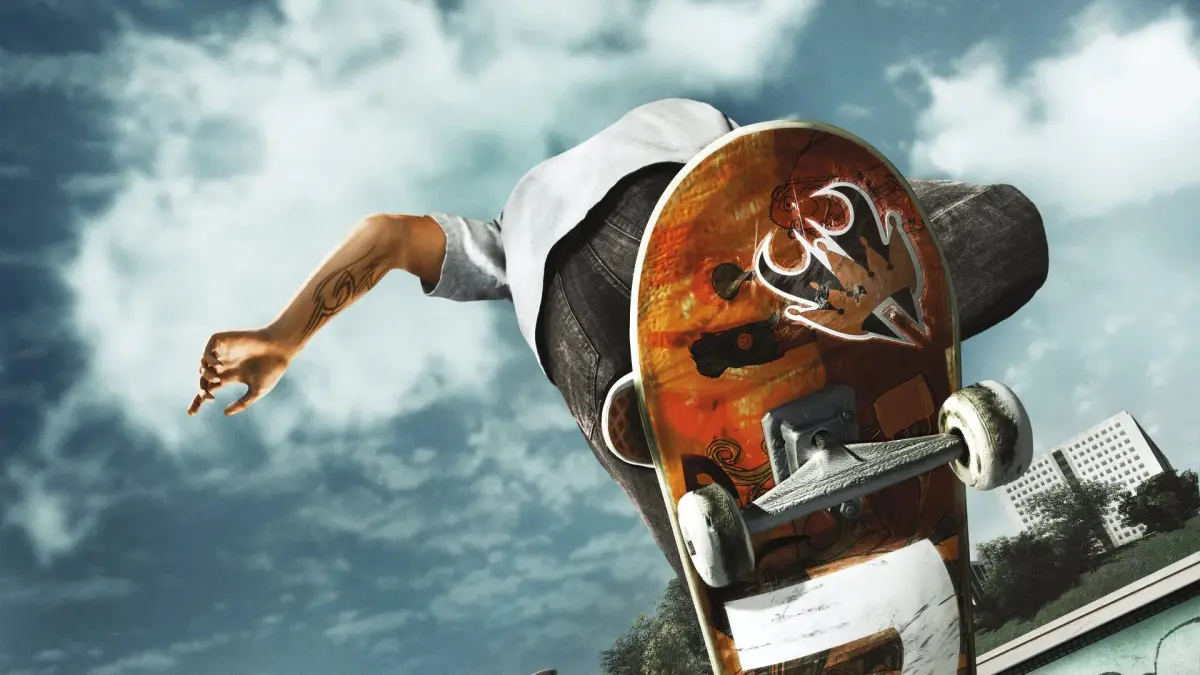
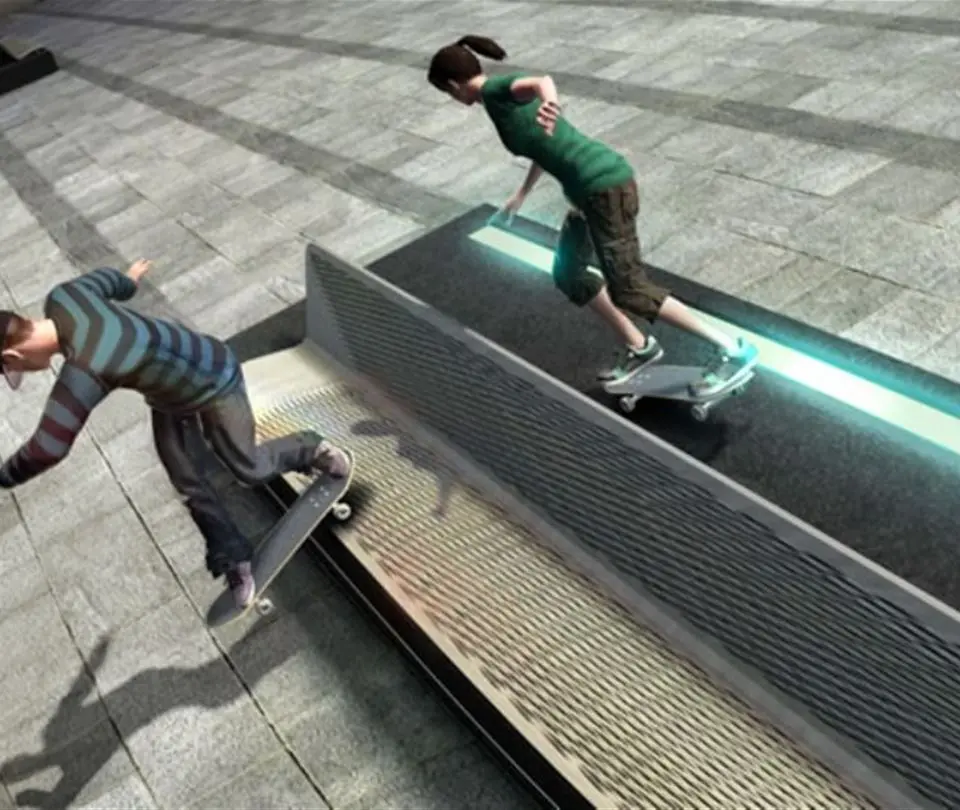
Master Skate 3's camera controls for precision skating and film your best lines with the robust Replay Editor. Learn to capture every angle for epic clips.
Mastering the camera in Skate 3 is crucial for both capturing epic lines and simply navigating the world with precision. Beyond the standard gameplay camera, the robust Replay Editor allows you to become a true skate film director, showcasing your best tricks from every angle. This section will guide you through both.
In-Game Camera Controls
While skating, you have several options to adjust your view, helping you spot lines, avoid obstacles, and set up tricks. These controls are active during live gameplay.
- Right Stick (R3): This is your primary camera control.
- Push Up/Down: Zooms the camera in and out, respectively. Get a close-up on your skater or pull back for a wider view of the environment.
- Push Left/Right: Rotates the camera around your skater. Useful for looking around corners or checking what's behind you.
- Left Bumper (LB) / L1: Activates "Skate.Reel" mode. This instantly saves a short clip of your recent gameplay, allowing you to enter the Replay Editor directly from the action.
- D-Pad Up: Toggles between different camera presets. Experiment to find your preferred default view. Options typically include:
- Follow Cam (Default): Tracks your skater from behind, slightly above.
- High Cam: A more elevated, pulled-back view, great for seeing more of the park.
- Low Cam: A closer, lower angle, excellent for emphasizing speed and ground tricks.
- Static Cam: The camera remains fixed in one spot, often used for specific challenges or cinematic shots.
Accessing the Replay Editor
The Replay Editor is where the magic happens for creating highlight reels and sharing your best moments. There are two main ways to access it:
- During Gameplay (Skate.Reel):
- Whenever you land an impressive trick or complete a challenging line, press the Left Bumper (LB) / L1.
- This will immediately save the last few seconds of your gameplay and transport you to the Replay Editor interface.
- From the Pause Menu:
- Press the Start button (or equivalent) to open the Pause Menu.
- Navigate to the "Replay Editor" option and select it.
- From here, you can choose to load a previously saved replay or create a new one from your current session (though the Skate.Reel method is usually more convenient for capturing specific moments).
Replay Editor Interface & Controls
Once inside the Replay Editor, you'll have a suite of tools at your disposal to craft your perfect video. The interface is divided into several key areas:
- Timeline: Located at the bottom of the screen, this shows the duration of your clip. You can scrub through it using the Left Stick or D-Pad Left/Right.
- Playback Controls:
- A / X Button: Play/Pause the replay.
- B / Circle Button: Exit the Replay Editor.
- X / Square Button: Access advanced editing options (e.g., adding keyframes, adjusting speed).
- Y / Triangle Button: Save your edited replay.
- Left Trigger (LT) / L2: Rewind.
- Right Trigger (RT) / R2: Fast Forward.
Advanced Replay Editing Techniques
This is where you transform raw footage into a cinematic masterpiece. The key is using Keyframes to define camera movements and effects.
1. Setting Keyframes
Keyframes are points in your timeline where you define specific camera settings (position, zoom, angle, field of view). The camera will then smoothly transition between these keyframes.
- Navigate to your desired starting point on the timeline using the Left Stick.
- Adjust the camera: Use the Right Stick (R3) to move the camera freely around your skater.
- Right Stick (Push): Pan the camera.
- Right Stick (Click): Reset camera to default follow.
- Left Stick (Push): Move the camera relative to the skater.
- Left Trigger (LT) / L2 + Right Stick: Adjust Field of View (FoV) for wider or narrower perspectives.
- Right Trigger (RT) / R2 + Right Stick: Adjust camera roll for dynamic angles.
- Once the camera is positioned perfectly, press the X / Square Button to open the "Edit Keyframe" menu.
- Select "Add Keyframe." This saves the current camera position and settings at that point in the timeline.
- Move to another point on the timeline and repeat steps 2-3 to add more keyframes. The game will automatically interpolate the camera movement between them.
2. Adjusting Keyframe Properties
After adding a keyframe, you can fine-tune its properties:
- Select a Keyframe: Use the D-Pad Left/Right to highlight an existing keyframe on the timeline.
- Press X / Square Button to open the "Edit Keyframe" menu.
- Options include:
- Edit Camera: Re-adjust the camera position for that specific keyframe.
- Delete Keyframe: Remove the selected keyframe.
- Set Speed: Change the playback speed for the segment leading up to this keyframe (e.g., slow-motion for a trick, fast-forward for transitions).
- Add Filter: Apply visual filters (e.g., black and white, sepia) to the footage from this keyframe onwards.
3. Saving and Sharing Your Replay
Once you're satisfied with your edited replay:
- Press the Y / Triangle Button to bring up the "Save Replay" option.
- You'll be prompted to give your replay a name. Choose something descriptive!
- Select "Save." Your replay will then be stored in your "My Skate.Reel" section, accessible from the main menu or the Replay Editor.
- From "My Skate.Reel," you can choose to upload your replay to the Skate.Reel online service (if available and supported) to share with the community, or simply enjoy it locally.
Experiment with different camera angles, keyframe placements, and speed changes to create truly unique and engaging skate videos. The Replay Editor is a powerful tool – don't be afraid to get creative!
100% Human-Written. AI Fact-Checked. Community Verified. Learn how AntMag verifies content