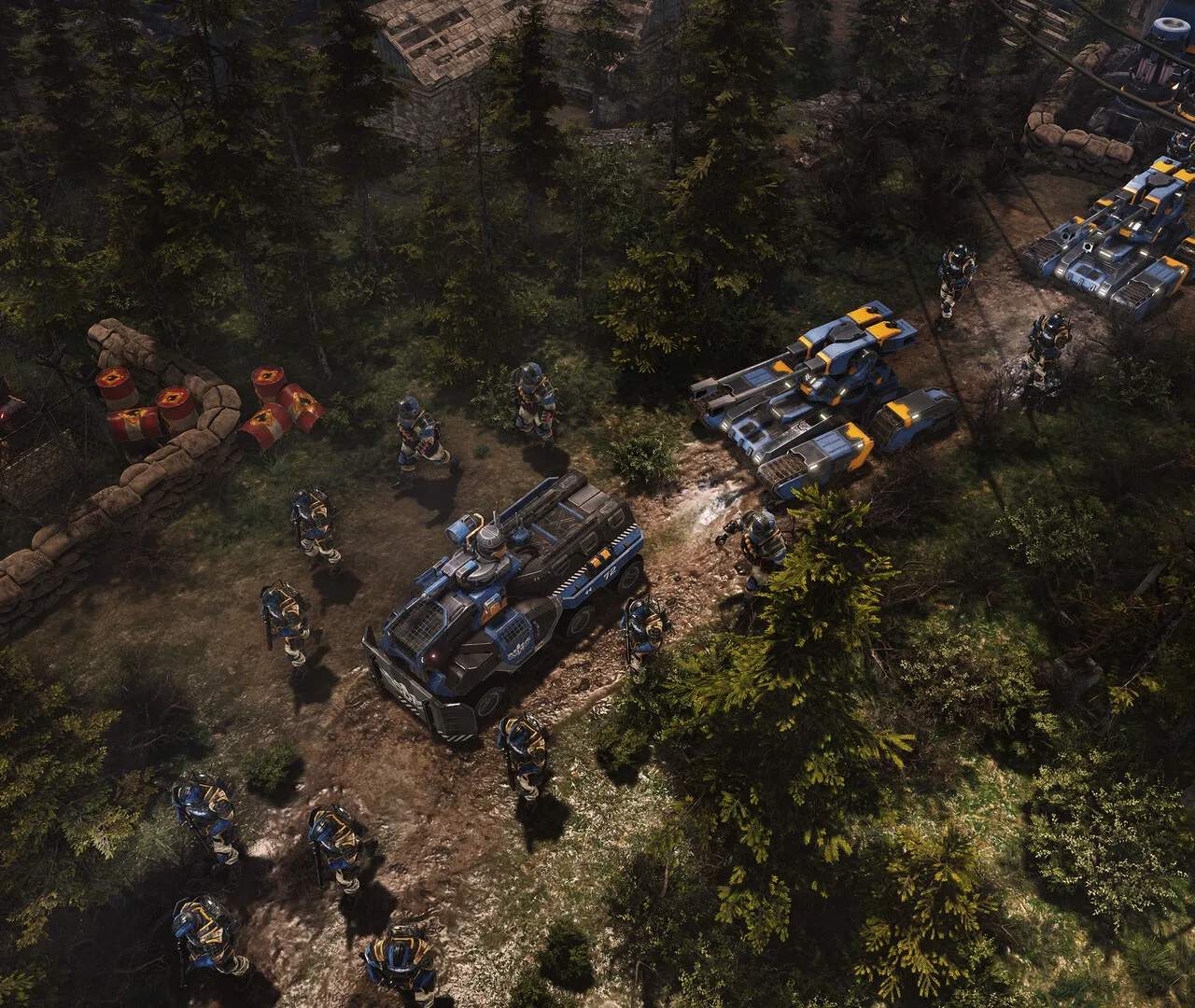
Hotkeys & Keybindings
Mastering hotkeys in Tempest Rising is crucial for efficient gameplay, allowing you to react swiftly to threats, manage your economy, and deploy units with precision. While the game offers robust default keybindings, understanding and customizing them can significantly elevate your performance, especially in competitive multiplayer scenarios.
General Hotkeys
These hotkeys are your bread and butter for navigating the battlefield and managing your base. Familiarize yourself with them early on.
- Camera Movement: Use
W,A,S,Dto pan your camera across the map. Alternatively, moving your mouse to the screen edges will also pan the camera. - Zoom: Scroll your mouse wheel up or down to zoom in and out. A wider view allows for better situational awareness, while zooming in can help with precise unit targeting.
- Attack Move: Press
Athen click on the target area. Your selected units will move to that location, engaging any hostile units they encounter along the way. This is essential for effective unit pathing and preventing units from standing idle. - Stop: Press
Sto immediately halt all selected units. Useful for holding ground or preventing units from chasing enemies into dangerous territory. - Hold Position: Press
Hto make selected units hold their current position and attack any enemies that come into range, without moving. Ideal for defensive lines. - Guard: Select a unit or group, press
G, then click on another unit or structure. The selected units will follow and protect the guarded entity. - Patrol: Select units, press
P, then click a series of points on the map. Your units will move between these points, engaging enemies as they patrol. - Select All Units: Press
Ctrl + Ato select all combat units on your screen. Double-tappingAwill select all combat units on the entire map. - Select All Idle Workers: Press
F1to quickly select all your idle Harvesters or other resource-gathering units. This ensures your economy is always running optimally. - Jump to Last Alert: Press
Spacebarto instantly snap your camera to the location of the last significant event, such as an enemy attack or a building completion. - Toggle Minimap: Press
Mto toggle the visibility of the minimap.
Control Groups
Control groups are paramount for managing multiple units and structures efficiently. They allow you to quickly select and issue commands to specific groups without having to manually click each unit.
- Assign Control Group: Select the units or structures you want to group, then press
Ctrl + (Number 1-9). For example,Ctrl + 1assigns them to group 1. - Select Control Group: Press the assigned number key (e.g.,
1) once to select the group. - Center Camera on Control Group: Double-tap the assigned number key (e.g.,
1) to select the group and center your camera on them. - Add to Control Group: Select additional units/structures, then press
Shift + (Number 1-9)to add them to an existing group without re-assigning the entire group. - Remove from Control Group: Select the unit(s) you wish to remove from a group, then re-assign the remaining units to the same control group using
Ctrl + (Number).
Strategy Tip: Assign your main combat forces to 1, your Harvesters to 2, your primary Barracks or Factory to 3, and your defensive structures to 4. This provides a solid foundation for rapid response and production.
Building & Production Hotkeys
Speed up your base expansion and unit production by using these hotkeys. Each building and unit has a unique hotkey for its construction or training.
- Open Build Menu: Select a Construction Yard or Mobile Construction Vehicle (MCV), then press
Bto open the building menu. - Building Specific Hotkeys: Once the build menu is open, each available building will have a letter assigned to it. For example,
Rfor Refinery,Pfor Power Plant,Afor Barracks. Learn these to rapidly queue up structures. - Unit Production Hotkeys: Select a production building (e.g., Barracks, Factory). Each unit available for production will have a hotkey displayed in its icon. For instance,
Ifor Infantry,Jfor Juggernaut. Repeatedly pressing the hotkey will queue multiple units. - Waypoint: Select a production building, then press
Wand click on the map to set a rally point for newly produced units.
Ability Hotkeys
Many units and structures possess unique abilities that can turn the tide of battle. These are typically activated by hotkeys once the unit is selected.
- Unit Abilities: When a unit with an ability is selected, its abilities will appear in the command panel, each with a designated hotkey (e.g.,
Efor an EMP blast,Rfor a repair drone). - Structure Abilities: Similar to units, certain structures, like advanced defensive turrets or support buildings, will have activated abilities with their own hotkeys.
Customizing Your Hotkeys
Tempest Rising offers extensive customization options for your keybindings. Access these through the main menu:
- From the main menu, navigate to Options.
- Select Controls.
- Click on Keybindings.
- Here, you can rebind almost every action in the game. Consider grouping frequently used actions close to your left hand for maximum efficiency.
Recommendation: Experiment with different layouts in skirmish matches against AI before taking them into ranked play. A comfortable and intuitive setup is key to long-term success.