Basic Controls & Touch Screen Mechanics
Welcome, intrepid adventurer, to the world of The Legend of Zelda: Phantom Hourglass! This game was designed from the ground up to leverage the unique capabilities of the Nintendo DS, meaning nearly all your interactions will be through the stylus and touch screen. Mastering these intuitive controls is key to navigating the Great Sea, conquering dungeons, and ultimately saving Tetra.
Movement & Interaction
Link's movement is entirely controlled by the stylus on the bottom screen. There are a few ways to direct our hero:
- Walk/Run: Tap and hold the stylus on the touch screen in the direction you want Link to move. The further you tap from Link, the faster he will run. This is your primary method of traversal.
- Roll: To perform a quick roll, rapidly tap the stylus twice in the direction you wish to roll. This is useful for dodging enemy attacks, breaking pots, and gaining a slight burst of speed.
- Interact: To interact with objects, NPCs, or open doors, simply tap on them with your stylus. Link will automatically approach and perform the appropriate action. For example, tapping on a sign will make Link read it, and tapping on a treasure chest will open it.
- Climb/Descend: When near ladders or climbable surfaces, tap on them to have Link automatically begin climbing. Tap again at the top or bottom to dismount.
Combat & Item Usage
Combat in Phantom Hourglass is dynamic and relies heavily on precise stylus input. Your sword and equipped items are all utilized through the touch screen.
- Sword Attacks:
- Basic Slash: Tap an enemy or an empty space near Link to perform a standard sword slash.
- Spin Attack: Rapidly draw a circle around Link with your stylus. This powerful attack hits all enemies in a small radius around Link and is excellent for crowd control.
- Stab: Tap an enemy and hold the stylus briefly. Link will perform a thrusting stab. This is particularly effective against certain armored enemies or those with weak points.
- Equipped Items:
- Assigning Items: To assign an item, tap the item icon in the bottom-right corner of the touch screen to open your inventory. Drag and drop the desired item into the active item slot.
- Using Items: Once an item is equipped, its usage method will vary:
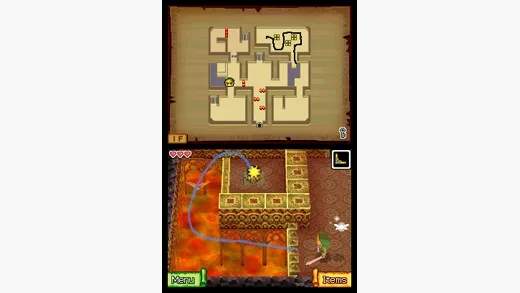
- Boomerang: Tap the equipped Boomerang icon, then draw a path on the touch screen for it to follow. It will return to Link after hitting targets or reaching the end of its path. Experiment with curved paths to hit multiple switches or enemies.
- Bow: Tap the equipped Bow icon, then tap and hold on the target you wish to shoot. Release to fire an arrow.
- Bomb: Tap the equipped Bomb icon, then tap where you want to place the bomb. You can also tap and drag to throw it a short distance.
- Grappling Hook: Tap the equipped Grappling Hook icon, then tap on a grapple point (like a wooden post or specific enemy). Link will latch on.
Map & Menu Navigation
The top screen displays the action, while the bottom screen is your interactive hub. The map and various menus are crucial for your journey.
- World Map (Bottom Screen): When not in a menu, the bottom screen defaults to a localized map of your current area.
- Drawing Notes: This is a critical mechanic! Tap the "Pen" icon (looks like a quill) in the top-right corner of the bottom screen. You can then draw notes, paths, or symbols directly onto the map. This is invaluable for remembering puzzle solutions, marking important locations, or charting your course on the Great Sea. Tap the "Eraser" icon to clear your markings.
- Zoom: Use the magnifying glass icons to zoom in or out on the map.
- Pause Menu: Tap the "Menu" icon (looks like a small bag) in the bottom-left corner of the touch screen, or press the START button, to access the pause menu. Here you can:
- Check Inventory: View all your collected items and assign them to the active slot.
- Review Quest Log: See your current objectives and important information.
- Save Game: Essential for preserving your progress.
- Access Options: Adjust game settings like sound volume.
- Talking to Characters: Simply tap on an NPC to initiate dialogue. Tap through dialogue boxes to advance conversations.
Take your time to get accustomed to these controls. The stylus-based gameplay might feel different at first, but it quickly becomes second nature and offers a level of precision and immersion unique to the DS.