
Saving & Loading Your Creations
In Tiny Glade, preserving your architectural masterpieces is as delightful as building them! This guide will walk you through the straightforward process of saving and loading your glade creations, ensuring your hard work is never lost.
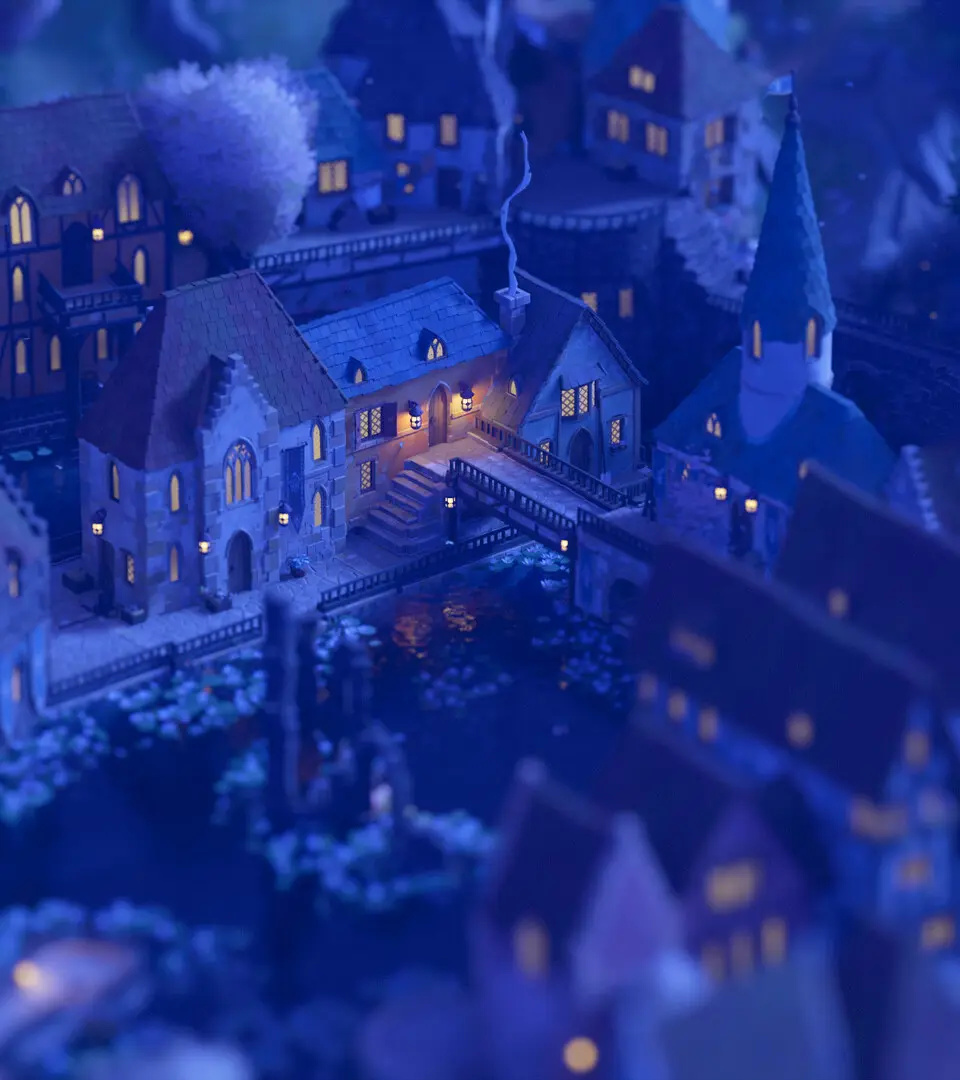
Automatic Saves: Your Built-in Safety Net
Tiny Glade features an automatic saving system that periodically captures your progress. This is a helpful feature to prevent data loss during your building sessions.
- Frequency: Auto-saves occur at regular intervals and after significant building actions.
- Location: These saves are automatically managed and typically accessible via a dedicated "Auto-Save" option in the load menu.
- Overwriting: Be aware that the auto-save file is continuously overwritten. For important progress, manual saving is always recommended.
Manual Saving: Taking Control of Your Designs
Manual saving gives you complete control over your creations, allowing you to name them and create multiple versions.
- Accessing the Save Menu:
- While in your glade, press the Escape (Esc) key on your keyboard to open the Main Menu.
- If using a controller, press the Start/Options button.
- Selecting "Save Game":
- From the Main Menu, navigate to and select the "Save Game" option.
- Choosing a Save Slot:
- You will see a list of available save slots. Select an empty slot to create a new save, or choose an existing one if you wish to overwrite a previous save. Exercise caution when overwriting existing saves.
- Naming Your Creation:
- After selecting a slot, a text input field will appear. This is where you can name your glade creation.
- Strategy: Choose descriptive names that reflect the style or purpose of your build (e.g., "Forest Keep," "Coastal Village," "Mountain Stronghold").
- Type your desired name using your keyboard.
- Confirm the name by pressing Enter or selecting the confirmation button.
- Confirmation:
- A brief confirmation message will appear, indicating that your game has been successfully saved.
Loading Your Masterpieces
Ready to return to a previous project or continue building?
- Accessing the Load Menu:
- From the Main Menu (accessed via Esc/Start), select the "Load Game" option.
- If you are currently in a glade, you may be prompted to save your current progress before loading another.
- Browsing Save Files:
- The Load Game menu displays all your manually saved files, along with the auto-save.
- Each entry will show the name you assigned, the date and time it was saved, and potentially a small preview image.
- Selecting and Loading:
- Scroll through the list to find the creation you wish to load.
- Select the desired save file.
- The game will then load your chosen glade, placing you back at the point where you last saved.
Important Saving Tips:
- Save Frequently: Especially when working on complex or lengthy builds, make it a habit to manually save your progress often.
- Utilize Multiple Slots: Don't hesitate to use several save slots for the same project. This allows you to experiment with different design ideas without risking your primary build. For instance, you could have "Castle Design v1" and "Castle Design v2 - Alternative."
- Backup Your Saves (PC Users): For PC players, consider periodically backing up your Tiny Glade save files. These are typically located within your user's AppData directory. This provides an extra layer of security for your most valued creations.