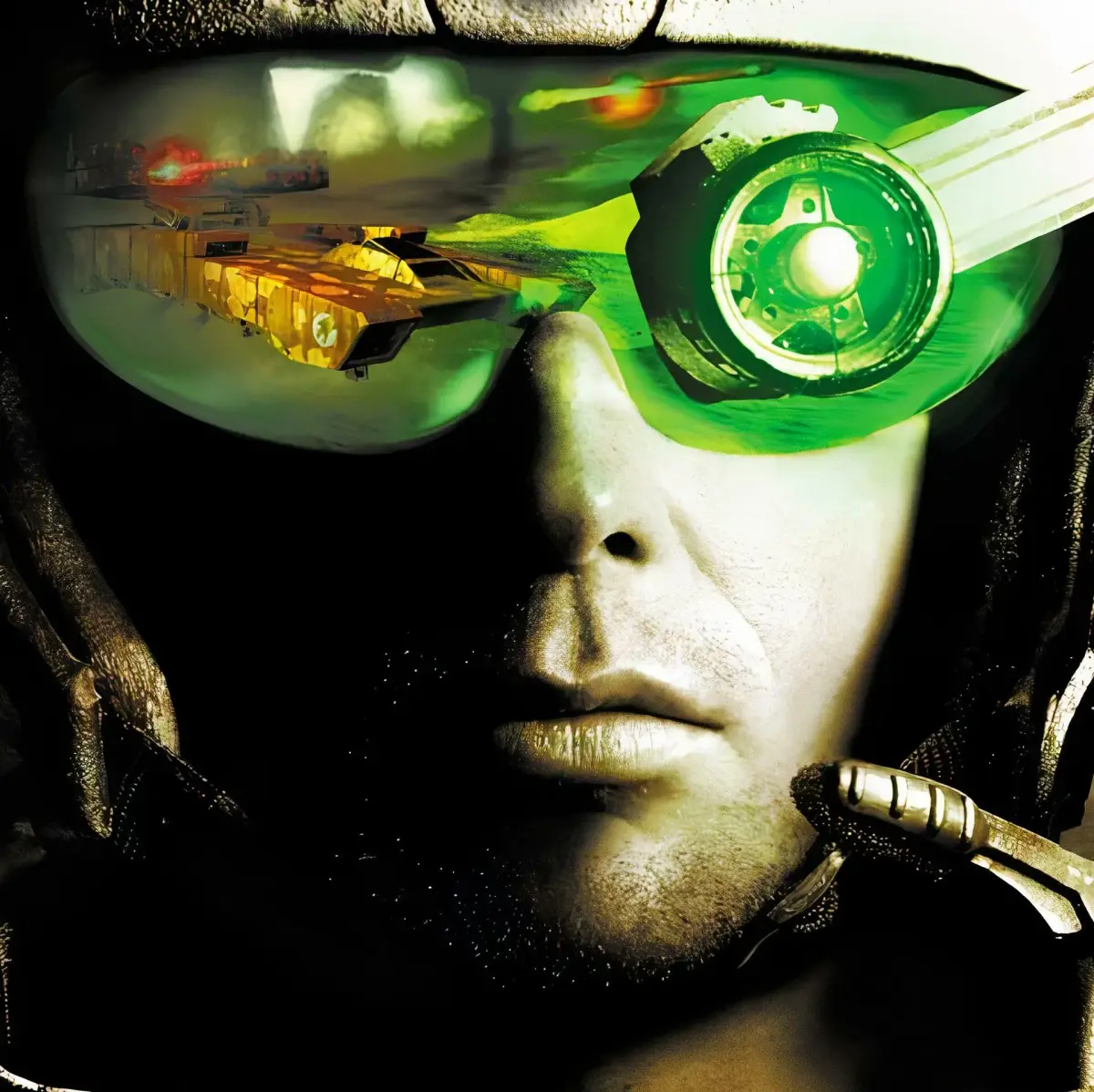
Welcome to Tiberian Sun, Westwood Studios' 1999 real-time strategy classic. Step back into the conflict between GDI and the Brotherhood of Nod, where you'll build bases, command armies, and wage war across the globe in a desperate fight for control of Tiberium. Whether you're defending key locations like Phoenix or launching assaults on heavily fortified Nod bases, mastering the flow of battle is key to victory.
This guide is your comprehensive resource for conquering Tiberian Sun. We'll walk you through everything from initial installation and basic tactics to the intricacies of both the GDI and Nod campaigns. Struggling with specific missions, unit deployments, or advanced skirmish strategies? This guide has you covered, equipping you with the knowledge to dominate any battlefield.
---- Table of Contents ----
Command & Conquer: Tiberian Sun Table of Contents including FAQ, Basics, Walkthroughs, and Unit Overviews.
- 1Introduction [1000]
- 2FAQ [2000]
- 3Basics [3000]
- Main Menu [3100]
- 4The Interface [3200]
- 5Hotkeys [3300]
- 6Walkthrough [4000]
- Evolutionary Response [4100]
- 7Deus Ex Kane [4200]
- 8Overview [5000]
- Infantry [5100]
- 9Vehicles [5200]
- 10Structures [5300]
- 11Version History [6000]
- 12Legal Disclaimers [7000]
- 13Credits and Closing [8000]
- Use the section numbers (e.g., [4100]) to quickly jump to specific parts of the guide.
- Familiarize yourself with the Interface [3200] and Hotkeys [3300] for efficient gameplay.
- The Overview [5000] section provides details on Infantry [5100], Vehicles [5200], and Structures [5300].
---- 1. Introduction ---- [1000]
Learn about Command & Conquer: Tiberian Sun, a classic RTS strategy game with a walkthrough and unit rundown.
Command & Conquer: Tiberian Sun is a highly regarded strategy game that, despite its age, retains its novelty. It is considered one of the best strategy games ever played.
This guide provides a walkthrough of the game and a rundown of the units and buildings available within Command & Conquer: Tiberian Sun.
---- 2. FAQ ---- [2000]
Find answers to common questions about Command & Conquer: Tiberian Sun, including alliance choices, mission progression issues, and environmental details.
Q: Which alliance is better?
A: This is a question that really has no answer. It all depends on your preference. GDI relies more on brute force and heavy firepower through its Titans, Orca Bombers, Mammoth Mk.II, etc. Nod, on the other hand, relies on stealth and speed to win its battles. Each side has its advantages over the other. Try out both sides equally to see which one works for you.
Q: Why is the "Destroy Chemical Supply" mission not ending?
A: Make sure that you destroy all of the white "Chemical Tanks." I believe there are two next to the Waste Facility you find at the beginning of the mission. There is a whole group of them east of the other two Waste Facilities in the same mission, plus another three inside the Nod base. Once they're destroyed, the mission will proceed. After that, you must send a unit across the bridge north of the Nod base. There, you will reveal a train station. Send Ghost Stalker onto that train to finish the mission.
Q: Where is the train station in the "Rescue Umagon 'B'" mission?
A: The train station might not look like a train station to you. It can be found at the western edge of the map in the form of a large, white building next to the track. I passed this building on my first playthrough without even knowing it was the train station myself. Westwood really disguised it there.
Q: ACK! Why is the GDI transport not appearing in the "Villainess In Distress" mission?
A: Even if you freed Oxanna from her prison and killed all surrounding GDI forces, the transport might not arrive for a few seconds. Be patient and wait for it. You will be notified when it comes.
Q: I was attacked by a Mammoth Mk.II in "Destroy Mammoth Mk.II Prototype" mission. I destroyed it but the mission didn't end. What's up?
A: The one Mammoth Mk.II you MUST destroy is inside the main GDI base. GDI may send a second Mammoth Mk.II to attack your base. I don't see how this works here, but that Mammoth Mk.II is not the prototype that your objective means. Destroying the prototype inside the base will finish the mission.
Q: What are those cactus-like things standing in the center of tiberium patches?
A: They play an important role. At regular intervals, they will spit out Tiberium (or seeds or something, I don't know). With one or two of these within a Tiberium patch, the amount of Tiberium can never run out as they will keep growing.
---- 3. Basics ---- [3000]
New to Command & Conquer: Tiberian Sun? This guide breaks down the main menu options, game interface elements like credits and the minimap, and essential building controls.
Alright, so you're diving into Command & Conquer: Tiberian Sun! Before we get into the thick of battle, let's quickly go over some of the game's fundamentals. Most of this stuff is probably in the manual, but hey, who actually reads those anymore? Think of this as a quick rundown from a buddy who's already been through it.
3.1. Main Menu
When you first boot up the game, you'll see the main menu. Here's what each button does:
- New Campaign: This is your starting point for the story. Click it, pick your faction (GDI or Nod), choose your difficulty, and the game begins!
- Load Mission: If you've already started a campaign and saved your progress, this is where you'll come to pick up where you left off. You can't load a game if you haven't saved one yet, so don't forget to save! ;P
- Multiplayer Game: Ready to test your skills against others? This tab opens up a few more options:
- Internet: Lets you connect to Westwood's servers online. You'll need a username and the 'Shared Internet Components' installed.
- Modem/Serial: If you're rocking a phone line connection, you can use this to play with others.
- Network: For playing with friends on a local network.
- Skirmish: This is your go-to for custom games against the AI. You can pick your map, set the AI difficulty, and more, but it's strictly AI opponents here.
- Main Menu: Yep, this just takes you back to the main menu.
- Intro/Sneak Peek: Clicking this will play the game's intro movie – either GDI or Nod, depending on which game CD is in your drive. Afterwards, you might see trailers for other Westwood games.
- Options: This is where you tweak the game's settings:
- Game Settings: Adjust things like game speed and scroll rate.
- Display: Choose your resolution – 600x400, 640x480, or 800x600. I personally prefer 800x600.
- Sound: Balance the volume for music, voice, and sound effects.
- Keyboard: Customize your hotkeys to whatever feels best for you.
- Network: Configure your network settings if you're using one.
- Main Menu: Yep, this one goes back to the main menu too.
- Exit Game: When you're done playing, this is the button to quit.
3.2. The Interface
When you're actually in a mission, you'll see an interface on the right side of your screen. Here's a quick breakdown of the key parts:
(Imagine the ASCII diagram here showing the interface elements)
- [1] Credits: This number at the top shows how much money you have available. You'll need it to build units and structures!
- [2] The Map: This is your minimap, showing you the terrain and your units. It's super important for keeping track of what's going on.
- [3] Fix Button (Monkey Wrench Icon): Click this, then click on a damaged building to repair it over time. It costs credits, so make sure you have enough!
- [4] Sell Button ($ Symbol): See something you don't need anymore, or want to recoup some cash? Use this button to sell buildings. You'll get half of what you originally paid for them back.
- [5] Power Down Icon (Lightning Bolt): If you're running low on power for your base, you can click this to temporarily disable a building's power consumption. This helps keep your essential structures running.
- [6] Waypoints Button: This lets you set custom paths for your units.
- [7] Build Buttons: These are the icons for all the units and structures you can build. They'll appear here as you unlock them.
- [8] Unit/Structure Tabs: These tabs organize your build options, letting you switch between different categories of units and buildings.
- [9] Build Queue/Info Panel: This area shows you what you're currently building and provides details about selected units or structures.
Similar guides you might like


100% Human-Written. AI Fact-Checked. Community Verified. Learn how AntMag verifies content