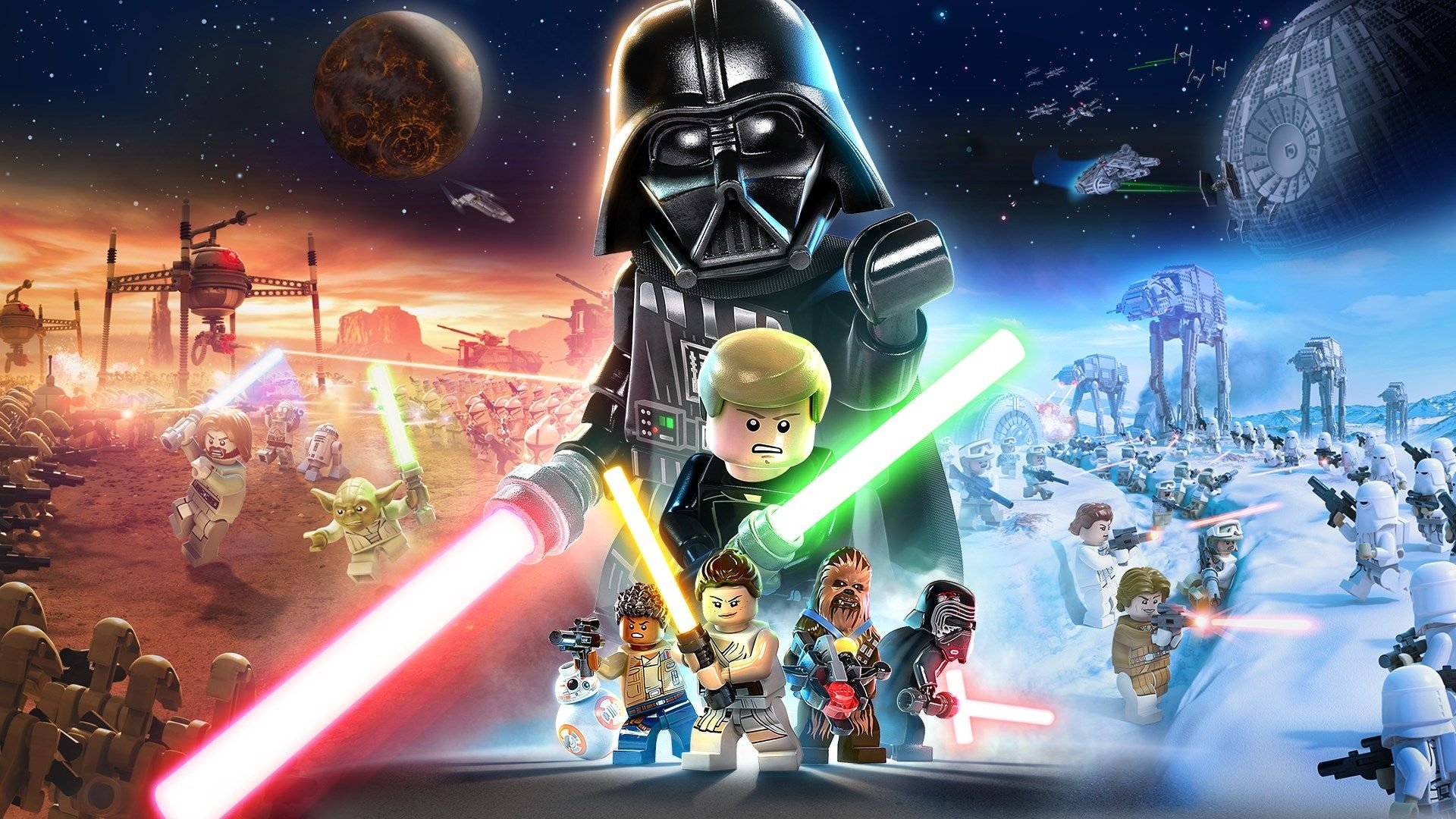
Welcome to the galaxy, kid! LEGO Star Wars: The Skywalker Saga lets you blast your way through all nine saga films, from The Phantom Menace to The Rise of Skywalker. It’s a massive LEGO adventure packed with the series’ signature humor and the freedom to explore iconic locations like Tatooine and Coruscant. Whether you’re reliving the epic space battles or just smashing droids for studs, this game lets you experience the Star Wars universe like never before.
This guide is your copilot for navigating the entirety of the Skywalker Saga. We'll help you track down every last collectible scattered across dozens of planets, master challenging boss fights against iconic villains, and unlock all the secrets the game has to offer. Get ready to achieve that coveted Gold Medal on every level and become a true Jedi Master of the Skywalker Saga.
Guide and Walkthrough (PS4) by CyricZ
Your ultimate walkthrough for Lego Star Wars: The Skywalker Saga! Find mission guides, collectible locations, and tips for every episode and planet.
Hey there! So you're diving into Lego Star Wars: The Skywalker Saga, huh? Awesome! This game is absolutely massive, covering all nine movies, and it can be a bit overwhelming at first. But don't worry, I've got your back. This guide is here to help you blast through every story mission, hunt down every last collectible, and explore every nook and cranny of the galaxy far, far away. Think of me as your co-pilot on this epic journey. We'll tackle everything together, from the earliest days of The Phantom Menace all the way to the climactic events of The Rise of Skywalker. Plus, we'll explore tons of planets and uncover all sorts of secrets. Let's get building and smashing!
This guide is based on the excellent work by CyricZ, and I'm just here to make it feel like we're playing together. We'll break down each mission, point out where to go, what to do, and why it matters. We'll also cover all the classes, abilities, and upgrades you'll need to master. So, buckle up, grab your lightsaber (or blaster!), and let's make our way through the Skywalker Saga!
Guide and Walkthrough (PS4) by CyricZ (2)
Navigate Lego Star Wars: The Skywalker Saga with this comprehensive PS4 walkthrough by CyricZ. Master every mission, unlock secrets, and conquer challenges.
This is a detailed walkthrough for Lego Star Wars: The Skywalker Saga, covering content from PS4 version guide by CyricZ, updated on August 2, 2025. It's structured to help you through every aspect of the game, from the basics to the final missions and galaxy exploration.
The guide is broken down into several key sections:
- Introduction
- FAQ
- Basics: Covering Controls, Menus, Gameplay Changes, Classes and Abilities, and Upgrades.
- Episodes I-IX: Each episode features a list of its main story missions.
- Galaxy Exploration: Details on various planets, challenges, and capital ship exploration.
- Characters and Vehicles: Information on unlocking and using different characters and ships.
- Secrets and Unlockables: Guides for Datacards, Extras, Secret Codes, and Trophies/Achievements.
- Standard Guide Stuff
This walkthrough aims to provide clear instructions and tips for completing all story missions, side content, and collectibles across the entire Skywalker Saga.
Menus
Navigate menus in Lego Star Wars: The Skywalker Saga, including Main Menu, Options, and Accessibility. Adjust gameplay, audio, and display settings.
Main Menu Options:
- New Game: Begin a brand new adventure, selecting your save file first.
- Continue: Resume your adventure from your most recent save.
- Load Game: Choose a specific save file if you have multiple ongoing games.
- Options: Access the Options Menu for detailed settings.
- Accessibility: Open the Accessibility Menu for tailored gameplay adjustments.
- Change Language: Select your preferred text and audio language, which may vary by region.
- Additional Content: Opens your system's store to purchase DLC.
Options Menu Breakdown:
The Options Menu allows extensive customization of your Lego Star Wars: The Skywalker Saga experience.
- Gameplay Options:
- Fall Recovery: Turn off to lose studs upon falling; turn on to negate this penalty.
- Automatic Health Recovery: Enabled by default, slowly recovers health when damaged. Turning it off requires relying on Hearts from defeated enemies.
- Hints: Set to "Always On" to constantly display hints, "New Only" for first-time relevance, or "Off" to disable them.
- Analytics Preference: Choose whether to send data to developers; this does not affect bug fixes.
- Vibration: Toggle controller vibration on or off.
- Hold Button for Quick Taps: When enabled, hold buttons instead of mashing them during quick-time events (QTEs).
- Camera Sensitivity: Adjusts the speed of camera movement using the Right Stick.
- Invert Camera X-Axis (Left/Right): Reverses horizontal camera control with the Right Stick.
- Invert Camera Y-Axis (Up/Down): Reverses vertical camera control with the Right Stick.
- Camera Bob: When on, the camera shakes on uneven terrain in first-person mode.
- Invert Flight X-Axis (Left/Right): Reverses horizontal flight control with the Left Stick. Recommended for flight sim enthusiasts.
- Invert Flight Y-Axis (Up/Down): Reverses vertical flight control with the Left Stick. Recommended for flight sim enthusiasts.
- Flight Sensitivity: Adjusts the turning speed of starships in flight using the Left Stick.
- Invert Aim X-Axis (Left/Right): Reverses horizontal aiming camera control with the Right Stick.
- Invert Aim Y-Axis (Up/Down): Reverses vertical aiming camera control with the Right Stick.
- Aim Sensitivity: Adjusts the camera movement speed while aiming.
- Aim Assist: Improves accuracy with ranged weapons.
- Target Lock-on: Automatically snaps aim to the nearest enemy when the Aim button is pressed.
- Near-Target Slowdown: Slows aiming reticle movement as it approaches a valid target.
- On-Target Slowdown: Slows aiming reticle movement while focused on a target.
- Homing Shots: Provides assistance in aiming at targets not directly in your crosshairs.
- Controller Config: Customize input assignments, with exceptions for Pause and Holoprojector buttons.
- Audio Options:
- Master Volume: Controls overall game sound.
- Music Volume: Adjusts music playback level.
- Sound Effects Volume: Modifies the volume of sound effects.
- Dialogue Volume: Controls the loudness of spoken dialogue.
- Subtitles: Enable to display text for all spoken dialogue.
- Subtitles Text Size: Adjust the font size for subtitles.
- Dialogue Box Text Size: Modify the text size within dialogue boxes.
- HDR Calibration: Adjust White Level and Brightness using provided graphical scenarios.
- Display Options:
- Minimap (the small circular map in the bottom-left corner of your screen): Set to "On (Static)" for a non-rotating map, "On (Rotate)" for a map that turns with the camera, or "Off" to disable it.
- Map Icon Visibility: Choose "All Floors" to see icons on nearby levels or "Current Floor Only" for icons on your present level.
- Player Floor Markers: "Permanent" keeps markers on always, "Temporary" shows them upon switching characters, and "Off" hides them.
- Objective Text: "Always On" displays objectives constantly, "New Only" shows them when they change, and "Off" disables them.
- Objective Waypoint (a marker on your map you've manually placed as a destination) Arrows: Toggle directional arrows guiding you to objectives on or off.
- Regions: Displays the current map region in the lower left corner, above the minimap (cosmetic).
- Plug Guide Arrow: Shows purple arrows indicating where to place or retrieve items like batteries and keycards.
- Hint Alert: Displays a quick marker in the screen's center when a new hint appears.
- Tooltips: Enable to see control descriptions for specific states (e.g., saber dueling, flying) at the bottom of the screen. Options include regular size, small size, or off.
- Tooltip Alert: Shows a quick marker in the screen's center when a new tooltip appears.
- Credits: View the list of individuals who contributed to the game's development.
- EULA: Access the End User License Agreement.
Accessibility Options:
Adjust settings for a more comfortable gameplay experience.
- Subtitles: Turn on to display subtitles for spoken dialogue.
Guide and Walkthrough (PS4) by CyricZ (3)
Learn the basics of Lego Star Wars: The Skywalker Saga, including controls, menus, gameplay changes, classes, and upgrades.
- 1Familiarize yourself with the game's controls for movement, combat, and interaction.
- 2Understand the various menus, including the main menu, pause menu, and inventory screens.
- 3Learn about gameplay changes, hints, and tips to improve your experience.
- 4Explore the different character classes and their unique abilities.
- 5Discover how to upgrade your character's abilities and skills.
- Pay attention to the minimap (the small circular map in the bottom-left corner of your screen) (a small map usually in a corner of the screen) and radar (your minimap with nearby blips and threats marked) (which can show nearby enemies or objectives) to navigate and locate points of interest.
- Utilize cover (press the cover button to crouch behind walls or objects) (environmental objects that provide protection from enemy fire) when engaging in combat.
- Mastering headshots (aiming for the enemy's head) can often result in quicker takedowns.
- Be aware of cutscenes (pre-scripted cinematic moments) which advance the story and may contain important information.
- Look for checkpoints (automatic save points) to ensure your progress is saved.
- Understand the wanted level (the star icons in the top-right showing how aggressively police pursue you) system, if applicable, which may increase enemy presence based on your actions.
- Some content may be available as DLC (downloadable content — extra missions or items released after launch) (Downloadable Content), which requires separate purchase or acquisition.
- Interact with NPCs (Non-Player Characters) who can provide quests, information, or assistance.
- If you fail a task, you will typically respawn (be brought back to life at a checkpoint after death) (reappear) at the last activated waypoint (a marker on your map you've manually placed as a destination) (a marker indicating a destination or objective) or checkpoint (an auto-save point you restart from on death).
- Free roam (the open-world mode where you move and play without an active mission) allows you to explore the game world outside of story missions.
- Consider using mods (modifications created by players) if you are playing on PC, but be aware they can alter the game experience.
Similar guides you might like





100% Human-Written. AI Fact-Checked. Community Verified. Learn how AntMag verifies content