Customizing Your Experience
While Lumines Remastered offers a fantastic core experience right out of the box, savvy You can significantly enhance their gameplay and visual enjoyment by diving into the customization options. Tailoring your game to your preferences can improve focus, reduce eye strain, and simply make the experience more uniquely yours. This section will guide you through the various ways to personalize your Lumines journey.
Unlocking Skins and Avatars
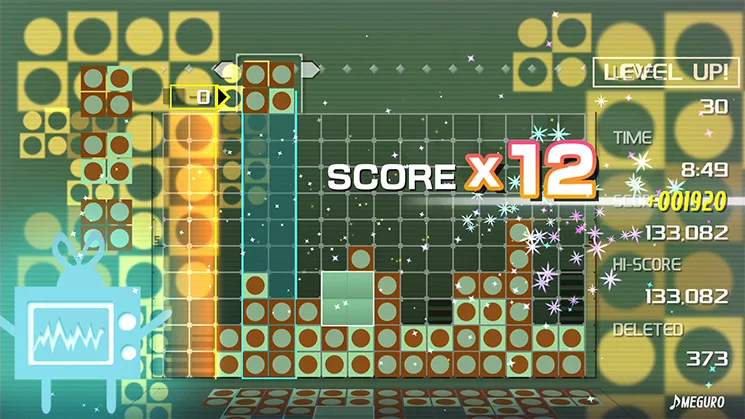
The primary method of customization in Lumines Remastered revolves around unlocking and selecting different Skins and Avatars. Each Skin dramatically alters the visual and auditory presentation of the game, offering new block designs, background animations, and most importantly, unique musical tracks and sound effects. Avatars, on the other hand, are smaller cosmetic elements that represent you in certain game modes.
- Skin Acquisition:
- Challenge Mode Progression: The most straightforward way to unlock new Skins is by progressing through Challenge Mode. As you clear specific score thresholds or survive for set durations, new Skins will become available. For example, reaching a score of 50,000 in Challenge Mode might unlock the "Shinin'" Skin, while surviving for 10 minutes could grant access to "The Future."
- Puzzle Mode Completion: Successfully completing certain Puzzle Mode challenges can also reward you with exclusive Skins. Keep an eye on the Puzzle Mode menu for hints on which puzzles yield these cosmetic bonuses.
- Mission Mode Achievements: Similar to Puzzle Mode, achieving specific objectives in Mission Mode, such as clearing a certain number of blocks with a single Time Line sweep, can unlock unique Skins.
- Versus CPU Victories: Defeating CPU opponents on higher difficulties in Versus Mode can sometimes unlock Skins associated with those particular CPU characters or themes.
- Avatar Acquisition:
- Avatars are typically unlocked through similar methods as Skins, often tied to specific achievements or milestones across all game modes. For instance, clearing 100,000 blocks cumulatively might unlock a "Block Master" Avatar.
- Some Avatars are also granted for simply playing the game for a certain amount of time or for completing the tutorial.
Applying Your Customizations
Once you've unlocked new Skins and Avatars, applying them is a simple process:
- From the Main Menu, navigate to the "Customize" option.
- Select "Skin Selection" to browse your unlocked Skins. Use the directional pad or analog stick to highlight your desired Skin and press the action button (e.g., 'X' on PlayStation, 'A' on Switch) to confirm your choice. The game will often provide a small preview of the Skin's aesthetic.
- To change your Avatar, return to the "Customize" menu and select "Avatar Selection." Choose from your available Avatars and confirm your selection.
- Your chosen Skin and Avatar will now be active in most game modes, including Challenge, Versus, and Puzzle.
Adjusting Audio and Visual Settings
Beyond Skins, Lumines Remastered offers several settings to fine-tune your audio and visual experience, which can be crucial for optimal gameplay and comfort.
- Audio Settings:
- Music Volume: Found under the "Options" menu, this slider allows you to adjust the overall volume of the background music. If a particular Skin's music is too loud or too quiet for your preference, this is where you can fine-tune it.
- SFX Volume: Also in the "Options" menu, this controls the volume of sound effects, such as block rotations, drops, and Time Line sweeps. Adjusting this can help you hear crucial audio cues more clearly.
- Vibration (Controller): For players using controllers, the "Options" menu often includes a toggle for controller vibration. Disabling this can sometimes improve focus for some players, while others prefer the tactile feedback.
- Visual Settings:
- Screen Brightness/Contrast: While not always directly within the game, ensuring your display's brightness and contrast are calibrated correctly can significantly impact the visual clarity of Lumines Remastered, especially with darker Skins. Access these settings via your console or monitor's display options.
- Background Dimming (Specific Skins): Some Skins, particularly those with very busy or bright backgrounds, may have an option within the Skin selection menu to slightly dim the background. This can help reduce visual clutter and keep your focus on the falling blocks. Look for a small toggle or slider when a relevant Skin is highlighted.
Experiment with different combinations of Skins, Avatars, and audio/visual settings to discover what works best for your playstyle. A comfortable and aesthetically pleasing setup can make a significant difference in your enjoyment and performance in Lumines Remastered.