Optimizing Settings for Performance/Preference
While Lumines Remastered is generally a smooth experience, fine-tuning your settings can enhance both performance and your personal enjoyment. Whether you're chasing every frame for competitive play or simply want the game to look and feel just right, this section will guide you through the key options.
Accessing the Options Menu
To begin, navigate to the main menu of Lumines Remastered. From there, select the "Options" entry. This will open a sub-menu containing various adjustable parameters for audio, visual, and gameplay elements.
Visual Settings: Balancing Beauty and Speed
The visual settings are crucial for both aesthetic preference and ensuring a consistent framerate, especially on less powerful hardware or for players sensitive to input lag.
- Resolution: This determines the clarity of the game's display.
- Strategy: On PC, always aim for your monitor's native resolution for the sharpest image. If you experience performance drops, gradually reduce the resolution. On consoles (Switch, PlayStation, Xbox), this is usually handled automatically, but ensure your console's display settings are correctly configured for your TV/monitor.
- V-Sync: Vertical Synchronization helps prevent screen tearing by synchronizing the game's frame rate with your display's refresh rate.
- Strategy: Turn On V-Sync if you notice horizontal "tears" across the screen during gameplay. If you experience input lag or a noticeable drop in frames, try turning it Off. Some players prefer V-Sync off for the lowest possible input latency, even with minor tearing.
- Anti-Aliasing (AA): This smooths out jagged edges on in-game graphics.
- Strategy: Higher AA settings (e.g., MSAA 4x, 8x) provide a cleaner image but can be demanding on your system. If performance is a concern, try reducing this to a lower setting (e.g., MSAA 2x) or turning it Off entirely. Lumines' art style often tolerates lower AA settings well.
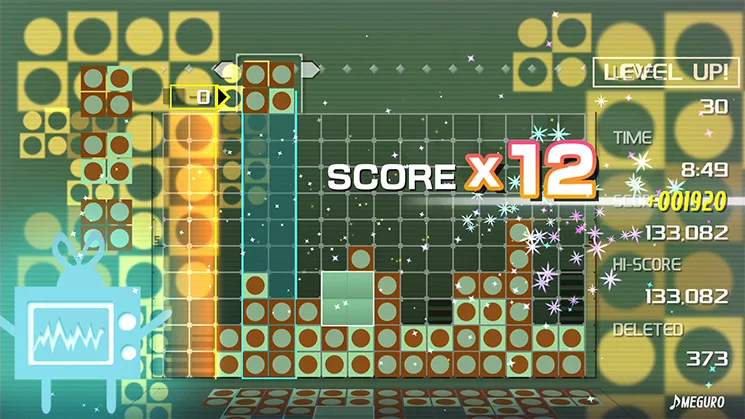
- Background Effects/Particle Density: These control the complexity and number of visual flourishes in the background and during block clears.
- Strategy: If you're experiencing stuttering or frame drops, particularly during intense chain reactions, reducing these settings can significantly improve performance. While they add to the visual flair, a smooth gameplay experience is often prioritized in a rhythm-puzzle game. Look for options like "Visual Complexity" or "Particle Effects" and set them to "Low" or "Medium."
Audio Settings: The Heartbeat of Lumines
Audio is paramount in Lumines Remastered, as the music and sound effects are integral to the gameplay experience and rhythm.
- Master Volume: Controls the overall sound level.
- Strategy: Adjust to your comfort. Ensure it's loud enough to clearly hear the beat and sound effects, which are crucial for timing.
- Music Volume: Controls the volume of the background tracks.
- Strategy: This is often the most important slider. Find a balance where the music is prominent but doesn't drown out the sound effects.
- Sound Effects (SFX) Volume: Controls the volume of block rotations, clears, and other in-game cues.
- Strategy: Keep this at a level where you can distinctly hear block placements and especially the "sweep" line clearing blocks. These auditory cues are vital for anticipating the rhythm and planning your moves.
- Audio Output: Selects your preferred audio device.
- Strategy: Ensure this is set to your headphones or speakers for the best audio fidelity. Playing Lumines with good quality audio equipment significantly enhances the immersive experience.
Gameplay Settings: Tailoring the Experience
These settings allow you to customize how the game plays and feels, impacting your control and comfort.
- Controller Vibration: Enables or disables haptic feedback.
- Strategy: Some players find vibration distracting, while others appreciate the tactile feedback for block placements and clears. Experiment to see what you prefer. Turning it off can also slightly conserve controller battery life.
- Block Drop Speed (Arcade Mode): While not a direct "setting" in the options menu, understanding how different modes affect block speed is key.
- Strategy: In modes like Challenge or Mission, the speed naturally increases. For practice or a more relaxed experience, stick to modes like Skin Edit or Puzzle, where you control the pace. There isn't a universal "slow down" option, so managing mode choice is your best bet.
By carefully adjusting these settings, you can ensure your Lumines Remastered experience is as smooth, responsive, and enjoyable as possible, perfectly tailored to your individual preferences and hardware capabilities.