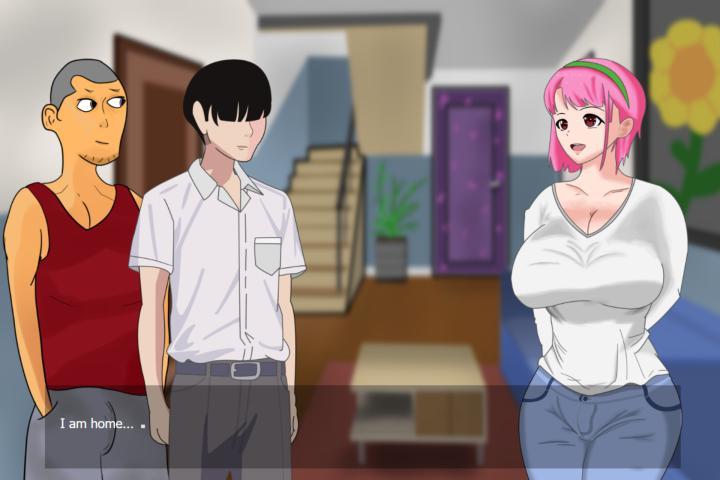
Configure your PC graphics settings for My Time at Evershine. Adjust resolution, shadows, and textures to balance visual fidelity and frame rates.
Optimizing your PC's graphics settings for My Time at Evershine is essential for achieving a balance between visual fidelity and smooth performance. While the exact system requirements are still being verified, simulation games typically benefit from careful adjustment of graphical options. The goal is to leverage your hardware's capabilities without causing performance bottlenecks, ensuring a fluid gameplay experience, especially during busy scenes or when many elements are on screen.
Start by accessing the game's graphics settings menu, usually found within the main options or settings screen. A good starting point is to select a preset that als with your PC's capabilities, such as 'Low', 'Medium', or 'High'. If you're unsure, begin with 'Medium' and then fine-tune individual settings. Key settings to consider include resolution, texture quality, shadow detail, anti-aliasing, and draw distance.
Resolution: This is one of the most impactful settings. Running the game at your monitor's native resolution (e.g., 1920x1080) will provide the sharpest image. If performance is an issue, consider lowering the resolution, but be aware this will make the image appear less crisp. A resolution of 1280x720 is a common step down if needed.
Texture Quality: This affects the detail of surfaces like walls, characters, and objects. Higher settings require more VRAM. If you have a graphics card with 4GB of VRAM or more, 'High' might be achievable. For systems with less VRAM, 'Medium' or 'Low' can significantly improve performance.
Shadow Detail: Shadows can be very performance-intensive. Lowering this setting from 'High' to 'Medium' or 'Low' can yield substantial frame rate improvements with a minimal visual impact in many cases. Consider disabling them entirely if performance is critical.
Anti-Aliasing (AA): This smooths out jagged edges. Options like FXAA are less demanding than MSAA. If you experience significant frame drops, try reducing or disabling AA. A setting of 'FXAA' is often a good compromise.
Draw Distance: This determines how far into the distance objects and details are rendered. Increasing this can make the world feel more expansive but will tax your CPU and GPU. Lowering it can improve performance, especially in open areas.
Experimentation is key. Adjust one setting at a time and observe the impact on your frame rate. Tools like the in-game FPS counter or external software can help you monitor performance. If you're experiencing stuttering, consider reducing settings that affect CPU load, such as draw distance or the number of on-screen characters. For GPU-bound issues, focus on texture quality, shadows, and anti-aliasing. A well-tuned setup will ensure that your time in Evershine is visually pleasing and technically sound.
| Setting | Impact on Performance | Recommendation for Lower-End PCs | Recommendation for High-End PCs |
|---|---|---|---|
| Resolution | Very High | 1280x720 or lower | Native Monitor Resolution (e.g., 1920x1080) |
| Texture Quality | High (VRAM dependent) | Medium or Low | High |
| Shadow Detail | Very High | Low or Off | High |
| Anti-Aliasing | Medium to High | FXAA or Off | MSAA or High FXAA |
| Draw Distance | High (CPU & GPU) | Medium or Low | High |
100% Human-Written. AI Fact-Checked. Community Verified. Learn how AntMag verifies content